A Drive folder that worked yesterday and demands sign-in today is almost never a lost account. It is a stale token asking to be replaced, and the correct response is to fix google drive sign in error xplore connections in the right order: check the account in a browser first, then remove and re-add the storage entry, then look at clocks, updates, and account restrictions only if the simple route fails. Randomly reinstalling the app or repeatedly tapping the failing entry rarely fixes a token problem, and it can cost you your other saved connections while achieving nothing.
Token expired messages appear because of how cloud sign-in works. When you connected Drive, Google issued X-plore a token instead of your password. Tokens can be revoked, expire after security events, break when an account’s password or verification settings change, or be invalidated when Google asks for fresh consent. The fix is therefore not to type your old password into X-plore — X-plore never had it — but to persuade Google to issue a new token through a clean sign-in. This article orders the checks from most likely to least, so most readers will finish on the second or third step.
Fix Google Drive Sign In Error Xplore: Start With the Account Itself in X-plore
Before touching X-plore, open your browser, sign in to the same Google account, and open Drive there. Three outcomes matter. If you cannot sign in on the web either, the problem is the account — a forgotten password, a security hold, a verification demand — and no file manager can fix it; recover the account with Google first. If you sign in and Drive shows a notice about unusual activity, a new terms acceptance, or a storage or policy warning, deal with that notice, because pending account prompts frequently block third-party tokens until they are acknowledged. If the web sign-in works cleanly and your files are all present, the account is healthy and the fault is local to the token X-plore holds, which is the easiest outcome of the three.
While you are signed in on the web, visit Google’s third-party access or connected apps page and look for X-plore in the list. Seeing it there tells you Google still recognises the grant. Removing it from this page is the cleanest possible reset: it revokes the old token at the source, so the next connection attempt inside X-plore must produce a completely fresh consent and a new token, rather than reviving whatever was broken.
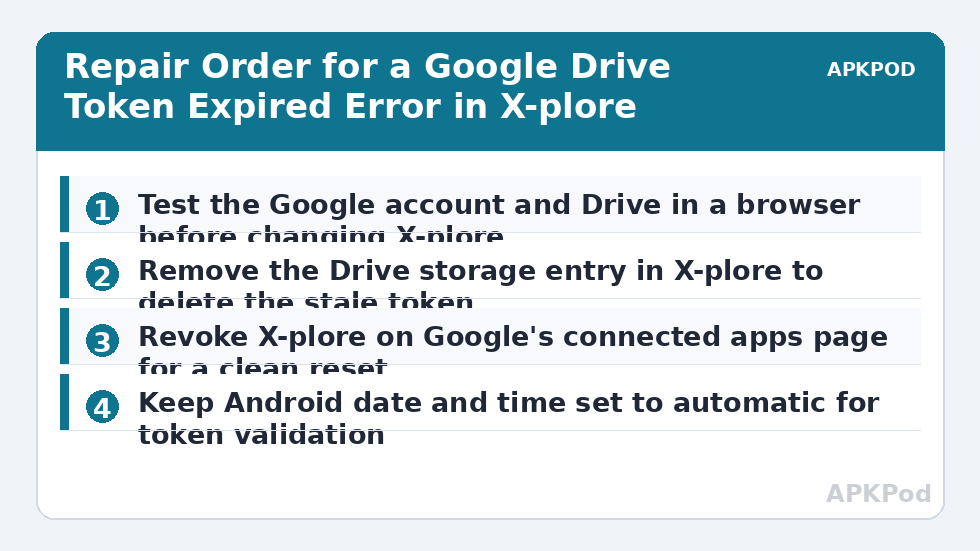
The Reliable Repair: Remove and Re-Add the Drive Entry
- In X-plore, long-press the Google Drive entry under Web storage and remove or delete that storage entry. This deletes the stored token on the phone, not your Drive files.
- If you also revoked access on Google’s connected apps page, wait a minute so the revocation settles.
- Add the storage again from Web storage, choose Google Drive, and sign in on the official Google page that opens, picking the correct account if the phone holds several.
- Complete any two-step verification, read the consent screen, and approve it fully. Backing out halfway leaves a half-finished grant that fails in confusing ways.
- Return to X-plore, open the Drive root folder, then download one small file as a test before trusting the connection with real work.
Bottleneck:
Tip:
All figures are estimates under good local conditions — strong signal, no competing traffic, both devices on the same network. Real speeds drop with distance, walls, channel congestion and slow storage on either device. Protocol options (SMB, FTP, SFTP) assume a 5 GHz-class Wi-Fi link.
When Re-Adding Still Fails: the Second Tier of Checks
| Symptom | Likely cause | What to try |
|---|---|---|
| Sign-in page loops or returns blank | Browser or web view trouble, stale cookies | Update the browser, clear its cookies for the sign-in session, or set a different default browser temporarily |
| Token expired returns immediately after fresh sign-in | Phone date and time wrong, breaking token validation | Turn on automatic date, time and time zone in Android settings, then reconnect |
| Error mentions admin or organisation policy | Work or school account blocks third-party apps | Use a personal account, or ask the organisation’s administrator; this is policy, not a fault |
| Works on Wi-Fi, fails on mobile data | Restrictive network, VPN, or data-saving filter interfering with the sign-in redirect | Disable VPN and data saver for the sign-in attempt, then test again |
| Failure began right after an app or system update | Outdated app version against a changed sign-in flow | Update X-plore, restart the phone, and re-add the Drive entry once more |
Work through that table in order and change one thing at a time. Changing browser, clock, and network simultaneously might fix the problem while teaching you nothing, which guarantees a longer session next time it recurs. Note also that the supported-services and sign-in behaviour inside X-plore have changed historically as Google revised its own sign-in and verification requirements for third-party apps, so an instruction written for a much older version — including screenshots showing an in-app password field — should not be trusted over the current official-page flow described in the guide to link Google Drive, Mega and OneDrive to X-plore.
Preventing the Next Token Failure
- Expect re-sign-in after major account security changes. Changing your Google password, resetting two-step verification, or revoking sessions can invalidate tokens across all your apps; reconnect calmly rather than treating it as a new fault.
- Keep the phone clock automatic. Token validation is time-sensitive, and a manually set clock drifting by even a modest amount causes errors that look like account problems.
- Keep X-plore and your browser updated, because sign-in pages increasingly refuse old web views for security reasons.
- Review connected apps periodically as part of the wider routine in this site’s Cloud & Security section, removing grants for apps and devices you no longer use.
If a re-added Drive works for browsing but uploads or downloads specifically misbehave, the sign-in is probably fixed and the remaining fault lies elsewhere — follow the download-specific checks in the guide to fix cloud file download failures in X-plore, and if other services start failing at the same time as Drive, the housekeeping in the guide to wipe corrupted app cache and logs in X-plore is worth doing before you rebuild every connection from scratch. Resist clearing the app’s data as a shortcut: it throws away every token and saved connection at once, turning a one-account repair into an afternoon of re-setup.
A Note on Repeated Prompts and Shared Devices
If Drive asks you to sign in again every few days rather than failing once, look for a pattern before blaming the token alone. Aggressive battery or data-saving settings that wipe app data, cleaning tools that clear storage on a schedule, and switching the phone between several Google accounts can all disturb a stored connection. On a shared device, another user removing the storage entry or revoking access from the web will also produce what looks like a mysterious recurring failure. Fix the pattern first — exempt X-plore from any automatic cleaning, settle on one account for the connection, and tell anyone who shares the device that the Drive entry is in use — and only then reconnect one final time and watch whether the prompt returns.
Frequently Asked Questions
What does token expired actually mean in X-plore?
It means the reusable access token Google gave X-plore when you signed in is no longer being accepted. The usual fix is to remove the Drive entry in X-plore and add it again, which triggers a fresh sign-in and a new token.
Will removing the Drive entry delete my files from Google Drive?
No. Removing the storage entry only deletes the connection and its stored token on the phone. Your files stay in your Google account, and they reappear as soon as you add the storage again and sign in.
Why does the sign-in fail for my work or school account?
Many organisations block third-party apps or require administrator approval for them. If the error mentions policy or an administrator, the account’s settings are preventing the connection, and only the organisation can allow it.
Could a wrong phone clock really cause a sign-in error?
Yes. Access tokens are validated against time, so a phone clock set manually and drifting from real time can make valid tokens look expired. Turning on automatic date and time fixes this surprisingly often.
Should I reinstall X-plore if Drive will not connect?
Not as a first step. Reinstalling discards other saved connections and settings while rarely addressing the cause. Remove and re-add only the Drive entry, check the account on the web, and work through the clock, browser and network checks first.