To fix slow wifi transfer speed xplore lan copies suffer from, you first have to forgive your router’s box. The number printed on it — 866 Mbps, 1200 Mbps, higher — is a theoretical link rate for one perfect moment, not a file-transfer speed. Real copies divide that number by Wi-Fi’s half-duplex nature, by protocol overhead, by distance and walls, and by every other device sharing the same airtime, and what survives is often a tenth of the headline. That is why a transfer crawling at a few megabytes per second is usually not a broken X-plore or a broken phone; it is physics and contention, and nearly every cause has a specific, testable fix. This guide orders those causes the way a troubleshooter meets them: measure honestly first, then remove bottlenecks one at a time.
Measure Honestly: Units, Baselines, and the Copy Test
X-plore reports copy progress in megabytes per second (MB/s), while routers and bitrates speak megabits per second (Mbps). Multiply MB/s by eight before comparing anything, or you will chase a problem that is actually a unit conversion: a copy at 10 MB/s is moving 80 Mbps, which is respectable for 5 GHz Wi-Fi in a real house. Establish a baseline before changing settings — copy one large file, a few hundred megabytes or more, because small files never reach full speed — and run the same copy from the same spot each time you change one variable. Note the other endpoint too: a second wireless device halves effective throughput before you start, because every packet crosses the air twice.
| Connection type | Typical real-world throughput range | Typical file copy speed that implies |
|---|---|---|
| 2.4 GHz, 20 MHz channel, one room away | 20–50 Mbps | Roughly 2–6 MB/s |
| 2.4 GHz, strong signal, close to router | 40–90 Mbps | Roughly 5–11 MB/s |
| 5 GHz, 80 MHz channel, same room | 200–450 Mbps | Roughly 25–55 MB/s |
| 5 GHz, through one or two walls | 80–250 Mbps | Roughly 10–30 MB/s |
| Wi-Fi 6, 5 GHz, strong signal | 300–700 Mbps | Roughly 35–85 MB/s |
| Either band, weak signal at range edge | 5–25 Mbps, highly variable | Under 3 MB/s, with stalls |
These are typical ranges for orientation, not promises. They give you a sanity check: if a same-room 5 GHz copy runs at 3 MB/s, something specific is wrong and fixable, while 4 MB/s at the far end of a 2.4 GHz house is the network working as physics intended.
Cause 1: You Are on 2.4 GHz, or the Signal Is Weak
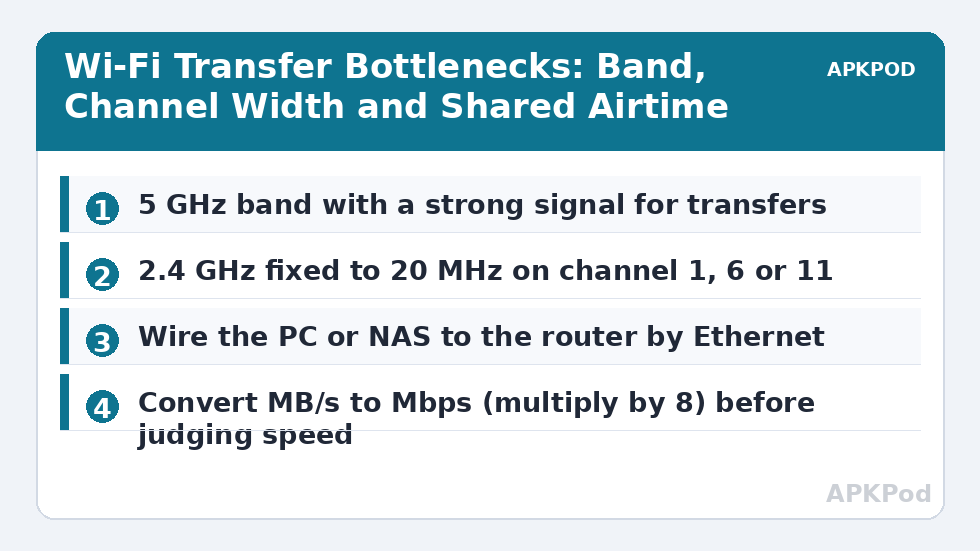
The 2.4 GHz band travels through walls better, which is exactly why every network in the street is shouting on it, along with Bluetooth devices and microwave ovens. Its channels are few and overlapping, and a phone clinging to a distant 2.4 GHz signal at a low negotiated rate will crawl no matter what X-plore does. For transfer sessions, connect the phone to the 5 GHz network and work within its shorter, cleaner range. Check the negotiated link speed in the phone’s Wi-Fi details: a low double-digit Mbps figure near the router means the phone band-steered itself onto 2.4 GHz, and forgetting and rejoining the 5 GHz SSID usually corrects it. Splitting the bands into separate network names in the router removes the guesswork entirely — you choose the band, not an algorithm.
Cause 2: Channel Width and Congestion Settings on the Router
Channel width is a trade-off the router’s auto setting does not always judge well. On 5 GHz, an 80 MHz channel width offers the highest speeds when the air is clear, but in a dense apartment block a 40 MHz channel can deliver steadier real throughput because it overlaps fewer neighbours and retransmits less. On 2.4 GHz, set 20 MHz and never 40: the band is only wide enough for three clean 20 MHz channels (1, 6, and 11), and a 40 MHz setting there guarantees interference. Use a Wi-Fi analyser view to pick the least occupied channel instead of leaving the choice on auto in a crowded building, and keep the router’s firmware updated, because radio and roaming fixes ship in firmware more often than in new hardware.
Cause 3: Both Endpoints Are Wireless, and the Airtime Is Shared
Wi-Fi is half-duplex and shared: on a given channel, one device talks at a time, and everyone else waits. A phone-to-PC copy where the PC is also on Wi-Fi sends every packet twice through the same air — PC to router, router to phone — halving the ceiling before overhead, and any third device streaming or backing up takes its turns out of the same budget. This is why the single highest-impact change in this entire guide is unglamorous: plug the PC, NAS, or whatever serves the files into the router with an Ethernet cable. The wireless side then carries each packet once, the wired side never contends, and transfers commonly double without touching a single Wi-Fi setting. The same logic explains why speeds mysteriously collapse in the evening: the network did not change, the neighbourhood’s airtime usage did.
Bottleneck:
Tip:
All figures are estimates under good local conditions — strong signal, no competing traffic, both devices on the same network. Real speeds drop with distance, walls, channel congestion and slow storage on either device. Protocol options (SMB, FTP, SFTP) assume a 5 GHz-class Wi-Fi link.
How to Fix Slow Wifi Transfer Speed Xplore LAN Copies Report, Step by Step
- Baseline honestly: one large file, same location, note the MB/s, and convert to Mbps before judging it against the table above.
- Move the phone onto 5 GHz with a strong signal, and confirm the negotiated link speed looks like a 5 GHz figure.
- Wire the PC or NAS to the router with Ethernet if it is not already, and re-run the identical copy.
- Set 2.4 GHz to 20 MHz on channel 1, 6, or 11, and try 40 MHz versus 80 MHz on 5 GHz, re-testing after each single change.
- Pause competing traffic — cloud backups, game downloads, other streams — during the test copy, then decide whether a permanent schedule for those jobs is worthwhile.
- Check the phone itself: disable Wi-Fi power saving behaviours during big transfers by keeping the screen awake on charge, and make sure no VPN app is routing local traffic the long way round.
- Re-test at your real usage location, and accept the number physics gives you there — or improve that room’s coverage with a properly placed access point.
Two protocol notes belong here. FTP and SMB transfers in X-plore differ in overhead: SMB carries more session and metadata chatter, so on a marginal link an FTP transfer in X-plore’s Wi-Fi server mode can edge ahead, while on a healthy link the difference disappears into the noise. And if your problem is not slowness but transfers that stall and die partway, that is a different fault tree — follow fixing network timeouts and dropped LAN transfers instead of tuning for speed. The Network Setup category also covers Wi-Fi server mode in depth for phone-as-server transfers, and the streaming guide explains how these same throughput figures decide whether video streamed over the LAN plays smoothly or buffers.
When the Bottleneck Is Not Wi-Fi at All
Sometimes the radio is innocent. A NAS throttled by a 100 Mbps Ethernet port on an otherwise gigabit network, a phone writing to a slow microSD card, or antivirus software scanning every file as it lands can each cap a transfer below anything Wi-Fi is doing. Isolate the layer: copy the same file between two wired devices and see whether the slowness follows the storage rather than the signal. If wired-to-wired is fast and only the phone leg is slow, you are back to bands, channels, and airtime above. If everything is slow, the server or its storage is the ceiling, and no router setting will raise it.
Frequently Asked Questions
Why does X-plore show MB/s while my router promises hundreds of Mbps?
They are different units: megabytes versus megabits, a factor of eight. A copy shown as 12 MB/s is moving about 96 Mbps. Router figures are also theoretical maximum link rates, while real throughput is reduced by half-duplex operation, overhead, distance, and sharing — so a healthy real-world result is often a third to a tenth of the number on the box.
Will switching to 5 GHz always make transfers faster?
Not always. 5 GHz offers far more capacity and cleaner air, but its signal fades faster through walls, so at the far end of a building a strong 2.4 GHz link can beat a weak 5 GHz one. The rule is to use 5 GHz wherever its signal is decent, and treat a weak 5 GHz connection as a coverage problem, not a settings problem.
Why do my transfers get slower in the evening?
Because Wi-Fi airtime is shared with every device on your channel and overlapping channels nearby. Evenings bring neighbours home, streaming boxes on, and backups scheduled — all taking turns on the same air. Wiring your file-serving device, choosing a less crowded channel, and scheduling heavy jobs for quieter hours are the practical answers.
Does using FTP instead of SMB make transfers faster?
Slightly, on a marginal connection, because SMB carries more protocol overhead for its sessions and metadata. On a healthy 5 GHz link the difference is negligible and the Wi-Fi itself is the limit. Choose the protocol for its features and security, and fix the network layer if speeds disappoint.
Why does copying many small files take so much longer than one big file?
Every file carries fixed costs: opening the file, checking permissions, updating directory entries, and closing it, at both ends. Thousands of photos or documents pay that cost thousands of times, so the average rate collapses even on fast Wi-Fi. If X-plore lets you archive a folder into one large file first, transferring the archive is dramatically quicker.