The television is the best screen in the house for photos and home video, and the way to put your archives on it without cables is to access cloud storage smart tv xplore style: sign your cloud accounts into X-plore File Manager once, then browse Google Drive, OneDrive, Dropbox and friends from the sofa as if they were folders on the TV. X-plore treats each connected cloud account as another root in its device list, so the dual-pane habits you already know apply unchanged — one pane a cloud folder, the other the TV’s storage or a USB drive. This guide covers linking accounts on TV hardware (including the phone-handoff sign-in trick), what plays well directly from the cloud, and the limits that matter on a television.
Linking a Cloud Account from the Television
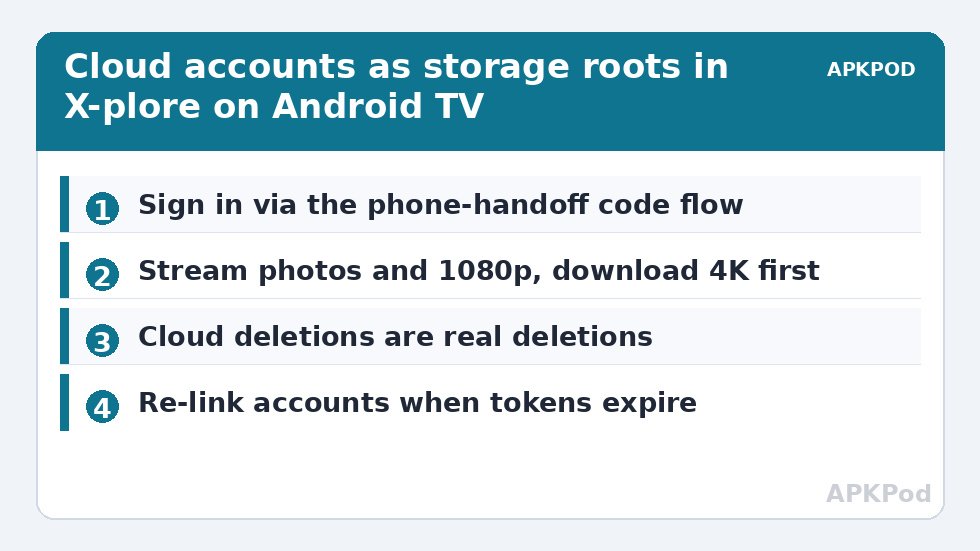
In X-plore, open the device list (Back from the top level of either pane) and choose the option to add cloud storage — X-plore labels it Web storage in some builds — then pick your provider: Google Drive, Dropbox, OneDrive, Box, Mega and several others are supported. The awkward part on TV is authentication: typing a strong password on an on-screen keyboard is miserable, and provider sign-in pages assume a browser. X-plore’s practical answer is a code-based handoff: the TV shows a short code or link, you complete the sign-in on your phone or PC where you are already logged in, and the TV session is authorised. When linking finishes, the account appears as a root entry with your folders inside.
Do this on your home network, and sign in only to your own accounts — a television in shared housing is a semi-public terminal, a point that also shapes the Vault advice in using X-plore Vault on a Smart TV. If you have not yet installed the app or granted its storage permissions, installing and navigating X-plore on Android TV is the prerequisite.
What Plays Straight from the Cloud — and What to Download First
| Content | Stream from cloud | Better downloaded first | Why |
|---|---|---|---|
| Photos and slideshows | Excellent | — | Small files, quick loads, ideal for family viewing |
| Music library | Good | Whole albums for a road-trip box | Per-track buffering is barely noticeable |
| 1080p home video / films | Good on stable 5 GHz or Ethernet | If your Wi-Fi fluctuates | A dropout mid-film is more annoying than a two-minute download |
| 4K video | Risky | Almost always | Sustained bitrates of 15–25+ Mbps punish TV Wi-Fi |
| Documents and APKs you own | N/A — files, not streams | Download to local folder | They open with other apps from local storage |
The dual-pane pattern makes the download route painless: cloud account in the left pane, a “Watch tonight” folder on the USB drive or internal storage in the right, copy, done. For a sense of scale, a 4 GB film over a typical home connection to the TV lands in the same range as other network copies to TV hardware:
Bottleneck:
Tip:
All figures are estimates under good local conditions — strong signal, no competing traffic, both devices on the same network. Real speeds drop with distance, walls, channel congestion and slow storage on either device. Protocol options (SMB, FTP, SFTP) assume a 5 GHz-class Wi-Fi link.
Managing Cloud Files from the Sofa
Everything you can do to a local folder works on cloud roots: rename, copy between two different cloud accounts (X-plore will relay the data through the TV, so keep the TV awake), delete, and create folders. Two TV-specific cautions apply. First, deleting in a cloud pane deletes in the cloud — there is no separate “TV copy” — so treat the confirmation dialogue seriously, the same discipline as with the remote techniques in navigating the dual panes by remote. Second, the TV’s limited storage is not consumed by browsing the cloud, but thumbnails and any files you open with other apps may be cached locally; on an 8 GB box, periodically review what has accumulated using the Android TV cache-cleaning routine.
When a Cloud Account Misbehaves on TV
- “Sign-in expired” or an empty folder: the provider revoked the token — remove the account in X-plore and link it again. This is the TV twin of the phone-side token problem, and it is a re-link, not data loss.
- Folders list but files will not open: usually the TV went to sleep and the session token aged out, or the network changed (router reboot, new IP range). Restart X-plore and reopen the account.
- Streaming stutters only in the evening: household contention plus TV Wi-Fi limits; wire the TV by Ethernet or pre-download the film to the USB drive as in using external drives with X-plore.
- Two accounts from the same provider: supported in X-plore by adding the service again; name them clearly in your own notes so family members know whose archive they are browsing.
Access Cloud Storage Smart TV Xplore Sessions: Safety Habits
A television signed in to your cloud is a convenience with a blast radius, so adopt the household rules that fit your home. In a home where the TV is genuinely private, staying signed in is reasonable. In shared housing, a rental, or anywhere guests drive the remote, treat the TV like a library computer: browse what you came for, and sign the cloud account out of X-plore when the session ends — re-linking takes a minute with the phone handoff, and it converts “anyone can open my archive” into “nobody can”. Where the household lands in between, Vault is the middle path: keep the account linked for the family library, and keep the genuinely personal material encrypted rather than merely unlabelled.
Two practical notes complete the picture. Streaming from the cloud counts against your internet usage exactly like any streaming service, so a household on a capped connection should download favourites once to the USB drive instead of re-streaming them nightly. And when the home internet dies — it will, mid-slideshow, in front of guests — a small local folder of family photos on the TV itself is the difference between a shrug and a ruined evening. More resilience habits like these live in our TV & Storage guides.
Bandwidth deserves one more honest paragraph, because cloud-on-TV disappoints precisely where expectations were set by phones. A phone streams from the cloud over the same Wi-Fi but buffers aggressively and shows a small picture; the TV shows every stutter at 55 inches and its Wi-Fi radio is often the weakest in the house. If cloud viewing is a centrepiece of your setup rather than an occasional pleasure, the Ethernet cable — or a powerline adapter where a cable cannot run — is the upgrade that makes the feature feel designed rather than tolerated. Test the difference with the same 4K file on consecutive evenings and the argument settles itself.
Frequently Asked Questions
Which cloud services does X-plore support on Android TV?
The same set as on phones: Google Drive, Dropbox, OneDrive, Box, Mega, and several WebDAV/SMB-style services, among others. The exact list can shift between app versions, but the major consumer drives are covered.
Does watching a film from Google Drive use my TV’s storage?
Only small caches and thumbnails. The film itself streams, so a 4K movie does not consume gigabytes of the TV’s internal space — though downloading it first is still smoother on weak Wi-Fi.
Can I copy files from one cloud account to another on the TV?
Yes — put one account in each pane and copy. The data passes through the TV, so the transfer takes as long as downloading and re-uploading combined, and the TV must stay awake throughout.
Is it safe to stay signed in to my cloud on a shared TV?
It is convenient but not private: anyone with the remote can browse the account. On a shared set, protect sensitive material inside X-plore Vault and consider signing out of personal drives between uses.
Why did my cloud account disappear from X-plore?
Usually the provider expired the authorisation token, an X-plore or TV update reset the connection, or the account was removed in the app’s Web storage settings. Re-linking the account restores it; the files in the cloud are unaffected.