
Most people open X-plore, see two folder trees side by side, and then spend months working in only one of them. That is a waste of the app’s best idea. The whole point of the xplore dual pane interface copy move files workflow is that the left pane holds where your files are and the right pane holds where they are going, so a transfer becomes a single deliberate action instead of a chain of copy, navigate, paste, navigate back. Once the habit forms, reorganising a downloads folder or clearing out a camera roll stops feeling like housework.
X-plore, developed by Lonely Cat Games, has used this dual-pane layout since long before Android file managers became fashionable. It borrows from classic desktop commanders: two independent trees, one active pane, and an operations bar that always acts from the active side to the other side. Everything in this guide builds on that one mental model.
The Xplore Dual Pane Interface Copy Move Files Model, Explained
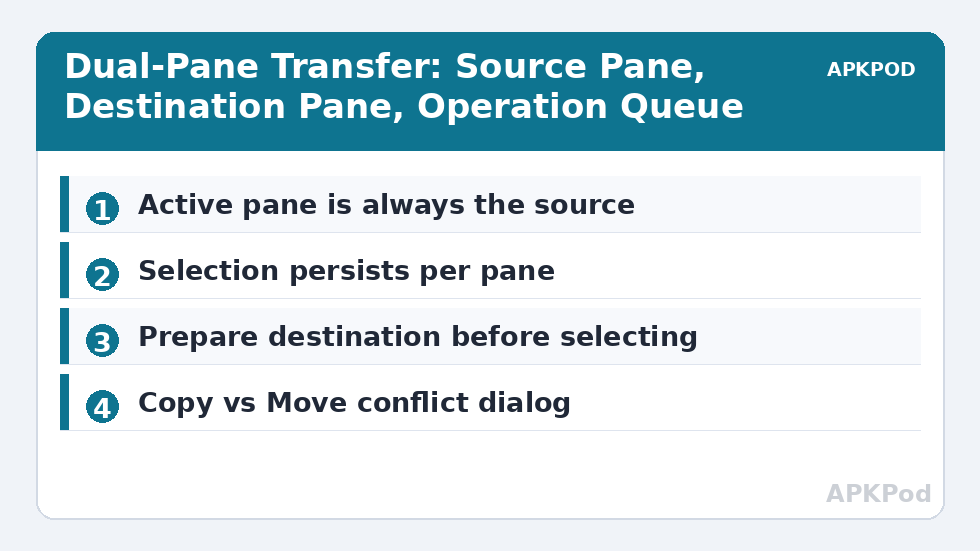
Think of each pane as a complete, independent file manager. Each has its own folder tree, its own current directory and its own scroll position. The pane you last tapped is the active pane, shown with a highlighted path bar. The inactive pane is not a preview or a clipboard; it is simply the destination waiting for you. When you press Copy or Move on the button bar, X-plore always reads from the active pane and writes to the folder open in the inactive pane.
On a phone in portrait, the two panes sit behind a swipe: drag from the centre divider or tap the pane tabs at the top to slide between them. In landscape, and on tablets or Android TV, both panes are visible at once. Either way the logic is identical, and learning it in portrait pays off immediately when you rotate the phone for a big reorganisation session.
The tree on the left of each pane shows your storage roots: internal storage, SD card, USB drives, LAN shares, cloud accounts and the App Manager. Expanding a root inside one pane does not disturb the other, which is exactly what makes paired working possible. Set one pane to DCIM/Camera and the other to a backup folder on your SD card, and you have a standing workstation for photo offloads.
Selecting Files Without Losing Your Place
Transfers start with selection, and X-plore gives you three speeds of it. Tap a file’s icon and a checkmark appears: you are now in multi-selection mode, and further taps toggle items in or out. A long press on a folder selects everything inside it in one go, which is the fastest way to grab a whole album. The menu also offers Select all and Invert selection for the current folder, handy when you want everything except two or three items.
Selection is per-pane and survives switching sides. You can mark six files on the left, slide to the right pane to create or open the destination folder, then slide back and your checkmarks are still waiting. If you make a mess of it, the deselect option clears the pane without touching anything on disk.
Copying and Moving, Step by Step
- In the source pane, navigate to the folder containing your files and checkmark everything you want to transfer.
- Switch to the other pane and open the destination folder. Create it first if needed with the New folder button.
- Switch back to the source pane so it is the active one.
- Press Copy to duplicate the files, or Move to relocate them.
- Confirm the operation dialog, which shows the source, the destination and how conflicts will be handled.
The difference between a confident user and a nervous one is the confirmation dialog. It tells you exactly how many items are moving and where to. If a file with the same name already exists at the destination, X-plore asks whether to overwrite, skip or rename, and you can apply the choice to all remaining conflicts. Read that dialog every time for the first month and you will never lose a file to a careless move.
Larger jobs run as queued operations with a progress bar, and they continue in the background while you keep browsing. Queue a 4 GB video copy, then start renaming photos in the other pane; X-plore works through the operations in order. Before any big move, it is worth setting up bookmarks for the folders you use every week so the destination pane is always two taps away.
Habits That Make the Second Pane Feel Instant
| Action | What it does | When to use it |
|---|---|---|
| Tap file icon | Enters selection mode and checks the item | Starting any multi-file transfer |
| Long press folder | Selects the folder and its contents | Moving whole albums or project folders |
| Swipe between panes | Switches the active pane | Checking the destination before you commit |
| Copy button | Duplicates selection into the other pane’s folder | Backups and sharing to a second location |
| Move button | Relocates selection into the other pane’s folder | Reorganising without doubling storage use |
Two habits separate fast users from slow ones. First, always prepare the destination before selecting the source; hunting for a folder with twelve files checked is where mistakes breed. Second, treat the panes as a pair with roles. Many people keep the left pane as “device” and the right pane as “archive” (SD card, NAS or cloud) for every session, so muscle memory builds. If your transfers involve finding things first, pair this workflow with the techniques in our guide to multi-selection gestures and touch controls, and browse the rest of the Dual-Pane Tips collection for the features that plug into this foundation.
The Panes Are Not Just for Local Files
Everything said so far applies with the source on your phone — but the destination pane does not care where it points. Put a LAN share in the right pane and the same Copy button becomes a network transfer, complete with the same queue and conflict handling. Put a cloud account there and it becomes an upload. This indifference is the design’s genius: you learn one operation grammar and it works across local storage, SD cards, USB drives, network shares and cloud roots without new habits.
It also changes how you stage big jobs. A pane pointed at a NAS folder can be prepared hours before the copy — server added, folder opened, credentials settled — so when the files are ready, the transfer is a single press. Staging destinations ahead of time, for local and network work alike, is the mark of someone who has stopped fighting the tool.
Bottleneck:
Tip:
All figures are estimates under good local conditions — strong signal, no competing traffic, both devices on the same network. Real speeds drop with distance, walls, channel congestion and slow storage on either device. Protocol options (SMB, FTP, SFTP) assume a 5 GHz-class Wi-Fi link.
Mistakes That Cause Lost or Duplicated Files
The classic error is moving when you meant to copy, usually because the wrong pane was active. If the destination suddenly fills with files you expected to stay put, you pressed Move from the wrong side; undo it by reversing the operation while both folders are still open. The second error is copying a folder into itself, which X-plore blocks, but copying a folder into its own subfolder through a shortcut can create confusing loops. The third is interrupting a large move halfway and then repeating it, producing duplicates with renamed suffixes. Let queued operations finish, and use the conflict dialog’s skip option when resuming.
Finally, remember that a move between two locations on the same storage is nearly instant because only directory entries change, while a move between internal storage and an SD card physically copies every byte and then deletes the originals. Budget time accordingly, and never start a cross-device move on a nearly empty battery.
Frequently Asked Questions
How do I know which pane is the active one in X-plore?
The active pane has the highlighted path bar and shows the current selection checkmarks. Any Copy or Move operation always starts from the active pane and lands in the folder open in the other pane.
Can I copy files between internal storage and an SD card with dual pane?
Yes. Open internal storage in one pane and the SD card in the other, select your files, and press Copy or Move. Cross-device transfers physically copy the data, so large video files will take noticeably longer than same-device moves.
What happens if a file with the same name already exists at the destination?
X-plore shows a conflict dialog offering overwrite, skip or rename for that file, with an option to apply your choice to every remaining conflict in the same operation.
Do my selected files stay selected when I switch panes?
Yes. Selection is stored per pane, so you can mark files on one side, switch to prepare the destination folder, and return to find your checkmarks untouched.
Is moving files between panes risky for large folders?
Moves on the same storage only update directory entries and are safe and instant. Moves across devices copy then delete, so let the operation finish completely and keep the phone charged during very large transfers.