Two phones, no router, no cable, and a 2 GB video that needs to move from one hand to the other before a train leaves. That is the problem you solve when you setup wifi server mode xplore mobile sharing correctly. One phone becomes the server, the other connects to it, and X-plore moves the files directly between them over Wi-Fi. No cloud upload, no mobile data allowance burned, and no waiting for a messaging app to compress your video into something unwatchable.
X-plore calls this family of features Wi-Fi file sharing and Wi-Fi server in different builds, and it sits alongside the app’s other sharing tools such as its FTP server. The idea is simple. The host phone starts a server, shows an address or a code to connect with, and the second device opens that address in X-plore or in a browser. What makes the feature worth learning properly is everything around that simple idea: which phone should host, how to protect the session with a password, and how to close the server down when the last file lands.
How to Setup WiFi Server Mode Xplore Mobile Sharing on the Host Phone
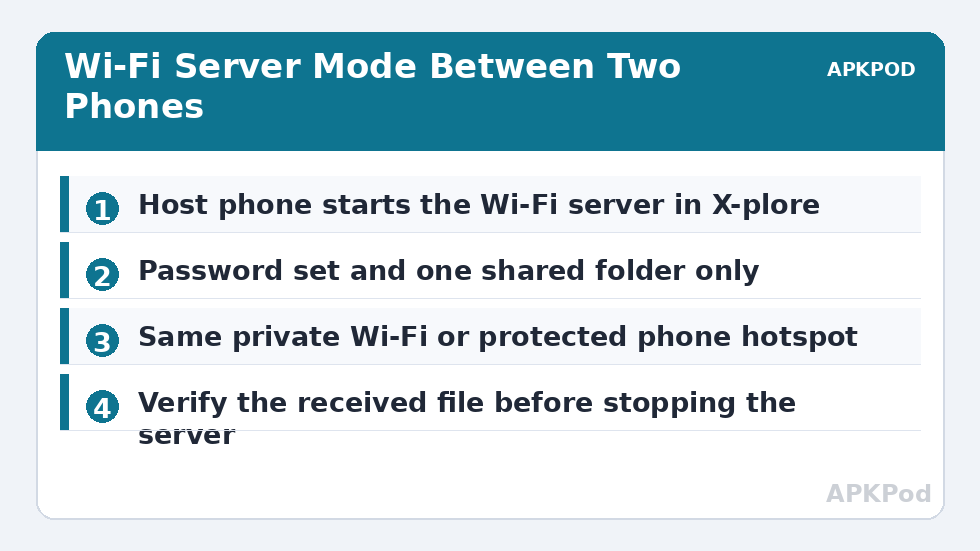
On the phone that holds the files, open X-plore and find the Wi-Fi sharing option in the main menu. Start the Wi-Fi server. X-plore will show connection details, typically a local address with a port, and in many builds a QR code or access details you can share with the second device. Before you hand those details to anyone, open the sharing settings and set a password if the build offers one for this mode, and choose the folder you intend to share rather than exposing the entire device by habit.
Decide which network the two phones will use. If both phones are already on the same home Wi-Fi, the server address X-plore shows will be a normal private address on that network, and the second phone simply connects to it. If there is no router at all, one phone can start a Wi-Fi hotspot and the other joins that hotspot network, after which X-plore’s server works over that direct local link. The hotspot route uses no mobile data for the transfer itself because the files never leave the two phones, but keep the hotspot password protected so strangers nearby cannot join your impromptu network.
What the Receiving Phone or Computer Does
On a second Android phone with X-plore installed, look for the matching Wi-Fi share or LAN option and enter the address shown on the host, or scan the code if offered. The receiving X-plore will list the shared folders, and from there the experience is the same dual pane copying you use with any other server in the app. Put the incoming folder in one pane, local storage in the other, select, and copy.
On a laptop without X-plore, a browser is usually enough for downloads because X-plore’s Wi-Fi sharing presents a simple web interface in many configurations. Type the full address including the port into the browser on the same network. If the page does not load, the two devices are almost never on truly the same network. Guest Wi-Fi networks, hotspot isolation settings, and VPN apps on either phone are the three most common reasons two devices sitting side by side cannot see each other.
Settings That Decide Whether Sharing Feels Effortless or Fragile
| Setting or choice | Recommended approach | Why it matters |
|---|---|---|
| Shared folder | One folder prepared for sharing, not whole storage | Limits what a connected device can browse or change |
| Password | Set one for every session outside your own two devices | Anyone on the same network could otherwise try the address |
| Network | Same private Wi-Fi, or a password-protected hotspot from one phone | Guest and isolated networks block device-to-device traffic |
| Battery | Host phone plugged in or well charged for large jobs | Running a server plus Wi-Fi plus disk access drains power quickly |
| Session length | Start, transfer, verify, stop | A stopped server cannot be discovered or probed |
| Typical speed range | Roughly 6 to 30 MB/s as a typical range on modern phones and Wi-Fi | Band, distance, and phone hardware all move the real figure |
That last habit, stopping the server, deserves emphasis because phone-to-phone sharing encourages informality. You lend a file to a friend, the phones go back into pockets, and a sharing server quietly keeps running on a network you are about to leave. Make verification part of the ritual. Open the received file on the destination phone, play ten seconds of the video or open the document, and only then stop the server on the host and disconnect. A copied file you have never opened is not yet a successful transfer.
Bottleneck:
Tip:
All figures are estimates under good local conditions — strong signal, no competing traffic, both devices on the same network. Real speeds drop with distance, walls, channel congestion and slow storage on either device. Protocol options (SMB, FTP, SFTP) assume a 5 GHz-class Wi-Fi link.
Phone to Phone, Phone to PC, and When to Pick a Different Tool
Wi-Fi server mode shines for occasional, direct sharing between devices in the same place. It is less suited to scheduled or repeated jobs. If you move files between the same phone and PC every day, a standing SMB connection from our guide to connecting X-plore to Windows shared folders will serve you better because the PC share is always there waiting. If you want a PC to browse the phone instead, the opposite direction covered in setting up the FTP server in X-plore is the closer match. These tools overlap, and choosing between them is about direction and frequency, not about one being universally superior.
For families, Wi-Fi sharing needs no accounts and leaves no copy on anyone else’s servers. A grandparent’s phone can receive a folder of photos directly from yours during a visit, entirely between the two handsets. Browse the wider Network Setup collection to compare this direct approach with NAS and sync-based methods.
Fixing the Three Failures You Will Actually Meet
First, the receiving device cannot find the host. Check both phones are on the same network name, disable any VPN on either phone for the session, and confirm the server is still running on the host, since Android battery optimisation can stop background apps. Allowing X-plore to run without battery restrictions during large transfers prevents mid-job shutdowns.
Second, the connection opens but transfers stall or crawl. Move both phones closer to the router or to each other in hotspot mode, switch to the 5 GHz band if the network offers it, and stop other heavy Wi-Fi use during the job. If stalls persist on longer sessions, the patterns in backing up phone storage to a PC over Wi-Fi apply here too, especially splitting big jobs into verified batches instead of one fragile marathon copy.
Third, the file arrives but will not open. Compare the file size on both phones before blaming the file itself. A size mismatch means the copy was interrupted and the destination holds a truncated file. Delete it, free space if the destination was nearly full, and copy again. Running out of storage mid-transfer is embarrassingly common when a 64 GB phone meets a 4K video habit, and X-plore can only write what the destination can hold.
Security Notes for a Feature Built on Trust
Wi-Fi server mode is a local tool. Its safety comes from the network around it and the password you set, not from strong encryption of the kind SFTP provides. Use it on networks you trust, which means your home network or a hotspot you created with your own password. Avoid starting a share on public or hotel Wi-Fi, where dozens of strangers’ devices share the same network segment and may be able to reach your server address. If the files are sensitive, move them another way, or at minimum place them inside X-plore’s Vault workflow before and after transfer if they must stay protected on the device itself.
Treated with that modest discipline, Wi-Fi server mode becomes the fastest answer to the most common sharing question in any household, which is simply how to get this file from my phone to yours right now. No accounts, no uploads, no cables, and no compressed copies. Just two phones, one short-lived server, and a verification step before you switch it off.
Frequently Asked Questions
Do both phones need X-plore for Wi-Fi server mode?
Having X-plore on both phones gives the smoothest experience with dual pane copying. A receiving computer can often use a web browser instead, while a receiving phone without X-plore may be limited to browser downloads.
Does Wi-Fi file sharing use my mobile data?
No, not when both devices are on the same local Wi-Fi network or connected through one phone’s hotspot. The files travel directly between devices on the local network and never go out to the internet.
Why can’t the other phone find my X-plore server?
Check that both devices are on the same network, turn off VPN apps during the session, make sure the server is still running on the host phone, and avoid guest networks, which often block devices from seeing each other.
How fast is Wi-Fi server mode between two phones?
Typical ranges are roughly 6 to 30 MB/s on modern phones over a good Wi-Fi connection. Signal strength, Wi-Fi band, distance from the router, and the phones’ storage speed all affect the result.
Is Wi-Fi server mode safe to leave running?
It is better to stop the server when your transfer finishes and you have verified the files. A running server is discoverable on the local network, while a stopped one presents no risk at all and restarts in seconds.