
The folder tree is where you live inside X-plore, and most people never change a single thing about it. Learning to customize xplore tree view navigation turns that tree from a fixed list you endure into a workspace shaped around your phone: the roots you use daily at the top, the clutter hidden, and every pane opening exactly where you left it. Ten minutes in the configuration screens pays you back every single day.
Unlike simple file managers that show one flat list of folders, X-plore’s tree shows storage locations as expandable roots. Internal storage, SD card, USB drives, LAN servers, cloud accounts, the App Manager and the Disk Map all live in the same outline, and each pane keeps its own expanded state.
How to Customize Xplore Tree View Navigation and Root Folders
Open Menu → More → Configuration and look for the display and tree options. From there you control the building blocks: which storage roots appear, whether hidden files and folders are shown, how items are sorted, and whether the tree remembers its state. The exact wording shifts slightly between X-plore versions, but the structure has been stable for years.
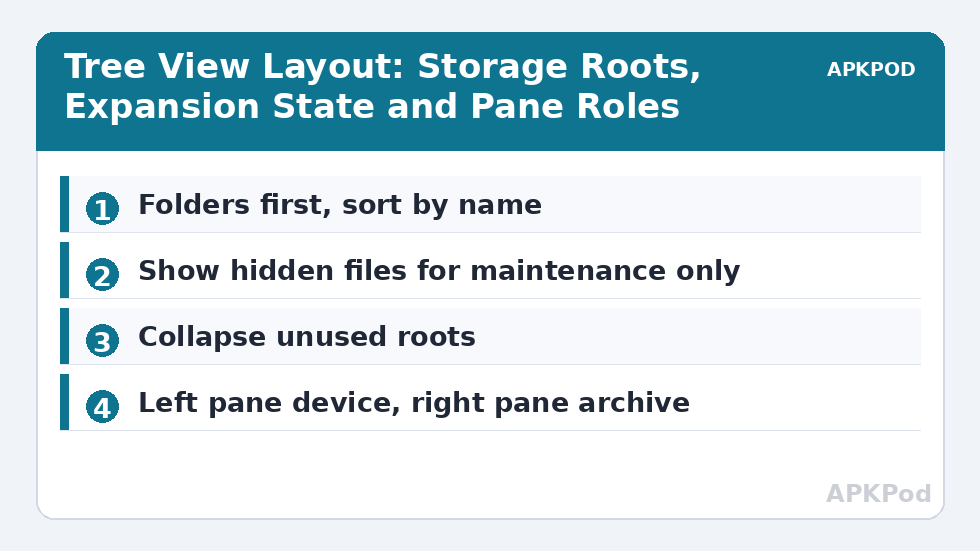
The first decision is root order. The tree lists roots in a fixed sequence, but you influence what matters by collapsing what you ignore. If you never use the built-in cloud entries, leave them collapsed; if your NAS is your second home, keep the LAN branch expanded so your shares are one tap from open. Pair this with bookmarked favourite folders and your five most-used locations are always visible without scrolling.
Sorting deserves its own moment. X-plore can sort folders and files together or folders first, by name, size or date. Folders-first with name sorting is the sanest default for navigation, because the tree then reads like a map rather than a jumble. Date sorting has its place in download folders, but as a global default it makes the tree feel unstable, since positions change every time a file is touched.
Showing, Hiding and Understanding Root Entries
The “Show hidden files” option in Configuration reveals dot-folders and system directories that Android normally keeps out of sight. Turn it on if you troubleshoot apps or manage media libraries; turn it off for a cleaner everyday tree. This single toggle interacts with a lot of other features, and our dedicated guide on viewing hidden files and .nomedia folders explains the media-scanning side effects before you flip it.
Some roots are contextual. A USB drive appears when attached and vanishes when removed; a LAN server appears once you have added it. If a root you expect is missing, the cause is usually permissions: Android’s storage access prompts gate what any file manager can see, and X-plore will ask you to grant access to specific folders on modern Android versions. Grant those prompts deliberately, folder by folder, rather than hunting for a master switch that does not exist.
Making Each Pane Remember Its Job
Because each pane has an independent tree, you can develop a spatial routine: left pane lives in internal storage, right pane in the SD card or network. X-plore restores pane state between sessions, so that arrangement greets you every launch. Resist the urge to keep both panes in the same place; the whole value of the dual-pane copying workflow comes from the panes having different homes.
On Android TV the same tree is navigated with a remote, and expansion works with the OK button. Keeping the tree shallow matters even more there: collapse deep branches you rarely open so the focus highlight travels a short list, not a novel.
| Tree setting | Recommended value | Why |
|---|---|---|
| Sort order | Folders first, by name | Stable positions you can memorise |
| Show hidden files | On for maintenance, off daily | Cleaner tree, fewer accidental edits |
| LAN branch | Expanded if you use a NAS | Shares reachable in one tap |
| Cloud roots | Collapsed unless active | Less visual noise at the top level |
| Pane roles | Left = device, right = archive | Consistent muscle memory for transfers |
The Tree Remembers More Than You Think
X-plore restores a surprising amount of tree state between sessions: expanded branches, each pane’s current folder and scroll position are there when you return. This persistence is why a tuned tree feels like your tree — it is a snapshot of your habits, kept warm. It also means a messy session lingers. If you left both panes drilled into some temporary folder during a cleanup, you will be greeted by that archaeology tomorrow. A small courtesy to your future self: end big maintenance sessions by returning the panes to their home folders, the way you would clear a workbench.
There is a second, quieter memory to manage: the list of network servers and cloud accounts in the tree is part of your configuration, and it survives app updates and most device migrations only if you back up X-plore’s settings — the app offers backup of its configuration, and anyone who has rebuilt a server list by hand once needs no convincing to use it. A tuned tree plus tuned servers is an environment; environments deserve backups like data does.
Do not overlook the tree’s own context actions while you tune it. A long press on any tree item offers the same operations as the file list — properties, rename, delete, add to favourites — which means restructuring can happen without ever leaving the outline. Renaming a badly-named folder the moment the tree reveals it, rather than filing a mental note, is how trees stay honest over years.
Deep Trees vs Wide Trees
Finally, a structural thought. The tree punishes depth and rewards breadth. A folder buried nine levels down costs nine expansions every visit; the same content reorganised into shallower, wider branches costs two or three. When a branch of your tree starts to feel like a staircase, that is the filesystem asking to be refactored: pull the frequently-used folder up a level or two, or promote it to a favourite, and reserve depth for the archives you open twice a year. The tree is a mirror of your folder design — customise the design, and the navigation customises itself.
Bottleneck:
Tip:
All figures are estimates under good local conditions — strong signal, no competing traffic, both devices on the same network. Real speeds drop with distance, walls, channel congestion and slow storage on either device. Protocol options (SMB, FTP, SFTP) assume a 5 GHz-class Wi-Fi link.
Troubleshooting Tree Problems
If the tree shows a folder as empty when you know it is not, check the hidden-files toggle first, then the folder’s own permissions. If an SD card root disappears entirely, the card may have been mounted as internal (adopted) storage, in which case Android presents it as part of internal storage and no separate root exists. If network roots refuse to expand, the server entry may hold stale credentials; delete and re-add the server rather than repeatedly tapping a dead branch.
One more quiet setting deserves attention: X-plore can show the number of items or sizes in the tree for some locations. It is informative but slows the first expansion of huge folders on budget hardware. If expanding your downloads folder takes seconds, trim the informational extras and let the tree be a map, not a report. For the full set of interface techniques that build on a well-tuned tree, browse the Dual-Pane Tips category.
Frequently Asked Questions
Where is the tree view configuration in X-plore?
Open Menu, then More, then Configuration. The display, sorting and hidden-file options that shape the tree live there, and changes apply to both panes immediately.
Why does my SD card not appear as a separate root in the tree?
If the card was formatted as adopted internal storage, Android merges it into internal storage and no separate root is shown. Cards formatted as portable storage appear as their own root.
Can the two panes show different folders and sort orders?
Each pane keeps its own current folder and expansion state. Sorting and display options are global settings, so both panes share the same sort order.
How do I stop the tree feeling cluttered?
Collapse roots you rarely use, turn off hidden files for daily use, and rely on bookmarks for the handful of folders you open constantly instead of keeping deep branches expanded.
Why is expanding a folder slow in the tree?
Very large folders, slow SD cards and size/item-count display options all add work to the first expansion. Simplifying display options and keeping huge folders subdivided restores snappy expansion.