Archives arrive on your phone constantly: a ZIP of photos from a relative, a RAR of scanned documents, a 7Z backup from your PC. X-plore treats all of them as folders you can walk into, which changes how you handle them entirely. Knowing how to extract zip rar 7z archives xplore style — browsing first, extracting second — saves you from the classic mistake of unpacking 800 MB to find the one file you wanted was not even inside.
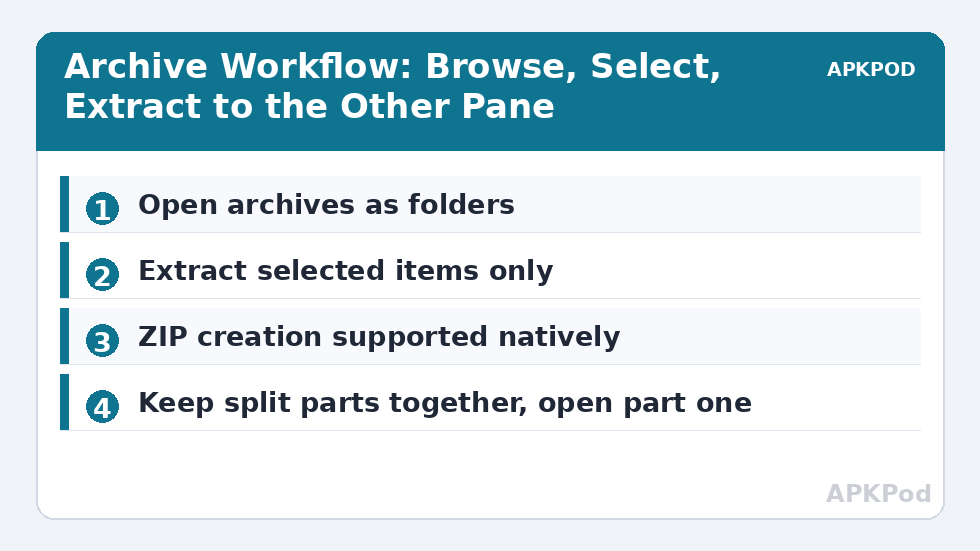
Tap any supported archive and X-plore opens it like a directory. You can navigate its internal folders, view images and text files in place, and copy individual items out to the other pane. Full extraction is there when you need it, but it becomes the second step, not the reflex.
Extract Zip Rar 7z Archives Xplore Style: Browse First, Extract Second
The browse-first workflow is simple. Open the archive in one pane. Open the destination folder in the other pane. Select the files you actually need inside the archive, then press Copy. X-plore decompresses just those items into the destination. A single manual page from a 300-page documentation bundle, or three photos from a family ZIP, takes seconds and zero wasted storage.
When you do need everything, select the archive itself, open the menu and choose the extract option, then pick the destination. X-plore unpacks the full contents, preserving the internal folder structure. For very large archives on budget phones, plug in the charger: decompression of a multi-gigabyte 7Z is real CPU work, and Android may throttle a hot, nearly-flat device mid-job.
Creating Archives for Sharing and Backup
X-plore creates ZIP archives natively. Select files or folders — the multi-selection techniques from our batch renaming guide work identically for gathering items — then choose the option to add them to a ZIP. You will use this constantly: bundling documents for email, packing a folder of APK backups, or compressing logs before sending them to a support forum.
Be honest about what ZIP does. Already-compressed media — JPEGs, MP3s, MP4s — barely shrinks. Text, documents and uncompressed images compress dramatically. If a ZIP comes out the same size as its contents, nothing is broken; the data was already squeezed. Also remember the 4 GB boundary: the classic ZIP format and FAT32-formatted SD cards both dislike single files at or above 4 GB, so split very large backups or store them on exFAT storage.
| Format | Open & browse | Extract | Create in X-plore |
|---|---|---|---|
| ZIP | Yes | Yes | Yes |
| RAR | Yes | Yes | No (proprietary format) |
| 7Z | Yes | Yes | No |
| TAR / GZIP family | Yes | Yes | No |
| APK | Yes, as ZIP | Yes | n/a |
Password-protected archives deserve a note. X-plore prompts for the password when opening an encrypted archive and can extract it once supplied. If extraction fails with a correct password, suspect a damaged download before suspecting the app; archives are unforgiving of even a few flipped bytes, and the quickest test is comparing the file size against the source. Corrupted headers can also be confirmed with the built-in hex viewer: a healthy ZIP starts with the letters PK.
Split Archives, Multi-Part Sets and Other Field Cases
Sooner or later a download arrives as a family: archive.part1.rar, archive.part2.rar, and so on, or a ZIP split into .z01, .z02 and a final .zip. These are single archives sawn into pieces for transfer, and they obey one rule: keep every part in the same folder, untouched and unrenamed, and open the first part. X-plore reads across the set as if it were one file. Extracting fails mysteriously when a part is missing or was renamed by an eager download manager; the fix is never in the opener, it is in completing the set.
A cousin case is the archive inside the archive: a ZIP whose contents include another ZIP. Browse into the outer one, copy the inner archive out to a real folder, then open it there. Working two levels deep inside nested containers is possible for viewing, but extraction chains get fragile and slow; one level of nesting is a convenience, two is a warning sign about how the file was packaged.
Compression Choices When You Create ZIPs
When you create a ZIP for email or backup, the size-versus-time trade-off is yours to make. Documents and text compress far and fast; a folder of mixed media barely compresses and the time is spent mostly on copying. If a ZIP’s purpose is transport rather than shrinkage — one tidy file instead of forty loose ones — size is irrelevant and the bundle is the benefit. If the purpose is a backup you will keep for years, verify the archive afterwards by opening it and dipping into a few files, exactly as you would test a parachute’s ripcord rather than trust the packing.
Also decide deliberately about passwords. An encrypted ZIP protects its contents in transit and at rest, and the password becomes a single point of failure: lose it and the archive is a paperweight. For genuinely sensitive bundles, encryption is worth it with the password stored in your password manager. For a folder of holiday photos headed to a relative, it is ceremony without benefit. Match the lock to the contents, and your archives stay tools instead of puzzles.
One last practical note: timestamps. Extracted files usually take the current date or the date stored inside the archive, depending on the archive’s metadata, which is why freshly-extracted old documents can appear at the top of date-sorted folders. If chronology matters — photo collections especially — sort by the names you control rather than trusting extraction dates.
A word on formats you will meet at the edges. TAR balls from the Linux world open fine and extract in one pass, though a .tar.gz is really two layers — compression wrapped around an archive — and X-plore peels both without ceremony. ISO disc images can be browsed for their files on many setups, which rescues the one document you need from an old software disc without mounting anything. And keep an eye on archives with names ending in .001, .002: like RAR part sets, they are one archive in slices, opened from the first slice with all siblings present. The rule across every exotic case is constant: complete set, first file, browse before you extract.
Bottleneck:
Tip:
All figures are estimates under good local conditions — strong signal, no competing traffic, both devices on the same network. Real speeds drop with distance, walls, channel congestion and slow storage on either device. Protocol options (SMB, FTP, SFTP) assume a 5 GHz-class Wi-Fi link.
Archives Inside the Dual-Pane Workflow
The dual-pane layout makes archives feel like just another location. Keep the archive open in the left pane and your project folder in the right, and copying out becomes identical to copying between folders — which is precisely the mental model from our dual-pane interface guide. You can also copy files into an existing ZIP the same way, appending them without rebuilding the whole archive.
One caution about editing inside archives: viewing a text file inside a ZIP is safe, but treat archives as read-mostly. For documents you will edit repeatedly, extract a working copy instead of repeatedly repacking. Archives are for transport and storage; the filesystem is for work. More techniques like these fill out the Dual-Pane Tips category.
Frequently Asked Questions
Can X-plore open RAR and 7Z files or only ZIP?
X-plore opens, browses and extracts ZIP, RAR and 7Z archives, plus TAR-family formats. Creating archives is limited to ZIP, because RAR and 7Z creation is not offered in the app.
How do I extract only some files from a large archive?
Open the archive like a folder, navigate inside it, select just the files you need, and copy them to the folder open in the other pane. X-plore decompresses only the selected items.
Why did my ZIP file come out the same size as the original files?
Media formats such as JPEG, MP3 and MP4 are already compressed, so zipping them saves almost nothing. ZIP still helps by bundling many files into one for sharing or backup.
What should I check if an archive will not extract?
First confirm the file size matches the source, since truncated downloads are the commonest cause. Then check free space at the destination, and verify the archive header in the hex viewer if corruption is suspected.
Can I add files to an existing ZIP in X-plore?
Yes. Open the ZIP in one pane, select files in the other, and copy them in. X-plore appends them to the archive without rebuilding it.