Buried inside X-plore is a pair of tools most users never open: a hex viewer that shows you a file’s raw bytes, and a plain text editor that can open, change and save configuration files, logs and scripts in place. To use built in hex viewer text editor xplore features well, you do not need to be a programmer. You need to know when a file is lying to you — a photo that is really a renamed archive, a “corrupted” download that is actually an error page — and raw bytes never lie.
Both tools open from the same place. Long-press any file, or select it and open the menu, and X-plore offers Open as choices: Text, Hex, Image, Audio, Video. Choosing Text or Hex forces the built-in viewer regardless of the file’s extension, which is the trick that makes diagnosis possible.
Use Built In Hex Viewer Text Editor Xplore Tools with Confidence
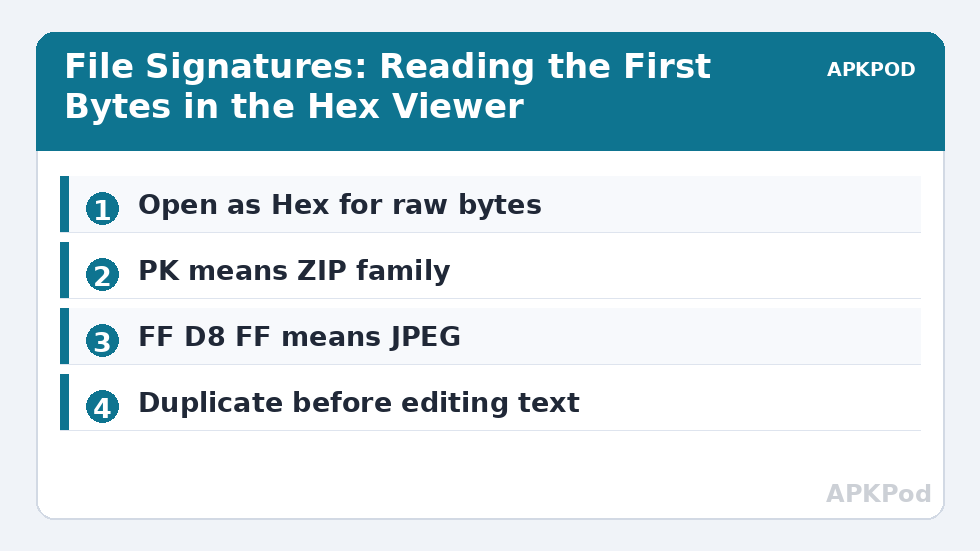
The hex viewer presents the file as rows of sixteen bytes, each shown as a two-digit hexadecimal value with the printable characters alongside. The first bytes — the file header or “magic number” — identify the real format. A JPEG starts with FF D8 FF. A PNG starts with 89 50 4E 47. A ZIP, and therefore an APK or DOCX, starts with 50 4B 03 04, the letters PK. An HTML error page starts with 3C 21 44, the characters <!D of <!DOCTYPE.
This is immediately practical. A friend sends a “video” that no player opens; the hex view shows it begins with PK, so it is an archive that was renamed, and you can extract it with X-plore’s archive tools instead of hunting for codecs. A downloaded firmware file that “does nothing” turns out to start with <!DOCTYPE html — your browser saved a block page, not the firmware.
The text editor is the hex viewer’s civilised sibling. It opens plain text with line wrapping you can toggle, supports editing and saving in place, and handles the files Android users actually meet: build.prop-style configs on rooted devices, .nomedia-adjacent notes, cue sheets, subtitle files, JSON exports, log files and .txt ebooks. Saving writes back to the original location, so edit a copy when the original matters.
Editing Text Files Safely Inside X-plore
Before your first edit, adopt one rule: duplicate the file into the other pane first. The dual-pane layout makes this a ten-second job — copy the file across, rename the copy with a date suffix, then edit the original. If the edit breaks something, the untouched copy is sitting in the opposite pane. This is the same workstation habit described in our dual-pane copy and move guide, applied to text work.
Mind the invisible characters. Configuration files exported from Windows may use CRLF line endings, and some parsers care. X-plore’s editor generally preserves what it opens; when you create a new file for a Linux-based tool, check whether that tool expects LF endings and keep your lines clean. Also watch encodings: a subtitle file saved in the wrong character set shows accented characters as gibberish in players. If a subtitle looks wrong after editing, the content is usually fine and the encoding is the culprit.
For structured data, X-plore goes one step further with a dedicated database tool covered in our guide to the SQLite database viewer. Use the text editor for text, the hex viewer for bytes, and the SQLite viewer for databases; forcing one tool onto another’s job is where corruption stories come from.
What the Hex Viewer Is Really For
| First bytes | Real format | What to do |
|---|---|---|
| FF D8 FF | JPEG image | Rename to .jpg if the extension is wrong |
| 89 50 4E 47 | PNG image | Open with the image viewer |
| 50 4B 03 04 (PK) | ZIP family (APK, DOCX, JAR) | Open as archive and inspect contents |
| 25 50 44 46 (%PDF) | PDF document | Open with the PDF viewer |
| 3C 21 44 (<!D) | HTML page, often an error page | Re-download from the real source |
| 52 61 72 21 (Rar!) | RAR archive | Extract with the archive tools |
Beyond identification, the hex viewer answers a quieter question: is this file empty, truncated, or full of zeros? A “corrupted” backup that is 2 GB of nothing shows endless 00 bytes. A truncated download shows real data that simply stops, often mid-structure, which tells you the transfer died rather than the source being broken. Pair that diagnosis with a fresh download on a stable connection and the mystery is solved.
Reading a Text File That Refuses to Be Text
The two viewers are partners in one recurring investigation: a file that should be text but opens as garbage. Run it through the hex viewer and the cause usually stands in the first row. A wall of FF FE or EF BB BF at the start means a Unicode byte-order mark — the file is UTF-16 or UTF-8-with-BOM, and a reader expecting plain ASCII chokes politely. Long runs of 00 between every character confirm UTF-16: half of every letter is an empty byte. The content is intact in both cases; only the interpretation is wrong, and re-saving from a desktop editor in plain UTF-8 cures it permanently.
The reverse mystery also exists: a text file that is secretly an archive. Configuration bundles, game saves and office documents are often ZIP containers wearing a custom extension, and the PK signature in the hex view betrays them instantly. Rename a copy to .zip, open it in X-plore, and the “unreadable” file unfolds into folders you can actually inspect. Between the text editor for honest text and the hex viewer for liars, very few files on your phone can keep a secret about what they are.
One more diagnostic worth memorising: file endings. A complete JPEG ends with FF D9; a complete ZIP ends with an End-of-Central-Directory record you can find by jumping to the tail. If the expected ending bytes are absent, the file was truncated in transfer — a conclusion that turns a vague “corrupt file” complaint into a precise “download it again, fully” instruction.
Bottleneck:
Tip:
All figures are estimates under good local conditions — strong signal, no competing traffic, both devices on the same network. Real speeds drop with distance, walls, channel congestion and slow storage on either device. Protocol options (SMB, FTP, SFTP) assume a 5 GHz-class Wi-Fi link.
Limits You Should Respect
The built-in editor is a text editor, not an IDE. Very large logs — tens of megabytes — open slowly, and you should trim them on a computer instead. The hex viewer is read-oriented: it is for inspection, not for patching binaries on your phone, and treating it as a hex editor for executables is how devices get bricked. Files inside app-private storage also remain off limits on a non-rooted phone no matter which viewer you choose, because the restriction is Android’s, not X-plore’s.
Used within those limits, these two viewers quietly upgrade every other task in the Dual-Pane Tips library: verifying archives before extraction, peeking at the manifest inside an APK, and checking whether a “document” is what its extension claims.
Frequently Asked Questions
How do I open a file in X-plore’s hex viewer?
Long-press the file (or select it and open the menu), choose Open as, then Hex. The file opens as rows of hexadecimal bytes with the printable characters shown alongside, regardless of its extension.
Can X-plore’s text editor save changes to the original file?
Yes, the built-in text editor can edit and save in place. Because saving overwrites the original, duplicate the file into the other pane first so you always have an untouched copy.
What do the first bytes of a file tell me?
The opening bytes are a format signature. PK means a ZIP-family file, FF D8 FF means JPEG, %PDF means a PDF. If the signature contradicts the extension, the file was renamed or the download saved the wrong content.
Is the hex viewer safe to use on system files?
Viewing is safe because it does not modify anything. The danger is editing system or binary files without understanding them, which is why the hex viewer should stay an inspection tool.
Why does my edited subtitle file show strange characters?
That is almost always a character encoding mismatch, not damaged text. Re-save the file in the encoding your player expects, typically UTF-8, and the accented characters will display correctly.