Two folders both claim to be “the photo backup”. One has 1,204 files, the other 1,187, and somewhere in that gap of seventeen are pictures that exist in exactly one place. This is the moment people go looking for folder comparison difference highlighting xplore techniques — a way to see, pane against pane, what matches, what differs and what is missing. Here is the honest truth first: X-plore does not ship a magic one-tap visual diff like desktop synchronisation tools. What it ships is everything you need to run a disciplined comparison yourself, and this guide turns that into a repeatable method.
The method rests on three instruments X-plore does have: two panes you can sort identically, file sizes and dates displayed per item, and a copy engine whose conflict dialog tells you exactly which files collide. Used in sequence, they answer the only three questions a comparison ever asks: what is only on the left, what is only on the right, and what exists on both sides but is not the same file.
Folder Comparison Difference Highlighting Xplore Method, in Practice
Open the first folder in the left pane and the second in the right. Set both panes to the same sort order — name ascending is the comparison standard, because identical names then sit at identical heights in both lists and gaps become visible as misalignments. Scroll slowly in parallel. Any name that appears in one list but not the other announces itself as a break in the pattern. It is manual, and for a few hundred files it is genuinely fast; humans are excellent at spotting a broken rhythm in two aligned lists.
Switch both panes to sort by size when names match but suspicion remains. Two files can share a name and differ in content — a re-edited photo, a re-exported document. Identical name plus identical size plus identical modified date is strong evidence of identical content. Identical name with a different size is proof of difference, no further tool required. This is also where the display options from our tree view customisation guide matter: keep size and date columns visible permanently if comparisons are a regular chore.
The Copy Dialog as a Difference Detector
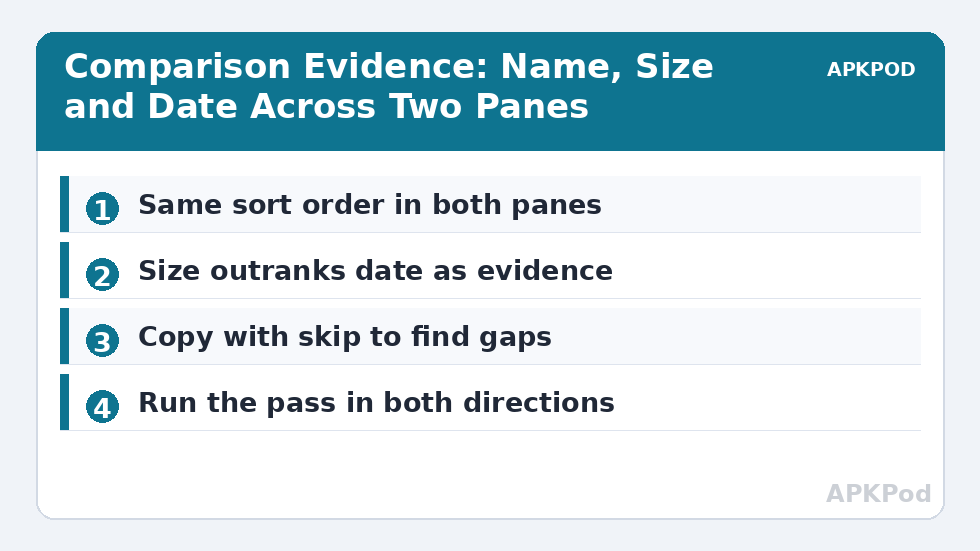
For folders too large to eyeball, let the copy engine do the comparison. Select everything in the folder you trust less, and start a copy into the folder you trust more. When names collide, X-plore’s confirmation and conflict handling exposes exactly which files already exist at the destination. Work through the operation with the skip existing choice and the copy completes having transferred only the missing files — the difference, delivered. Cancel instead of confirming and you have used the dialog purely as a report, learning the overlap without changing a byte.
Reverse the direction to find the other side’s unique files. Copy pane B into pane A with skipping, and whatever moves is what A lacked. After both passes, the folders hold the union of both sets, and anything that was unique is unique no longer. This is synchronisation by hand: slower than a dedicated sync tool, but transparent, and transparency is the point when the folders contain the only copies of anything.
| Evidence on both panes | Interpretation | Action |
|---|---|---|
| Same name, same size, same date | Almost certainly identical | Leave both alone |
| Same name, different size | Different content versions | Open both and decide which is newer or better |
| Name only on one side | Missing from the other folder | Copy across to complete the set |
| Same name and size, different date | Probably re-saved or re-copied | Check content once; dates alone do not prove change |
Comparing Across Devices: Phone vs NAS vs Cloud
Comparisons rarely stay inside one device, and the method survives the move. A phone folder in the left pane and its NAS mirror in the right behave identically for sorting, sizing and the copy-with-skip test; only the speed changes. Cloud locations are the honest exception — listing a large cloud folder can be slow, and sizes reported by cloud services are occasionally approximate. For cloud pairs, compare by name lists first and sizes second, and let the copy dialog arbitrate the rest.
Across devices, dates become the unreliable witness. Time zones, differing clock settings and copy methods that reset timestamps all conspire to make identical files wear different dates on different machines. In cross-device comparisons, demote date to a hint and promote size to primary evidence, with name as the constant. It is the same three questions — only left, only right, both-but-different — asked with appropriately adjusted trust in the answers.
A Worked Example: Reconciling Two Photo Backups
Picture the opening problem: phone backup A with 1,204 photos, NAS backup B with 1,187. Sorted by name in both panes, a slow parallel scroll finds the first misalignment within a minute — three burst photos present in A, absent in B, from the day the NAS was off. Sort by size next: two same-named files differ, and a preview shows one is a re-edited version worth keeping from each side — so they are renamed distinctly rather than one destroying the other. Finish with a copy-with-skip pass in both directions. Final state: one union set, verified counts equal, and a note of which side is now the master. Seventeen files of doubt, resolved in under fifteen minutes with no special tooling — that is the method earning its keep.
Write the outcome down when you finish — which folder is master, what was merged, what was deliberately kept in duplicate. Comparisons you document never have to be repeated from suspicion.
Subfolders need one explicit decision before any comparison begins: are you comparing the top level only, or the whole tree beneath it? Be honest about which, because the methods above work level by level. For tree-wide confidence, work down the structure in pairs — compare the roots, then each matching pair of subfolders in turn, letting the folder counts at each level act as a checksum. A level whose counts agree and whose copy-pass moves nothing is a level you never need to open again; a level that disagrees earns the detailed scroll. Systematic descent turns a frightening tree comparison into a series of small, already-solved ones.
Bottleneck:
Tip:
All figures are estimates under good local conditions — strong signal, no competing traffic, both devices on the same network. Real speeds drop with distance, walls, channel congestion and slow storage on either device. Protocol options (SMB, FTP, SFTP) assume a 5 GHz-class Wi-Fi link.
Keeping Folder Pairs Comparable Over Time
Comparisons get easier when folders are maintained with the same discipline. Name files consistently — the patterns in our batch renaming guide exist partly for this — and avoid editing files inside the backup copy. A backup you browse is a backup you can verify; a backup you edit becomes a second master, and no comparison method survives two masters.
For a visual sense of where two folders diverge in bulk rather than detail, run the Disk Map on each: a branch that is 2 GB heavier on one side tells you where to aim the detailed comparison before you scroll a single list. Detailed, visual and dialog-based checks together cover everything a highlight feature would, with the advantage that you understand every conclusion. The rest of the Dual-Pane Tips category builds on this same pane-versus-pane thinking.
Frequently Asked Questions
Does X-plore have a built-in folder compare or sync feature?
X-plore does not offer a one-tap visual diff or automatic two-way sync. Comparison is done with aligned panes, matching sort orders, size and date columns, and the copy conflict dialog, which together answer the same questions reliably.
What is the fastest way to find files missing from one folder?
Start a copy of the fuller folder into the other using skip for existing files. Only the missing files transfer, which both reveals and fixes the difference in one operation.
Two files have the same name but different sizes. Which do I keep?
Different sizes mean different content. Open both, check dates and a preview, and keep the one that is genuinely newer or more complete rather than assuming the larger file wins.
Can same name, size and date still hide different content?
It is possible but uncommon in everyday use. For critical files, compare inside a viewer or by checksum on a computer; for routine backups, the three-field match is dependable evidence.
How do I stop two backup folders drifting apart again?
Pick one master folder, edit only there, and treat the other as read-only backup. Re-run the copy-with-skip pass after big changes to top the backup up.