Some files deserve to live one tap from your home screen: the boarding-pass PDF buried in Downloads, the spreadsheet you update every morning, the folder of work photos you open twenty times a day. Learning to create file shortcuts home screen xplore offers means those files stop being destinations you navigate to and become icons you simply tap. It is the smallest feature in this category and possibly the one you will use most.
X-plore can place shortcuts to individual files and to whole folders on the Android home screen. Tap the shortcut and the file opens in its default app, or the folder opens inside X-plore ready for work. The original file never moves; the shortcut is a doorway, not a copy.
Create File Shortcuts Home Screen Xplore Steps, for Files and Folders
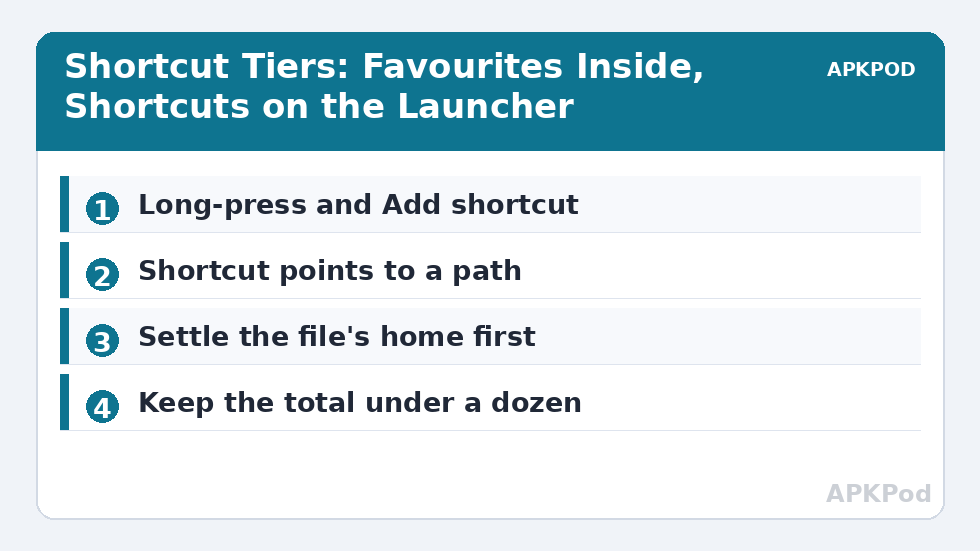
Long-press the file or folder inside X-plore and look in the menu for the shortcut option, labelled along the lines of Add shortcut or Create shortcut depending on version. On many devices Android then asks which launcher should receive it, or places it directly. The new icon lands on your home screen with the file’s name; rename the underlying file later and the shortcut keeps working as long as the file itself does not move.
That last clause matters. A shortcut points to a path. Move the file from Downloads into a Work folder and the shortcut breaks, because the doorway now opens onto an empty room. The discipline is simple: decide a file’s permanent home first, then shortcut it. If your filing system is still forming, build it with the dual-pane organising workflow and add shortcuts as the final step, not the first.
Folder shortcuts are the power move. A shortcut to your “Current Project” folder opens X-plore directly inside it — in either pane — turning a four-step navigation into one tap. Combined with the favourites system in our bookmark guide, you get two tiers of fast access: bookmarks inside the app, shortcuts outside it.
Where Shortcuts Earn Their Keep
| Shortcut target | Why it helps |
|---|---|
| A single PDF (ticket, ID, manual) | Opens in the viewer instantly, even offline at a gate or counter |
| Current project folder | One tap into the exact X-plore location you work in daily |
| A music or audiobook folder | Jumps straight to the library without opening other apps first |
| A network share folder | Opens the LAN location inside X-plore ready to browse |
| A notes text file | Tap, edit in the built-in editor, done |
Launchers add wrinkles. Some OEM launchers handle shortcut icons from other apps gracefully; a few bury them or strip their labels. If a shortcut silently fails to appear, the launcher is usually the blocker, not X-plore — try a long-press on an empty home-screen area and look for a widgets/shortcuts panel that lists X-plore entries. On heavily customised skins the wording differs, but the capability is standard Android.
Shortcuts on Tablets, TV and Secondary Launchers
The shortcut habit scales unevenly across devices, and knowing where it shines saves experiments. On tablets, home screens have room to breathe, and a small dock of file shortcuts — the current document set, the media folder of the week — sits naturally beside app icons. On Android TV, lean the other way: launcher real estate is precious, navigation is by remote, and in-app favourites beat home-screen shortcuts for everything except the one folder you open daily. On phones running a third-party launcher, shortcut support is usually the most complete of all, with custom icons and labels on top of X-plore’s doorway.
Shared devices add a wrinkle: shortcuts are visible to every user of that home screen. On a family tablet, a shortcut named “Contracts” is an announcement. Favour the in-app tier there, or accept the visibility consciously — convenience features should be chosen with their audience in mind.
A Shortcut Layout That Stays Useful
Arrange shortcuts as a system, not a pile. Group them on one home-screen panel or in one launcher folder labelled by role — “Work”, “Travel”, “Media” — so the eye learns a geography. Keep the total under a dozen; beyond that, search and bookmarks outrun visual scanning. And pair each shortcut with a decision about its file’s permanence: the target lives in a stable folder, under a stable name, because the shortcut’s whole value is that the path never changes beneath it.
Treat the shortcut panel as a weekly-reviewed dashboard. Sunday, glance at it: anything unopened all week is demoted, anything you dug for twice gets promoted. Five minutes of this gardening keeps the home screen an instrument panel instead of a museum of former priorities — the same maintenance rhythm that keeps the favourites list honest, applied one tier outward.
A final micro-technique for heavy users: name the files for the home screen. A shortcut displays its target’s name, so a file called “Q3-report-FINAL-v7.pdf” wears that whole history on your launcher. A stable, short display name — “Q3 Report.pdf” — reads better and survives version changes if you replace contents in place rather than multiplying files. The shortcut rewards the same tidiness everywhere else in this category teaches: stable locations, stable names, deliberate structure.
If a shortcut’s icon looks identical to its neighbours, do not blame your eyes — file shortcuts inherit generic or app icons in many launchers. Distinctiveness comes from grouping and label, so lean on both rather than expecting icon art to carry the system.
Troubleshoot the occasional oddity with a level head. A shortcut that opens the wrong file almost always points at a same-named twin — the Downloads copy and the filed copy — and the cure is deciding which one is canonical and deleting or relocating the other. A shortcut that opens X-plore but lands one folder up usually means the target folder was recreated (deleted and remade) since the shortcut was born; delete the shortcut and re-add it against the living folder. And a shortcut that vanishes after a launcher update belongs to the launcher’s housekeeping, not X-plore’s failure: re-adding it takes ten seconds, and grouping your shortcuts in one launcher folder keeps any future vanishing act to a single, restorable neighbourhood.
Bottleneck:
Tip:
All figures are estimates under good local conditions — strong signal, no competing traffic, both devices on the same network. Real speeds drop with distance, walls, channel congestion and slow storage on either device. Protocol options (SMB, FTP, SFTP) assume a 5 GHz-class Wi-Fi link.
Keeping a Shortcut System Healthy
Shortcuts rot quietly. A home screen that accumulates forty file shortcuts is a Downloads folder with extra steps. Review them monthly: delete doorways to finished projects, and resist shortcutting anything you open less than weekly — that is what bookmarks and the tree are for. The customisation options in our button bar guide cover the inside-the-app half of this access system; shortcuts are the outside half.
One privacy note, since file managers see everything: a shortcut advertises a file’s existence and name to anyone holding your unlocked phone. The contract PDF on your home screen is convenient and also visible. For sensitive documents, a bookmark inside the app is the discreet tier, and the home screen stays clean. More access tricks live across the Dual-Pane Tips category.
Frequently Asked Questions
How do I put a file shortcut on my home screen from X-plore?
Long-press the file or folder in X-plore and choose the Add shortcut or Create shortcut option. Android places an icon on the home screen that opens the file or the folder in X-plore.
Why did my shortcut stop working?
Shortcuts point to a file path. Moving or renaming the target file or folder breaks the path, so settle a file’s permanent location before creating its shortcut.
Can I create a shortcut to a network folder?
Yes, folders on added LAN locations can be shortcut the same way, opening that network location inside X-plore when tapped.
The shortcut option seems to do nothing. What is wrong?
Some OEM launchers block or hide third-party shortcuts. Check the launcher’s own shortcut or widget panel for X-plore entries, since the limitation is usually the launcher, not the file manager.
Are shortcuts the same as bookmarks in X-plore?
No. Bookmarks live inside X-plore’s own interface; home-screen shortcuts live on the Android launcher. Use bookmarks for frequent in-app locations and shortcuts for the few files you open from the home screen daily.