Every Android phone carries a shadow filesystem: folders whose names begin with a dot, thumbnail caches, and little zero-byte files called .nomedia that quietly tell gallery apps “nothing to see here”. Learning to view hidden files nomedia folder xplore reveals is basic literacy for anyone who manages storage seriously, because half of all “where did my space go” and “why won’t my photos appear” mysteries live in that shadow layer.
Two different hiding mechanisms are at work, and confusing them causes most of the trouble. Files and folders are hidden from file managers by the dot-prefix convention. Media is hidden from galleries and media scanners by .nomedia files. X-plore sits at the intersection: it can show you both, and let you fix both.
View Hidden Files Nomedia Folder Xplore Settings and What They Reveal
The master switch is in Menu → More → Configuration: the Show hidden files option. Turn it on and dot-folders materialise throughout the tree — .thumbnails inside DCIM, configuration folders inside app data directories, download caches you never knew existed. Nothing is created by this toggle; it simply stops pretending the files are not there.
What you will find rewards the look. The .thumbnails folder can hold gigabytes of stale preview images long after the originals were deleted. App folders keep dot-directories of cached data that a “clear cache” inside the app somehow never touches. And in your music library you may find .nomedia files placed by an overzealous app, which is why an album plays in a file manager but refuses to appear in any music player: the media scanner reads .nomedia and skips the entire folder, exactly as designed.
The .nomedia mechanism deserves respect rather than deletion reflexes. It exists so that app assets — game textures, map tiles, voice-pack sounds — do not pollute your gallery with thousands of junk images. When a folder of your media contains one, removing it is the fix: delete the .nomedia file, then trigger a media rescan by rebooting or remounting, and the folder’s photos and songs rejoin the library. When a folder of an app’s media contains one, leave it alone; it is load-bearing.
Working Safely in the Hidden Layer
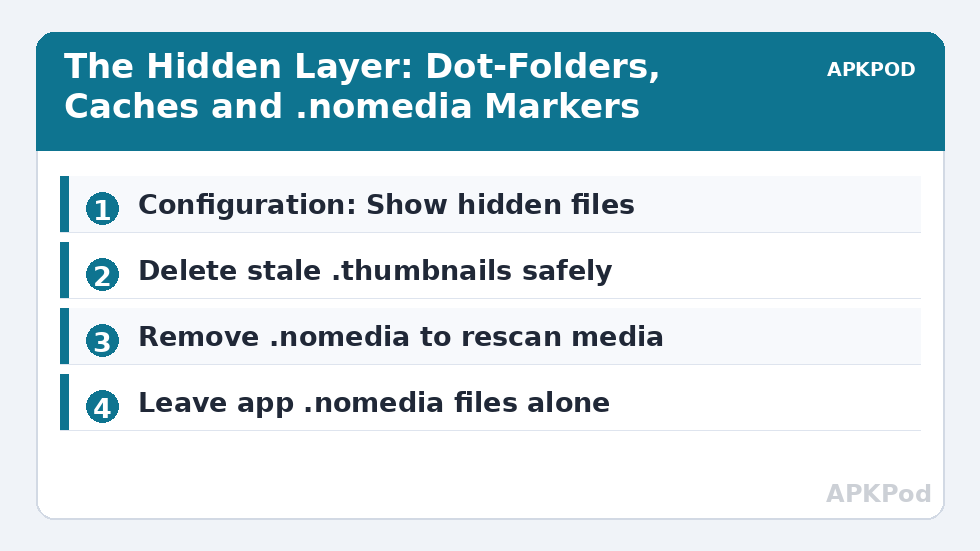
Rules for the shadow filesystem. First, look freely; delete cautiously. A dot-folder you do not recognise usually belongs to an app that will recreate it, sometimes emptier, sometimes with a grudge. Second, never delete .nomedia files in bulk across the whole device — you will flood your gallery with every game’s texture cache by morning. Third, when reclaiming space, aim at the big, obvious caches and verify sizes with the Disk Map before and after, so the cleanup proves itself.
Hidden visibility also changes how the tree feels day to day, which is why our tree navigation guide recommends the toggle on for maintenance sessions and off for daily use. A permanently-visible hidden layer doubles the visual noise of every folder; a switchable one gives you a workshop you can leave.
| You find | What it is | Safe action |
|---|---|---|
| .thumbnails (large) | Stale gallery preview cache | Delete contents; Android rebuilds what it needs |
| .nomedia in your photo folder | Scanner exclusion placed by an app | Delete it, then reboot to rescan |
| .nomedia in a game folder | Intentional asset hiding | Leave it alone |
| Unknown dot-folder in app data | App configuration or cache | Inspect size first; delete only if the app is uninstalled |
| .nomedia you placed yourself | Your own privacy marker | Keep — it hides the folder from galleries, not from you |
The Hidden Layer, App by App
With hidden files visible, walk your largest apps’ folders once and learn their handwriting. Browsers keep dot-caches of images from every page you have visited in weeks. Social apps maintain shadow copies of every video that crossed your feed. Map apps store tile caches that outlive the trips they served. None of this is sinister — it is how apps feel fast — but it is yours, it is on your storage bill, and the hidden view is the only place the full invoice is itemised.
The walk teaches a second lesson: which apps respect storage and which treat it as free land. An app whose hidden footprint is ten times its download size has told you its character. That knowledge feeds decisions no settings screen offers — which app to replace, which to restrict to Wi-Fi, which to forgive because its cache is genuinely the photos you asked it to keep.
Dot-Files on the Computer Side of Your Life
The convention travels. Files copied from a Mac arrive with .DS_Store companions and ._-prefixed shadow files; Linux folders carry their own dot-configuration. On your phone these immigrants are harmless clutter, but in shared folders they multiply confusingly for other people. When you curate a folder others use — a family share, a work drop — a periodic hidden-files pass to evict foreign dot-clutter keeps the folder legible for everyone, and knowing the toggle exists is the entire prerequisite.
Taken together, the hidden layer is not a secret world; it is the same world with the labels turned on. The users who fear storage mysteries are the ones who have never seen the labels. You have the toggle now, and with it the difference between a phone that surprises you and a phone you understand.
One closing caution on shared devices: hidden does not mean encrypted, for you or against you. Anyone with a file manager and this same toggle sees what you see. Use .nomedia for gallery privacy, real encryption for real secrets, and never confuse the two strengths.
Practical etiquette for the toggle itself: turn hidden files on with a purpose and off when the purpose is served. Left on permanently, the dots train you to ignore them, and ignored warnings are how a .nomedia you placed deliberately gets deleted in a cleanup spree by your own hand. Left off permanently, the caches grow in the dark. The rhythm that works is a monthly maintenance visit — hidden on, inspect, clean, verify with the map, hidden off — the filesystem equivalent of checking the meter cupboard: unglamorous, quick, and the reason nothing down there ever gets to surprise you.
Bottleneck:
Tip:
All figures are estimates under good local conditions — strong signal, no competing traffic, both devices on the same network. Real speeds drop with distance, walls, channel congestion and slow storage on either device. Protocol options (SMB, FTP, SFTP) assume a 5 GHz-class Wi-Fi link.
Using .nomedia Deliberately
The same mechanism that causes mysteries is also a tool. Create an empty file named .nomedia inside a folder — X-plore’s New file option does it in seconds — and that folder’s media vanishes from every gallery and player library while remaining fully accessible in X-plore. Work documents, scanned IDs and private photos live comfortably behind this curtain. It is not encryption and stops nobody holding the phone with a file manager, but against casual gallery scrolling it is exactly the right strength of hiding, and it pairs with the organisational habits across the Dual-Pane Tips category.
On rooted devices the hidden layer extends further into system directories, where the cautions double; our root access guide covers that territory and its risks in full. For unrooted daily use, the dot-folders of internal storage are as deep as you need to go.
Frequently Asked Questions
How do I show hidden files in X-plore?
Open Menu, then More, then Configuration, and enable the Show hidden files option. Dot-folders and hidden files appear throughout the tree immediately.
What does a .nomedia file actually do?
It instructs Android’s media scanner to skip the folder it sits in. Photos, music and videos in that folder will not appear in gallery or player libraries, though file managers can still open them.
My photos stopped appearing in the gallery. Is .nomedia the cause?
Very often, yes. An app placed a .nomedia file in the folder. Delete that file with hidden files visible, then reboot so the scanner re-indexes the folder.
Is it safe to delete the .thumbnails folder?
Yes. It is a preview cache that Android regenerates as needed. Deleting a bloated .thumbnails folder is one of the safest quick space recoveries on Android.
Can I hide my own folder from the gallery with .nomedia?
Yes. Create an empty file named exactly .nomedia inside the folder. The media stays accessible in X-plore but disappears from gallery and player libraries.