Apps keep their real lives in databases: your messages index, your expense records, your podcast queue, your game’s progress. Most are SQLite files, and X-plore can open them directly, showing tables and rows in a readable grid. The sqlite database viewer xplore file manager ships is the tool that turns “the app won’t export my data” from a dead end into a solvable problem — provided you use it as a reading instrument, not a crowbar.
You will find these files wherever app data is reachable: exported backups, shared storage folders some apps expose, and, on rooted devices, the private /data/data directories. Tap a .db, .sqlite or similarly-named database and X-plore offers its database viewer among the open options.
SQLite Database Viewer Xplore File Manager Basics: Tables, Rows, Reality
The viewer presents the database as its list of tables. Open a table and you see its rows and columns: the actual stored records, in the order the database keeps them. Column names are the developer’s own — expect things like _id, timestamp, title, body, is_read — and learning to read them is mostly vocabulary. Timestamps are frequently stored as Unix epoch numbers (seconds or milliseconds since 1970), which look like nonsense until you convert one and a familiar date falls out.
Your first session should be pure reconnaissance on a database you can afford to misunderstand. A podcast app’s backup or a notes export is ideal. Work out which table holds the content (usually the largest), which column is the title, which is the body, and how the app marks deleted items — many apps never truly delete; they set a flag, which is why “deleted” data so often resurfaces in viewers like this.
That flag pattern explains the viewer’s most valuable everyday use: verification. Before wiping a phone, export an app’s database, open it in X-plore, and confirm the records you care about are actually inside the backup. After a restore, open the live database and confirm they came back. The App Manager guide covers capturing the packages; this viewer verifies the data that makes those packages worth capturing.
Reading Without Breaking: The Safety Discipline
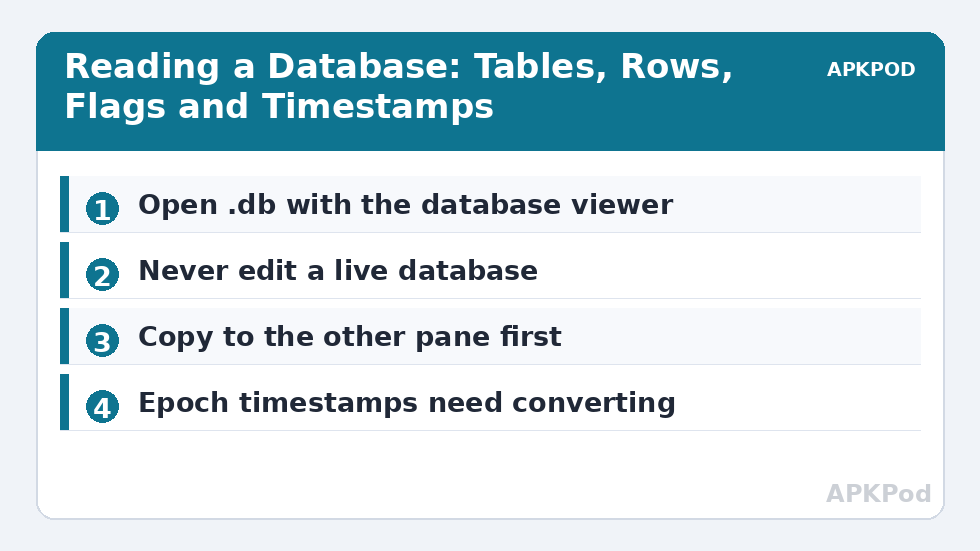
Here is the rule that keeps this tool safe: never edit a live app database in place. Apps hold their databases open with journals and write-ahead logs (the -wal and -shm companion files you will see beside them). Changing rows underneath a running app invites corruption that no viewer can undo. X-plore’s database tooling is best treated as read-only inspection; where it offers editing, use it on copies, in the other pane, of databases belonging to apps that are fully closed.
The dual-pane setup makes the safe pattern effortless. Database in the left pane, a working copy in the right. Inspect the copy, experiment on the copy, and only a deliberate, backed-up decision ever touches an original. Keep the original pristine and every database adventure becomes reversible — the same philosophy as editing text through the built-in editor, with higher stakes.
| What you see | What it usually means |
|---|---|
| _id column | Internal row number; gaps are normal after deletions |
| 13-digit “date” number | Unix time in milliseconds — convert to read it |
| is_deleted / archived = 1 | Soft-deleted record the app hides but keeps |
| -wal and -shm files beside the .db | Write-ahead log files; the database is in active use |
| BLOB column | Binary data such as thumbnails stored inside the database |
From Viewing to Understanding: A Reading Method
Raw tables intimidate because they arrive without narrative. Impose one with a four-pass method. Pass one: list the tables and guess each one’s job from its name — messages, contacts, media, settings are the usual dramatis personae. Pass two: open the largest table and identify its human columns — the title, the body, the name you would recognise. Pass three: find the time column and convert two or three values, so the table gains a chronology you can sanity-check against your memory. Pass four: find the flags — the columns of 0s and 1s — and work out what each one hides or shows in the app. Four passes, perhaps ten minutes, and a database you feared becomes a document you can interrogate whenever the app’s own interface refuses to answer.
The interrogation pays off in specific, repeatable wins. An app that claims you have no exports: its database shows the records exist, so export failure is a bug, not your data loss. A backup that might be stale: the newest timestamp in the copy settles it. A “corrupted” profile: the table is intact and the corruption is in the app’s cache, curable by clearing the cache rather than rebuilding your life. Evidence beats vibes, and the viewer is an evidence machine.
Size, Bloat and the Databases That Eat Phones
Databases also explain storage. Messaging and social apps accumulate databases measured in gigabytes — not because messages are heavy, but because years of metadata, thumbnails stored as blobs and undeleted soft-deleted rows accrete. Opening the database and seeing a media table with 40,000 rows converts a vague “this app is huge” into an informed choice: prune inside the app, export and archive, or accept the size as the honest price of your history. What the viewer will not do is shrink the database safely from outside — vacuuming and pruning belong to the owning app, and the read-only discipline exists precisely to keep your curiosity from becoming the app’s next bug report.
Keep one more artefact beside your important databases: a plain-text note, written by you, recording what each major table turned out to hold and which columns mattered. Databases are revisited rarely and under stress — mid-migration, mid-recovery — and the note converts your past understanding into present speed. “Table notes_items = the actual notes; archived=1 hides them; created_at is milliseconds.” Three sentences like that, saved once, are the difference between a ten-minute verification and an evening of re-deriving a stranger’s schema while a new phone waits empty.
Bottleneck:
Tip:
All figures are estimates under good local conditions — strong signal, no competing traffic, both devices on the same network. Real speeds drop with distance, walls, channel congestion and slow storage on either device. Protocol options (SMB, FTP, SFTP) assume a 5 GHz-class Wi-Fi link.
Finding Databases Worth Opening
On an unrooted phone your hunting grounds are exports and shared folders: chat backups, app-generated exports in Downloads, and databases that file or note apps deliberately expose. On a rooted device the full /data/data tree opens, and with it the responsibility covered in our root access guide — a database viewer plus root is the ability to read almost everything an app knows, including things the app assumed were private. Treat other people’s devices accordingly: never.
Databases are also where storage mysteries end. A messaging database measured in gigabytes is not an app bug, it is years of media metadata and messages, and seeing the table sizes tells you whether the fix is a cleanup, an export or an uninstall. However you arrive, the viewer rewards the same temperament as the rest of the Dual-Pane Tips toolkit: look first, understand, then act once.
Frequently Asked Questions
How do I open a database file in X-plore?
Tap the .db or .sqlite file and choose the database viewer from the open options. X-plore shows the database’s tables; open a table to browse its rows and columns.
Can I edit app data with the SQLite viewer?
Treat the viewer as read-only for live databases. Apps keep databases open with write-ahead logs, and editing underneath a running app risks corruption. If you must experiment, work on a copy in the other pane with the app fully closed.
Why do dates in the database look like long numbers?
Most apps store timestamps as Unix epoch values, seconds or milliseconds since 1970. Paste the number into any epoch converter and it becomes a normal date and time.
Where can I find databases on a phone without root?
In app exports, backup folders and shared storage locations that apps expose, such as Downloads. Private app databases under /data/data require root access.
What are the -wal and -shm files next to a database?
They are SQLite’s write-ahead log and shared-memory files, present while a database is in active use. Their presence is your signal not to move or edit the database until the app is closed.