The difference between fighting a file manager on television and enjoying it comes down to one skill: learning to navigate xplore dual pane tv remote control in hand, without reaching for a keyboard or a phone app. X-plore File Manager was built around a two-pane layout long before Android TV existed, and its focus-based navigation maps unusually well onto a D-pad — once you understand how focus moves, how the context menu is summoned, and how the app’s own settings can be tuned for the couch. This guide is the technique manual: the moves, the shortcuts, and the adjustments that make dual-pane work on TV feel faster than a single-pane browser ever does.
How Focus Moves in the Dual-Pane Layout
Each pane is an independent folder view with its own path. The active pane is the one whose title bar is highlighted, and every button press applies to it. The essential movements:
| Remote input | What it does in X-plore |
|---|---|
| D-pad Up/Down | Moves the highlight through files and folders in the active pane |
| D-pad Left/Right (at pane edge) | Switches focus to the other pane |
| OK / Centre | Opens the highlighted folder, or opens/launches the highlighted file |
| Long-press OK | Opens the context menu for the highlighted item |
| Back | Goes up one folder level; at the root, shows the device list |
| Menu (if present) | Opens operations for the current pane (New Folder, Paste, Mark, etc.) |
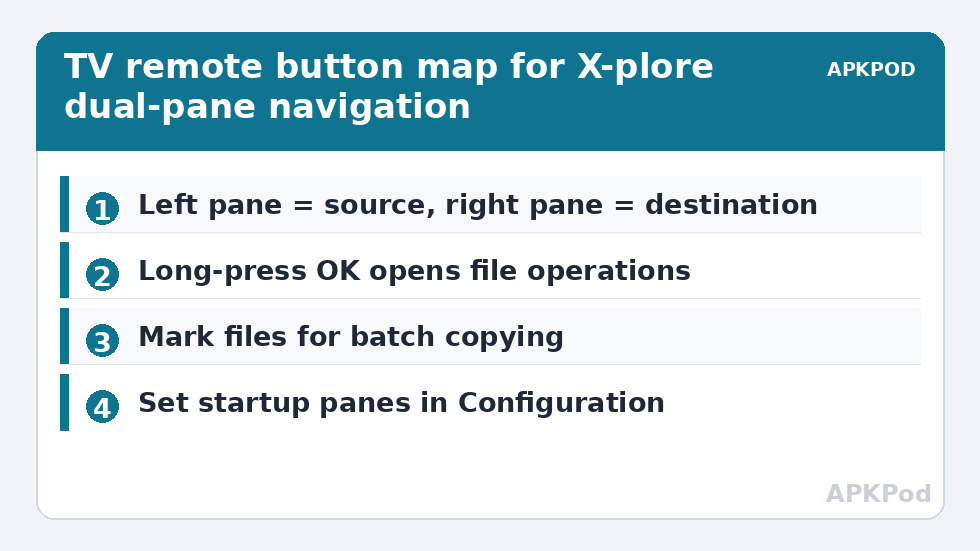
The mental model that clicks for most people: the left pane is “where things are”, the right pane is “where they are going”. Park the destination in the right pane first — a USB drive, a LAN share, a cloud folder — then browse the left pane freely; every copy or move you trigger lands in the pane opposite the one you are standing in. That single habit eliminates the clipboard round-trips that make other TV file managers feel so slow.
The Context Menu Is the Whole Toolbox
Nearly everything X-plore can do to a file lives behind the long-press OK context menu: Copy, Move (cut), Rename, Delete, Zip, Properties, Add to favourites, and more depending on the file type. Learn three sequences and you can run the app:
- Copy: highlight file → long-press OK → Copy → switch panes (D-pad sideways) → long-press OK on empty space or press Menu → Paste.
- Batch copy: highlight first file → context menu → Mark; tick further files the same way; then Copy once and Paste in the other pane. Marking survives switching panes.
- Open with: for media, a normal OK press opens the file with your configured player; the context menu’s Open With lets you choose a different app once, which matters when a video has an unusual codec — see playing ISO and network video files on Android TV for the awkward cases.
If your remote’s long-press instead triggers the TV’s own voice or app shortcuts, check the remote’s settings; on most Google TV remotes long-press OK inside an app is delivered to the app correctly. Air remotes and the Shield remote behave the same way. If D-pad-only control still feels slow for huge folders, a pointer changes the game — configuring mouse toggle and pointer speed for X-plore on TV covers that route, and the basics of getting the app onto the TV in the first place are in installing and navigating X-plore on Android Smart TV.
Tuning X-plore’s Own Settings for the Couch
Five configuration choices, all inside X-plore’s Configuration screen, are worth setting once:
- Font and icon size: raise both one step on 4K sets viewed from distance; you lose a couple of rows and gain a highlight you can actually track.
- Default video/audio player: point media at the player you trust (Kodi, VLC, MX Player) so OK always does the right thing.
- Confirm deletions: leave ON for TV. A D-pad slip is easy; an un-delete is not offered.
- Show hidden files: enable if you manage subtitle folders or app data; disable for a tidier family TV.
- Home folder / startup panes: set the panes to open where you actually work (for example Internal on the left, USB on the right) instead of the defaults.
Moving Files Between TV, USB and Network Without Leaving the Sofa
With panes and menus mastered, the classic TV jobs become one-pass operations: copying tonight’s film from a network share to internal storage, shifting recordings to a USB drive, or pulling photos from the phone’s Wi-Fi server. For network copies, a quick time estimate keeps you from starting a 20-minute job at the wrong moment — a 6 GB file at a typical TV Wi-Fi rate of 12 MB/s takes a little over eight minutes:
Bottleneck:
Tip:
All figures are estimates under good local conditions — strong signal, no competing traffic, both devices on the same network. Real speeds drop with distance, walls, channel congestion and slow storage on either device. Protocol options (SMB, FTP, SFTP) assume a 5 GHz-class Wi-Fi link.
When a job involves a drive that the TV mounted oddly or a share that will not open, fix the underlying access problem first rather than retrying the copy — the SAF permission guide at fixing SAF permission denied errors on Android TV handles the most common blocker on Android 11+ sets.
Navigate Xplore Dual Pane TV Remote Drills That Build Real Speed
Reading about panes does not build the skill; three short drills do, and each takes under two minutes. Drill one — the crossing: put Internal storage left and any other root right, then move one small file right, then back left, five times, using only long-press menus. The goal is that pane-switching stops being a decision. Drill two — the batch: in a folder with many files, mark six scattered items without unmarking any, copy them, then delete the copies. Marking fluency is what turns a 200-photo folder from an ordeal into a minute’s work. Drill three — the rename: rename three files in a row, including fixing one filename to match its partner file; this is the drill that pays off directly when pairing subtitles with videos.
Repeat drill one whenever a new remote enters the house — every remote’s long-press timing differs slightly, and recalibrating your thumb is faster than blaming the app. Within a week of casual use, the sequences become the kind of muscle memory you no longer narrate to yourself, which is the real finish line. The drills assume the foundation laid across our TV & Storage guides: an installed app, granted permissions, and storage that actually mounts.
One last environmental tip: pane work happens at the TV’s mercy, so remove the small frictions around it. Keep the remote’s batteries fresh — a dying remote drops long-presses and makes the context menu feel haunted. If your TV lets you reorder its home row, park X-plore beside your player app so the browse-then-watch loop is two icons wide. And if two people share the organising, agree on the source-left, destination-right convention out loud; half of all “where did that file go” moments are two conventions colliding, not software misbehaving.
Frequently Asked Questions
How do I switch between the two panes with the remote?
Move the D-pad Left or Right when the highlight is at the edge of the current pane — focus jumps to the other pane, whose title bar becomes highlighted. Everything you then do applies to that pane.
Copy and Move both appear in the menu. What is the difference on TV?
Copy duplicates the file into the opposite pane and keeps the original; Move relocates it and deletes the source after a successful transfer. For moving files off a nearly full TV, Move is the one you want.
Can I select many files without long-pressing each one?
Use the Mark option in the context menu: mark the first file, then move through the folder marking others; X-plore keeps a count of marked items. A connected mouse or air remote makes marking long lists faster, but D-pad marking works fine for dozens of files.
The highlight is hard to follow on my 4K TV. What helps?
Increase the font and icon size in X-plore’s Configuration, and check the TV’s own picture settings — an over-sharpened “vivid” mode makes thin focus outlines shimmer. The larger UI scale is the single most effective fix.
Does X-plore remember where my panes were?
X-plore reopens at the device root by default, but favourites give you one-tap returns: add your most-used folders (USB drive root, a LAN share, Downloads) to favourites from the context menu and they are always one Back-press away.