A downloaded film with a subtitle file sitting uselessly beside it is a small, fixable tragedy — you just need to setup external subtitles android tv xplore users can manage entirely from the sofa. External subtitles live or die on three details: the subtitle file’s name matching the video’s name, the subtitle file sitting in the right folder, and the video player knowing where to look. X-plore File Manager handles the file side of that triangle better than any TV-native tool, because its dual-pane view lets you rename, move and organise subtitle files next to their videos on internal storage, USB drives and network shares alike. Here is the whole system, from naming rules to character-encoding fixes.
The Naming Rule That Makes Subtitles Appear
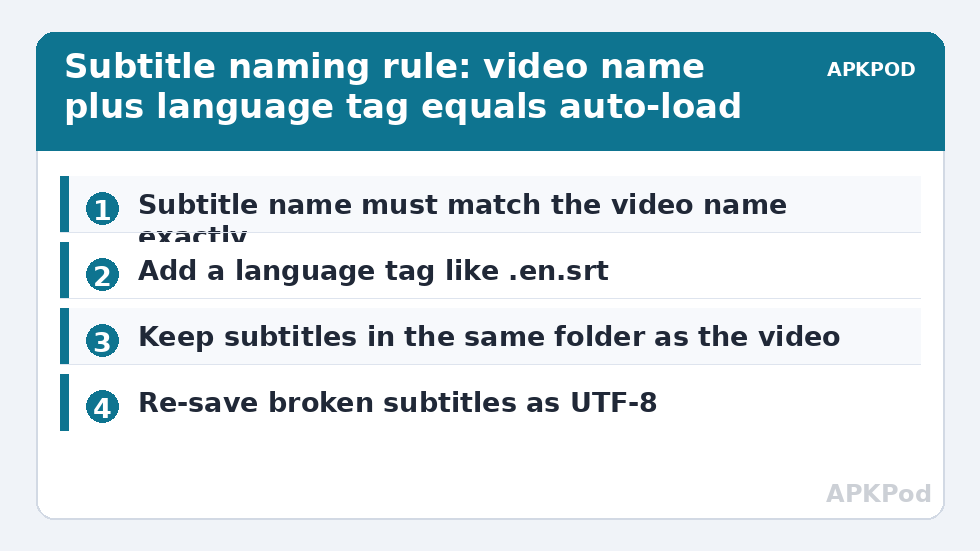
Nearly every Android TV player — X-plore’s own playback partners such as VLC, Kodi and MX Player included — auto-loads an external subtitle when it finds a subtitle file whose name matches the video file exactly apart from the extension, optionally with a language tag:
| Video file | Subtitle file that auto-loads | Result |
|---|---|---|
| Harbour.Nights.2024.mkv | Harbour.Nights.2024.srt | Loads automatically |
| Harbour.Nights.2024.mkv | Harbour.Nights.2024.en.srt | Loads, labelled English — preferred pattern |
| Harbour.Nights.2024.mkv | subs.srt | Ignored until manually selected |
| Harbour.Nights.2024.mkv | Harbour Nights 2024.srt | Ignored — name mismatch |
The fix for most “subtitles don’t work” reports is therefore a rename, not a setting. In X-plore: put the video folder in one pane and the loose subtitle downloads in the other, long-press OK on a subtitle file, choose Rename, and give it the video’s exact base name plus the language tag pattern above. Doing this on the TV is perfectly feasible with the remote technique in navigating X-plore’s dual panes with a TV remote. Supported external formats across the common players are .srt (the safest bet), .ass/.ssa (needed for styled anime subtitles), .vtt and .sub.
Where Subtitles May Live — and Where They Cannot
The subtitle file must sit where the player can read it at playback time:
- Same folder as the video — the reliable default, on internal storage or a USB drive.
- A “Subtitles” or “Subs” subfolder — Kodi and VLC can be pointed at a custom subtitle folder, which suits tidy libraries, but X-plore’s own hand-off and several other players only look beside the video.
- Network shares (SMB/DLNA) — subtitles beside the video on the share load when the player supports network subtitle access; DLNA in particular often serves the video only, which is why a film streamed from a router share may show no subtitles while the same file copied locally works — see accessing router media from a Smart TV for the streaming trade-offs.
- Inside the MKV — embedded subtitle tracks need no external file at all; if a menu shows subtitle tracks already, your problem is selection, not files.
When in doubt, copy the video and its subtitle together to local storage with matching names and test there — it isolates file problems from network problems in one move. If you routinely pull videos from a network drive to watch with subtitles, estimate the copy time first:
Bottleneck:
Tip:
All figures are estimates under good local conditions — strong signal, no competing traffic, both devices on the same network. Real speeds drop with distance, walls, channel congestion and slow storage on either device. Protocol options (SMB, FTP, SFTP) assume a 5 GHz-class Wi-Fi link.
Player-Side Settings on the TV
With names fixed, confirm the player’s own subtitle behaviour. In VLC for Android TV, set the subtitle language preference and text encoding to Automatic, and enable subtitle auto-detection. In Kodi, Settings → Player → Subtitles lets you set preferred languages and a default subtitle service, and its file browser can manually attach a subtitle from any folder X-plore can reach — the escape hatch when auto-loading refuses. MX Player reads the same-folder file and lets you browse for one under its subtitle menu. Whichever player you standardised on when you set up X-plore on the TV, set X-plore to hand videos to it, so OK always opens playback the same way. For films played directly off network storage or images, playing ISO and network video files on Android TV covers the player-choice details that also affect subtitle support.
Fixing Broken Characters and Wrong Timing
Two defects remain after subtitles load. Garbled accents or boxes instead of letters mean an encoding mismatch: the .srt was saved in a legacy codepage (common with older releases) while the player expects UTF-8. The durable fix is converting the file to UTF-8 on a PC once (any good text editor can re-save with encoding), then copying it back through X-plore — TV-side players rarely offer conversion. Subtitles consistently early or late is a timing offset, handled inside the player during playback (VLC and Kodi both expose a subtitle delay control you can nudge in fixed steps); if the drift grows over the film rather than staying constant, the subtitle was made for a different frame rate or cut of the video, and only a subtitle matched to your exact release will track properly. Downloading subtitles from the player’s built-in services is convenient, but apply normal judgement: prefer well-known subtitle repositories, and remember subtitle files are plain text — one of the safest file types you can handle.
Setup External Subtitles Android TV Xplore Library Rules
A library that keeps its subtitles working follows three rules from the day each film arrives. One folder per film, containing the video and its subtitle files and nothing else — this makes the pairing survive any move between drive, NAS and TV, because the relationship is structural rather than remembered. One naming convention: video name, language tag, .srt — for example Film.Name.2024.en.srt and Film.Name.2024.ur.srt in a bilingual household — applied at intake, whether you rename in X-plore on the TV or in bulk on the PC before transferring. Subtitles from reputable repositories only: subtitle files are plain text and among the safest downloads on the internet, but the sites carrying them are not all equally careful with their advertising, so use the established archives your player itself suggests.
The batch-rename session deserves one tactical note: renaming twenty subtitle files with a TV remote is character-building exactly once. Do bulk intakes on the computer, where a file manager renames in seconds, and reserve TV-side renaming in X-plore for the single odd file that slipped through. That division of labour runs through our TV & Storage guides: heavy organising where keyboards live, light maintenance from the sofa.
When a household watches in two languages, resist the urge to keep both subtitle files “somewhere in Downloads” and pick them manually each night. The language-tag convention exists exactly for you: players that support it will preselect each viewer’s preferred track automatically once the files are named consistently, turning a nightly fiddle into a non-event. Spend the renaming effort once, at intake, and the television side of subtitles quietly disappears as a topic.
Frequently Asked Questions
Why do my subtitles work locally but not from my NAS or router share?
DLNA servers typically stream only the video file, and some players cannot fetch a sidecar subtitle over SMB either. Copy the video and its identically named subtitle to local storage with X-plore, or use a player such as Kodi that handles network subtitles over SMB properly.
What is the best subtitle format for Android TV?
.srt is the most universally supported and the safest default. Use .ass when the release relies on styled or positioned text (common for anime), because .srt cannot carry that styling.
The subtitle filename matches but nothing loads. What else could it be?
Check that the file is not zipped, that its extension is lowercase .srt rather than .srt.txt, and that the video is being opened by the player you configured — then test the pair from internal storage to remove the network from the equation.
Can X-plore edit subtitle timing?
X-plore manages the files — renaming, moving, and simple text viewing — but timing adjustment belongs to the player during playback. For a permanent fix, adjust the offset on a PC subtitle editor and copy the corrected file back.
My subtitles show strange characters instead of accents. How do I fix that?
The file is encoded in a legacy character set. Re-save it as UTF-8 on a computer (most editors offer “Save with encoding”), then replace the old file on the TV via X-plore. Setting the player’s subtitle encoding to match the file’s codepage is a temporary alternative.