Nothing about Android TV file management confuses people like the moment a folder they can see refuses to open, so learning to fix saf permission denied android tv xplore errors properly — once, at the root cause — saves endless poking at the wrong settings. SAF is the Storage Access Framework, Android’s permission broker: since Android 11, apps no longer get blanket access to storage, and certain directories (above all Android/data and Android/obb, plus many folders on USB drives) only open after you explicitly grant that folder to that app through a system picker. X-plore cannot bypass this; no legitimate app can. What X-plore can do — and what this guide shows — is trigger the right grant, in the right place, so the folder simply works from then on.
Recognising a SAF Problem (and Not Blaming the Wrong Thing)
SAF denials have a signature look: a folder appears empty when you know it is not, opening it shows “access denied” or bounces you back, or X-plore itself pops a message asking you to grant access to the folder and offers to open the system selection screen. The three most common scenes on a television:
- Android/data or Android/obb shows nothing after a game or streaming app clearly stored files there.
- A USB drive folder refuses writes — you can read and play, but copy, rename and delete fail.
- An app-specific folder on internal storage (a downloader’s or recorder’s directory) cannot be opened after a TV system update tightened permissions.
If instead the entire drive is missing everywhere including the TV’s own settings, that is a mounting problem, not SAF — work through fixing an unrecognised USB drive first, because no permission grant can fix a drive the system never mounted.
The Fix: Grant the Folder Through the System Picker
- In X-plore, navigate to the parent of the blocked folder and try to open the folder itself; X-plore detects the restriction and offers to request access.
- Accept, and the system file picker opens. It may start in a different location — use its menu to navigate to the exact storage (internal or the USB volume) and the exact folder that is blocked.
- Select the folder and tap Use this folder (label varies slightly), then confirm Allow on the system’s warning dialogue.
- You are returned to X-plore with the folder now readable — and, where the grant allows, writable. Repeat per folder: SAF grants are per directory (granting the top of Android/data covers its subtree in most builds; granting a single subfolder covers only that branch).
The picker is driven entirely with the D-pad using the habits from navigating X-plore with a TV remote. Take care at step 2: the single most common failure is granting the wrong folder because the picker opened somewhere unexpected — read the path at the top of the picker before confirming. If the TV’s picker itself fails to show a USB volume, grant access after a fresh restart with the drive inserted before opening any app, and check the drive is mounted as described in connecting external drives to Android TV.
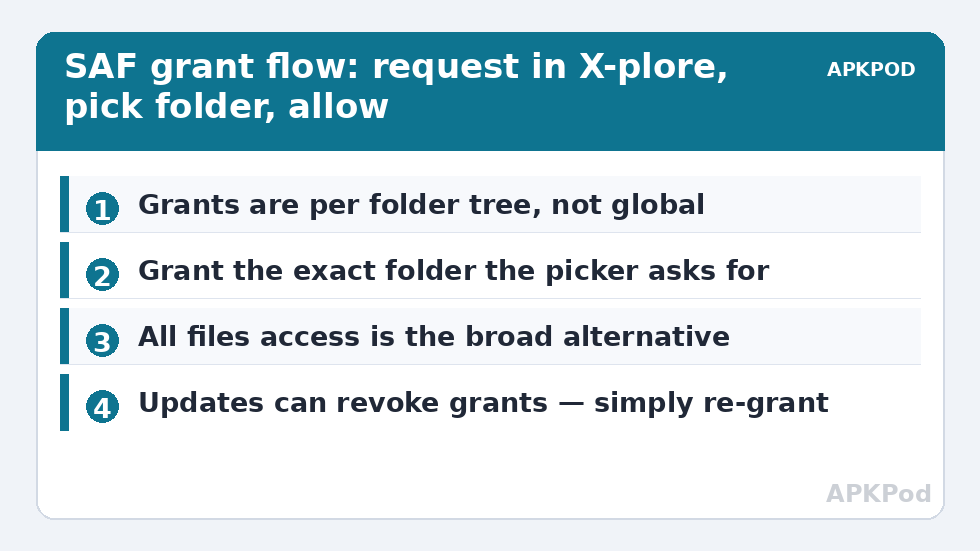
Grants, All Files Access, and What Each Unlocks
| Mechanism | Scope | Typical use on TV |
|---|---|---|
| Per-folder SAF grant | One folder tree you select | Android/data subfolders, a USB media folder an app must write to |
| All files access (MANAGE_EXTERNAL_STORAGE) | Whole shared storage, where the TV build exposes the toggle | Letting X-plore roam internal storage like pre-Android 11 apps could |
| App-specific permission (Settings → Apps → X-plore → Permissions) | Files and media access for the app | The baseline grant X-plore needs at first run |
| No grant possible | Other apps’ private sandboxes | By design unreachable without root — this is Android protecting data, not a bug |
Grant the narrowest access that solves the problem. All files access is reasonable for your own file manager on your own TV; per-folder grants are the better habit for anything else.
Keeping Access Working Across Updates and Restarts
SAF grants occasionally evaporate: a TV firmware update, an X-plore update, or reformatting the USB drive can revoke them, after which folders quietly go empty again. The recovery is simply to re-run the grant — thirty seconds once you know the picker dance. If you find yourself re-granting after every reboot with a USB drive, the drive’s volume identity is changing (common with drives that were reformatted on a PC between sessions) — leave the drive dedicated to the TV, or move the affected work to internal storage. When you plan a big reorganisation after fixing access, estimate copy times before starting so a long job is not abandoned halfway:
Bottleneck:
Tip:
All figures are estimates under good local conditions — strong signal, no competing traffic, both devices on the same network. Real speeds drop with distance, walls, channel congestion and slow storage on either device. Protocol options (SMB, FTP, SFTP) assume a 5 GHz-class Wi-Fi link.
For initial grants at first install — the ones X-plore requests before any of this becomes necessary — installing X-plore on Android TV covers the sequence in order.
Fix SAF Permission Denied Android TV Xplore Grants: Keeping Them Alive
Once you understand grants, manage them like keys rather than surprises. Keep a mental (or written, in a note on the TV) register of the three or four folders you have granted: typically one app-data subfolder, the USB media root, perhaps a recorder’s directory. When one silently stops working, the register tells you instantly which grant to renew instead of sending you hunting. Know the four events that revoke or invalidate grants — TV firmware updates, X-plore updates (rare but real), reformatting or replacing the drive (a new volume identity), and clearing X-plore’s own app data — and after any of them, simply re-run the picker on your registered folders as a matter of course, the way you would re-pair a remote after changing its batteries.
Finally, extend the same courtesy to other apps sparingly: when a video player or a downloader asks for a folder grant, give it the one folder it needs rather than the root of everything, even though the broad grant is fewer clicks. A file manager earns broad trust by being the tool you deliberately chose; random apps earn folder-shaped trust. This least-access instinct, applied consistently, is what makes Android’s permission model a feature instead of an obstacle — a theme that runs through our TV & Storage guides.
There is a temptation, after the third re-grant, to wish the whole system away and ask why Android cannot simply trust a file manager. The answer is the other apps on the TV: the same wall that inconveniences X-plore is the wall that stops a sketchy free game from reading your downloads folder. SAF is the negotiated peace between those two facts — one folder, one app, one explicit yes at a time. Working with it gracefully, as this guide does, is not a workaround of Android’s security; it is Android’s security, used as intended.
Frequently Asked Questions
Why is Android/data empty in X-plore when the app clearly stores files there?
Android 11 and later hide app data folders behind SAF. Open the folder in X-plore, accept its offer to request access, and grant that exact folder in the system picker — the contents then appear, subject to each subfolder’s own restrictions.
Is granting folder access to X-plore safe?
Yes, within the folder you choose. A SAF grant gives that one app access to that one directory tree, and you can revoke it in the TV’s app settings. It does not expose the folder to other apps or to the network.
The system picker does not list my USB drive. What now?
Restart the TV with the drive already inserted, confirm the drive appears in Settings → Storage, then retry from X-plore. If the picker still omits it, the TV build restricts USB SAF grants; use the drive as a mounted volume via its root entry instead, or move the folder to internal storage.
Why did my grants disappear after an update?
Both TV firmware updates and app updates can reset SAF grants; reformatting the drive changes its identity and invalidates grants too. Nothing is broken — simply re-grant the folder when prompted.
Can I grant access once for the whole USB drive?
On many builds yes: in the picker, select the drive’s root folder and confirm. That grants X-plore the whole volume tree in one action, which is the sensible approach for a media drive you manage yourself.