Televisions get replaced, reset and re-flashed, and every time one is, the apps you carefully hunted down go with it — unless you backup smart tv installed apps usb flash drive copies first, using X-plore File Manager’s built-in App Manager. X-plore can extract the APK of most installed apps and write it to storage, so a small flash drive becomes your TV’s rebuild kit: after a factory reset or on a new box, you reinstall from the drive instead of re-searching stores and re-sideloading. This guide covers what the backup does and does not capture, the extraction workflow from the sofa, and how to organise the drive so future-you can actually use it.
What an APK Backup Captures — and What It Does Not
| Captured in the APK backup | NOT captured |
|---|---|
| The app’s installer package (base APK) | Your accounts, logins and settings inside the app |
| The exact version you had installed | Downloaded media, caches and watch history |
| Apps that came from stores and sideloaded apps alike | Data in Android/data (protected per-app) |
| A file you can reinstall without any store | Split APK parts for some store apps (see below) |
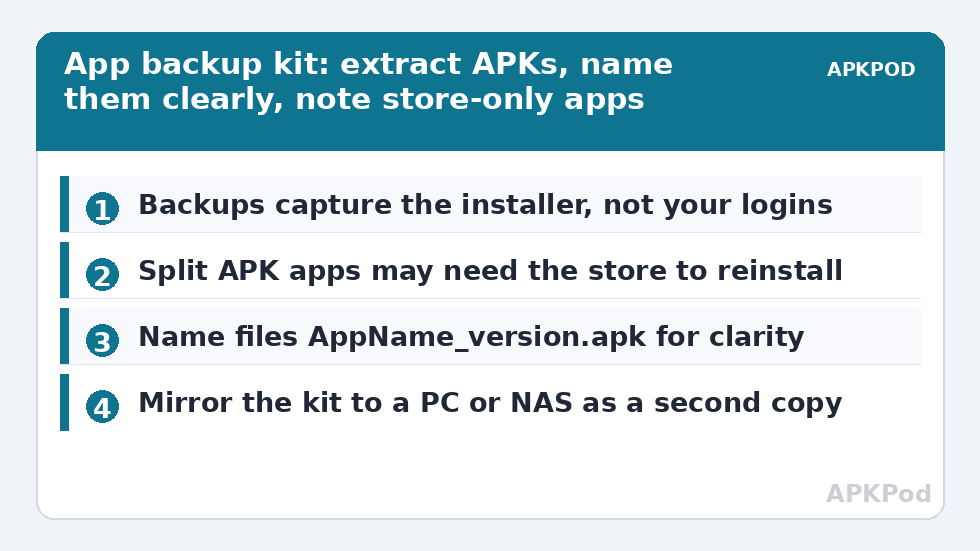
Think of it as saving the installer, not the installation. Streaming apps will still want a sign-in after reinstalling; what you save is the hunt — especially valuable for the apps you sideloaded from official sources via the X-plore Wi-Fi sideload method, since those are the ones no store will hand back to you automatically. One technical wrinkle: some Play Store apps install as split APKs (a base plus configuration parts). X-plore backs up what it can extract — for such apps the standalone base APK may not reinstall alone, and the honest advice is to note those apps in a list and let the store reinstall them; the backup kit matters most for standalone APKs, utilities and sideloaded apps.
Extracting Apps with X-plore’s App Manager
- Insert the flash drive you will dedicate to the kit (even 4–8 GB is generous; TV apps are small), and confirm it appears in X-plore using the routine from connecting external USB drives.
- In X-plore, open the App Manager (listed among the app’s main functions/roots). It lists installed apps with sizes, including system-updated and user apps depending on the filter you choose.
- Work down the list of apps worth keeping. For each: long-press OK to open its menu and choose the backup/copy-APK option, directing output to a TV-Backup folder on the flash drive.
- Rename nothing during extraction; afterwards, if X-plore saved cryptic names, rename each file to AppName_vX.Y.apk so the kit is readable on any PC later — the renaming is easy with the remote method in navigating the dual panes by remote.
- Also write a plain-text note into the same folder (X-plore has a built-in text editor) listing apps that must come from the store instead — the split-APK cases and anything account-critical.
Restoring on a New or Reset TV
After the reset or on the replacement box: install X-plore first (from the store, per the installation guide), grant its install permission if you will sideload from the drive, insert the backup flash drive, and install each APK by opening it in X-plore — the system installer does the rest. Expect to sign in to services again and re-grant storage permissions; expect also to re-apply per-folder SAF grants of the kind covered in fixing SAF permission errors. Verify versions as you go: if the store now offers a much newer version of an app than your backup holds, prefer the store copy for that app and refresh the backup afterwards. The restore of a typical app suite (15–25 apps) takes fifteen to thirty minutes from the sofa — against an evening of store archaeology without the kit.
Keeping the Kit Alive
- Refresh after big updates: when a favourite app updates significantly, re-extract its APK so the kit never holds an ancient build.
- Keep a second copy off the TV: the flash drive is a convenience, not an archive — mirror the TV-Backup folder to your PC or NAS whenever you pass files that way anyway; for planning a big mirror copy, estimate it as you would any network transfer:
Bottleneck:
Tip:
All figures are estimates under good local conditions — strong signal, no competing traffic, both devices on the same network. Real speeds drop with distance, walls, channel congestion and slow storage on either device. Protocol options (SMB, FTP, SFTP) assume a 5 GHz-class Wi-Fi link.
- Only back up apps you legitimately have. An APK backup of your own installed apps, for your own devices, is the intended use; do not redistribute extracted APKs — paid apps extracted this way remain the developer’s property, and sharing them is piracy regardless of how easy the button is.
Backup Smart TV Installed Apps USB Flash Drive Kit: The Annual Audit
A backup kit that has never been test-restored is a hope, not a backup. Once a year — or once a quarter if the TV is heavily customised — pick two apps from the kit at random and one that matters, uninstall one of them from the TV (choose something painless to re-set-up), and reinstall it from the flash drive. Time the exercise; it should take minutes. The audit verifies four things at once: the APK files are intact, you still remember the install-permission steps, the drive itself is healthy, and your note file’s list of store-only apps is accurate. Fix the note file while the discrepancies are in front of you, because the version of you doing an emergency rebuild at midnight deserves better documentation than the version of you who was “sure he would remember”.
The audit is also when the kit gets pruned: apps you no longer use come out, newly important apps go in, and versions older than the store’s current build by a wide margin get refreshed. Store the drive somewhere findable — taped inside the TV cabinet beats a junk drawer — and keep the mirrored copy on the PC current at the same sitting. This rhythm of small, verified backups rather than heroic rescues is the philosophy behind our TV & Storage guides.
Version discipline separates a kit from a pile of files. When you refresh an app’s backup, delete the old APK from the kit in the same motion — two versions of one app in a folder invites a midnight mistake — and if you deliberately keep an older version because a newer one broke something, say so in the filename itself, for example AppName_v3.2_KEEP.apk. Future-you, rebuilding under pressure, should never have to guess which file embodies a decision. The note file then only needs to carry what filenames cannot: sources, store-only exceptions, and the order you prefer to reinstall in.
Frequently Asked Questions
Will the backed-up apps keep my logins and settings?
No. The backup is the app’s installer only. After reinstalling, you sign in again and set the app up as new. What you save is finding and downloading the app itself — which, for sideloaded apps, is the hard part.
Why did one app’s backup fail to reinstall?
Most likely it was installed by the store as split APKs, and the extracted base package cannot stand alone, or the backup came from a newer Android version than the target TV runs. Let the store install that app, and keep the backup for standalone APKs.
How much space does a TV app backup kit need?
Very little. TV apps typically run from a few megabytes to a few hundred; a full suite of 25 apps rarely exceeds 2–3 GB, so the smallest spare flash drive you own is big enough.
Is backing up installed apps legal?
Backing up software installed on your own device, for your own use, is a standard personal-backup practice. Distributing those APKs to others — especially paid apps — is not, and this kit is meant to rebuild your TV, not to share.
Can I restore these APKs onto a Firestick instead?
Usually yes for standalone APKs, since Fire OS is Android-based; install X-plore from the Amazon Appstore, allow it to install unknown apps, and install from the drive. TV-designed apps fare best; phone-only apps may lack remote-friendly interfaces.