To link google drive mega onedrive xplore connections in a single file manager, you do not install a separate sync client for each service or hand your password to a third-party app. X-plore opens the official sign-in page for each provider, you approve access there, and the app stores a reusable token on the phone. Once that token exists, your cloud folders appear beside internal storage and your memory card in the folder tree, so copying a document from Drive to Mega feels no different from copying it between two local folders.
That convenience only stays safe if you set it up deliberately. This guide walks through the connection for each of the three services, explains what permission you are actually granting, shows how to rename and separate work and personal accounts, and covers how to revoke access cleanly when you no longer want a service on the device. It also notes an important point: the list of cloud services inside X-plore has changed over the years, with providers added, renamed, or dropped as their own APIs changed. Treat the steps below as the current pattern for Drive, Mega, and OneDrive, and check the Web storage section of your installed version rather than relying on an old screenshot from a forum.
How to Link Google Drive Mega OneDrive Xplore Accounts Safely in X-plore
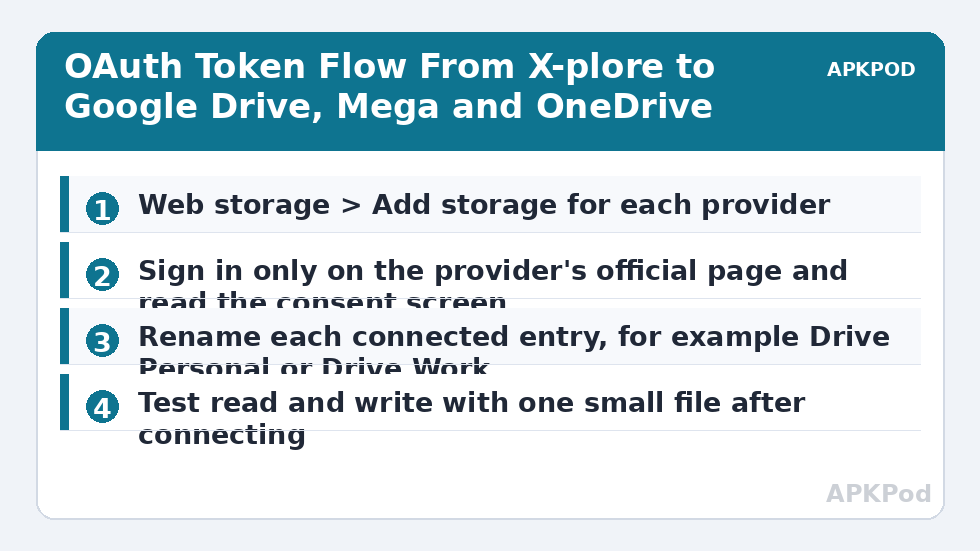
Open X-plore and look at the right-hand pane. Under the storage heading you will find an entry for Web storage, sometimes labelled Cloud storage depending on version and translation. Tap Add storage or the plus control, and a list of available services appears. Choosing a service does not open a fake login form built into X-plore. It launches your browser or an in-app web view pointed at the provider itself, on the provider’s own domain for Drive, Mega, and OneDrive.
That detail is the whole security model. You enter your password, passkey, or two-step verification code only on the provider’s own page, where you can check the address before typing. The provider then shows a consent screen listing what the app is asking for, typically reading and managing files in that cloud account. When you approve, the provider returns a token to X-plore. X-plore stores the token, not your password, and uses it on later visits. If you later change your provider password, the token usually keeps working until you revoke it, which is why the revocation steps later in this article matter.
What Each Service Grants, Side by Side
| Service | Sign-in owner | What the token allows | Useful note |
|---|---|---|---|
| Google Drive | Google account sign-in | Browse, download, upload, rename and delete files in Drive | Shared drives and shared-with-me folders may appear depending on account type |
| Mega | Mega sign-in | Browse and transfer files, respecting Mega’s own encryption model | Keep your Mega recovery key safe outside the phone; losing account access is a Mega issue, not an X-plore issue |
| OneDrive | Microsoft account sign-in | Browse personal or work folders, upload and download | Personal accounts and work or school accounts follow different admin policies |
Read the consent screen instead of tapping through it. If a work or school OneDrive account is managed by an employer or university, the administrator may block third-party apps entirely, and the connection will fail after sign-in with a message about admin approval. That is a policy decision on the account, not a bug in the file manager. Use a personal account for testing first if you hit that wall, so you can separate an app problem from an account restriction.
Connecting Google Drive First
- Tap Web storage, choose Add storage, then select Google Drive.
- On the Google page that opens, pick the exact account you want. If you use two Google accounts on the phone, pause here; picking the wrong one is the most common setup mistake.
- Complete any two-step verification prompt, then read the consent screen and approve.
- Wait for the browser to hand control back to X-plore. Your Drive root folder should appear in the tree with the account name beside it.
- Open one small folder and download one small file as a test before you move anything large.
After the test, long-press the new Drive entry if your version offers a rename option and give it a plain label such as Drive Personal or Drive Work. Labels matter more than people expect. A week later, when you are moving files between clouds, a clear label prevents the classic error of uploading a private document into a shared work folder because both entries simply said Google Drive.
Bottleneck:
Tip:
All figures are estimates under good local conditions — strong signal, no competing traffic, both devices on the same network. Real speeds drop with distance, walls, channel congestion and slow storage on either device. Protocol options (SMB, FTP, SFTP) assume a 5 GHz-class Wi-Fi link.
Adding Mega and OneDrive the Same Way
Repeat the same Add storage flow for Mega and for OneDrive. For Mega, be ready for Mega’s own warnings about encryption and account recovery. Files you upload through X-plore to Mega become part of Mega’s encrypted storage, and Mega cannot recover a forgotten password for you in the way a conventional provider might. For OneDrive, sign in with the Microsoft account that actually owns the files you want. Many people have an old personal address and a newer work account, and the empty OneDrive they connect first is usually the wrong account, not a sync failure.
Add one service at a time and test it before adding the next. If you connect all three in a rush and something looks wrong, you will not know which sign-in went sideways. A thirty-second test — open the root folder, open one subfolder, download one small file, then upload a throwaway text file and delete it — confirms read and write access separately. Read access can succeed while write access fails on a restricted or full account, and you want to discover that on a test file, not during a real migration.
Managing Permissions, Quotas and Everyday Use
Once connected, treat cloud folders in X-plore like slow local folders, not instant ones. Listing a folder means asking the provider for its contents over the network, so a folder with thousands of items can take noticeably longer on mobile data than on Wi-Fi. As a typical range, small documents open in a few seconds on a decent connection, while large video files are better downloaded first or streamed only if your version and the provider allow it.
- Check remaining quota in the provider’s own app or website before large uploads; X-plore can only report what the service returns.
- Use Wi-Fi for bulk moves and keep X-plore in the foreground while a transfer runs, so Android does not pause it as a background task.
- Keep filenames portable: avoid characters such as slashes and very long names that one provider accepts and another rejects.
- Verify important uploads by opening the file from the destination cloud afterwards, not just trusting the progress bar.
For moving material once everything is connected, see the companion guide on how to transfer files between cloud drives in X-plore, which covers copy-versus-move risks in detail. If a connection later breaks, the repair steps in the guide to fix Google Drive sign-in errors in X-plore apply to token problems on the other services too. Both sit inside this site’s wider Cloud & Security section.
Removing a Service and Revoking Its Token
Disconnecting has two halves, and doing only the first leaves access behind. Inside X-plore, long-press the cloud entry and remove or delete the storage entry so the app stops using the token. Then go to the provider’s own security page — Google’s third-party access page, Microsoft’s account services page, or Mega’s session and account settings — and revoke X-plore’s access there as well. Revoking at the provider kills the token even if a copy remains somewhere on an old phone or a backup.
Do the same before selling, lending, or recycling a phone. Removing the app alone is not a tidy handover if tokens survive in a device backup that later gets restored elsewhere. A quick audit every few months — which services are connected, under which account, and do I still need them — takes five minutes and is one of the simplest privacy habits covered in the cloud security and privacy audit checklist for X-plore.
Frequently Asked Questions
Does X-plore store my Google, Mega or Microsoft password?
No. You sign in on the provider’s official page and the provider returns an access token, which is what X-plore stores. Your password is entered only on the provider’s page, so check that address carefully before typing it.
Why is a cloud service I saw in an old tutorial missing from my list?
The supported-services list inside X-plore has changed historically as providers changed their APIs and terms. A missing service in your installed version usually means it is no longer offered in that version, not that your installation is broken.
Can I connect two accounts from the same provider?
In many versions, yes. Add the storage again and sign in with the second account, then rename each entry clearly so you can tell personal and work accounts apart before copying files between them.
What should I do before giving my phone to someone else?
Remove each cloud entry inside X-plore and also revoke X-plore’s access on each provider’s security page. Revoking at the provider invalidates the token itself, which removing the app entry alone may not do.
Why does a connected drive open slowly on mobile data?
Every folder listing and file open is a network request to the provider. Large folders and large files will feel slower on mobile data or a weak signal than on Wi-Fi, which is normal behaviour for cloud storage in any file manager.