Two work accounts, one personal account, and files scattered across both services is a common reason to manage dropbox box storage xplore connections in a single place instead of switching between separate apps all day. X-plore puts a Dropbox pane on one side of the screen and a Box pane, a phone folder, or your internal storage on the other, so copying, moving, and checking what actually uploaded becomes a visible, two-sided job rather than a share-sheet guessing game.
There is an honesty point to make before any steps. Dropbox and Box support inside any third-party file manager depends on those providers’ API policies, developer terms, and app review rules, and all of those have changed over time. A provider can restrict API scopes, require re-authorisation, or withdraw access routes that worked in an older version. If a service is missing or limited in your build of X-plore, that is usually a policy or version issue, not something a reinstall will magically fix. Check that you are on a current X-plore release, and check the provider’s own app if access has suddenly narrowed.
How Sign-In Works: Manage Dropbox Box Storage Xplore Accounts With OAuth
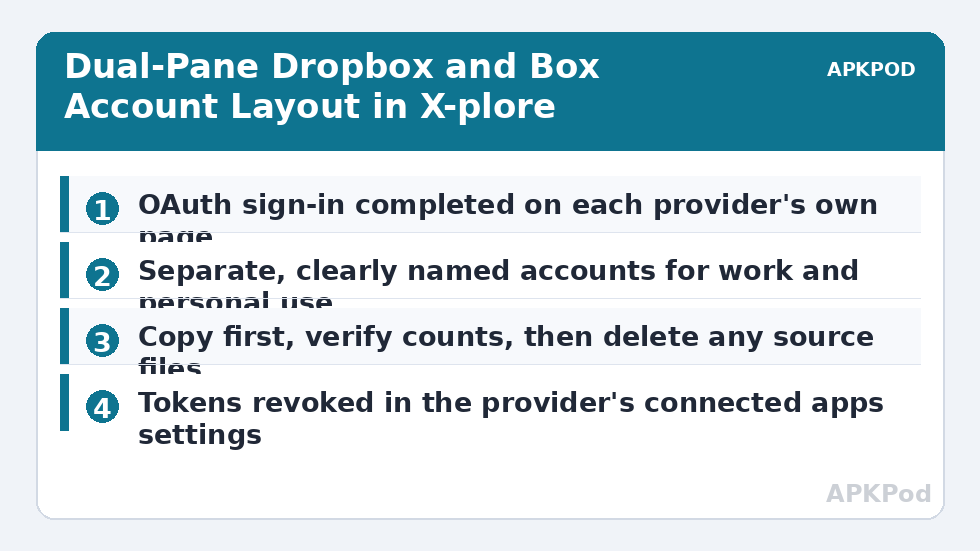
X-plore does not ask you to type your Dropbox or Box password into its own password field and store it. Sign-in is OAuth token based. When you add an account, X-plore hands you to the provider’s own sign-in page, normally in your browser or an in-app browser view, where you sign in with the provider directly and approve the access X-plore is requesting. The provider then returns an access token to X-plore, and that token, not your password, is what the app uses for later sessions.
That distinction matters for security and for troubleshooting. Revoking access is done in the provider’s account settings, under connected apps, and it takes effect even if the phone is lost. Changing your Dropbox or Box password does not always revoke existing tokens at once, so a password change alone is not a clean disconnect. If you sell or give away a phone, remove the cloud accounts inside X-plore and revoke the tokens on the provider’s website from a computer you trust.
- Open the cloud section. In the X-plore folder tree, expand the cloud or web storage section and choose the option to add a new storage account.
- Pick the provider. Select Dropbox or Box from the list shown in your version. If a provider is not listed, do not install random add-ons claiming to restore it.
- Approve in the provider flow. Complete sign-in and multi-factor authentication on the provider’s own page, then read the approval screen. Note what it says about reading, writing, and deleting files.
- Name the account clearly. If you hold two Dropbox accounts, label them by purpose, such as work and personal, immediately. Dual-pane copying to the wrong account is an easy and embarrassing mistake.
- Test with a throwaway file. Upload a small text file, download it back to the other pane, rename it, then delete the copy. That confirms the token has the access you expected.
Using Two Panes Without Creating a Mess
The dual pane is the reason to do this in X-plore at all. Put the source on the left and the destination on the right, or the reverse, and keep that habit consistent. Select files in the source pane, check the selection count and total size in the status information, then copy or move to the destination pane. Copy first when the files matter. Move is a copy followed by a delete at the source, and if a connection drops part-way through a large move, you want the originals still intact until you have verified what arrived.
Work in dated, plainly named destination folders rather than dropping hundreds of loose files into a provider’s root folder. A folder such as 2026-phone-archive or Client-Name-Handover makes the later audit trivial: open the folder on the provider’s website, compare the file count with the source folder in X-plore, and open two or three files at random. File managers in our wider Cloud & Security collection all reward the same habit, because verification only works when both sides are easy to count.
A Sensible Folder Layout for Two Providers
| Content type | Suggested home | Why |
|---|---|---|
| Work documents shared with colleagues | Box, in team-named folders | Keeps sharing permissions with the team that owns them. |
| Personal documents and scans | Dropbox, in a private folder tree | Separates personal files from employer-managed sharing. |
| Large media awaiting editing | Whichever account has verified free space | Check quota before starting, not midway through a copy. |
| Phone exports and backups | A dated folder on one provider only | One canonical copy avoids duplicate backup sets diverging. |
| Sensitive files | Encrypt locally before uploading | Provider storage is not a substitute for file-level encryption. |
That last row deserves emphasis. If a contract, scan of an identity document, or financial record should not be readable by anyone who gains account access, encrypt it before it leaves the phone. Our guide to encrypting files with AES-256 before upload covers that workflow, and it applies equally to Dropbox, Box, and any other destination you add later.
Bottleneck:
Tip:
All figures are estimates under good local conditions — strong signal, no competing traffic, both devices on the same network. Real speeds drop with distance, walls, channel congestion and slow storage on either device. Protocol options (SMB, FTP, SFTP) assume a 5 GHz-class Wi-Fi link.
Migrating Files Between Dropbox and Box
Moving an archive from one provider to the other is where people most often overestimate what a phone file manager should do in one run. X-plore will stream the copy through your phone: data downloads to the device and uploads again to the destination. Your phone, your Wi-Fi connection, and both providers’ transfer limits are all in the path. For a few hundred megabytes that is fine. For tens of gigabytes, expect heat, battery drain, and a long session that should be done plugged in, on a stable home network, in batches.
Split the migration by folder, not by arbitrary file counts. Finish one folder, verify it on the destination provider’s website, and only then delete the source copy, if deleting it is part of the plan at all. If the app is closed by Android’s battery management during a long job, exclude X-plore from battery optimisation for the duration of the migration, then turn optimisation back on afterwards. If sign-in itself is failing before you can start, the diagnosis pattern in fixing a cloud sign-in error — expired token, wrong account, blocked approval page — transfers almost unchanged to Dropbox and Box.
Permissions, Sharing, and What Does Not Travel With a File
A copy made through X-plore is a new file on the destination service. Sharing links, comments, version history, and the list of people who could open the file on the old service do not travel with it. That is often a benefit, because a handover copy should not silently inherit an old sharing list, but it surprises teams who expected collaborators to follow the file. After migrating shared material, re-share it deliberately from the destination account and tell the recipients which copy is now canonical.
Combining accounts also makes an occasional review worthwhile; the checklist approach in a cloud security and privacy audit is a good template for reviewing connected apps, shared folders, and stale tokens across both providers.
Removing Accounts and Revoking Access Cleanly
Removing an account from X-plore’s list and revoking the provider token are two separate actions, and a tidy departure does both. First remove the account inside X-plore so the app stops trying to use the token. Then sign in to Dropbox or Box on the web, open the connected apps or security settings, and revoke X-plore’s access for that account. Finally, if the account held sensitive material, change the folders you share from it and review recent account activity on the provider’s site. Tokens are convenient precisely because they survive password typing; treat them with the same seriousness as the password itself.
Repeat that token review once a year. A five-minute pass through connected apps on both services closes access routes from old phones and forgotten apps, and it costs nothing.
Frequently Asked Questions
Does X-plore store my Dropbox or Box password?
No. Sign-in is OAuth based, so you authenticate on the provider’s own page and X-plore receives an access token. You can revoke that token at any time from the connected apps section of your Dropbox or Box account settings on the web.
Why has Dropbox or Box access changed or disappeared in X-plore?
Third-party access depends on each provider’s current API policies, scopes, and app review rules, which have changed over time. Update X-plore first, then check the provider’s own app and account pages. A missing or narrowed integration is usually a policy change, not a fault on your phone.
Can I copy directly from Dropbox to Box in X-plore?
Yes, by placing one service in one pane and the other service in the second pane, then copying between them. The data passes through your phone, so work in folder-sized batches, stay on stable Wi-Fi, keep the phone plugged in, and verify each folder before deleting any source files.
Do sharing permissions and comments move when I copy a file to the other service?
No. A copy is a new file on the destination service with no inherited sharing list, comments, or version history. Re-share it deliberately from the new account and tell collaborators which copy is the current one.
How do I fully disconnect an account I no longer use?
Remove the account inside X-plore, then revoke X-plore’s access token in the provider’s connected apps settings on the web. Doing only the first step leaves a valid token behind, so always complete both steps.