A custom password is the first control you should set when you secure local wireless transfer password xplore sessions on your home network, but it is not the only one, and it is not encryption. X-plore’s Wi-Fi file sharing turns your phone into a small local web server that a browser on your computer can open. Used briefly, on a network you own, with a password set and the server stopped afterwards, it is a practical cable-free tool. Used carelessly, it is an open door into your storage.
Start with the protection level stated plainly, because marketing language hides it. The password protects access to X-plore’s web interface: a browser that does not supply it should not get your file listing. The connection itself, however, runs over plain HTTP on your local network in the standard Wi-Fi sharing mode. That means the traffic is not protected by TLS the way an HTTPS website is. On a home network where you trust the router, the other devices, and everyone who knows the Wi-Fi password, that trade-off can be acceptable for ordinary files. On anyone else’s network, it is a different calculation entirely.
How to Secure Local Wireless Transfer Password Xplore Sessions, Step by Step
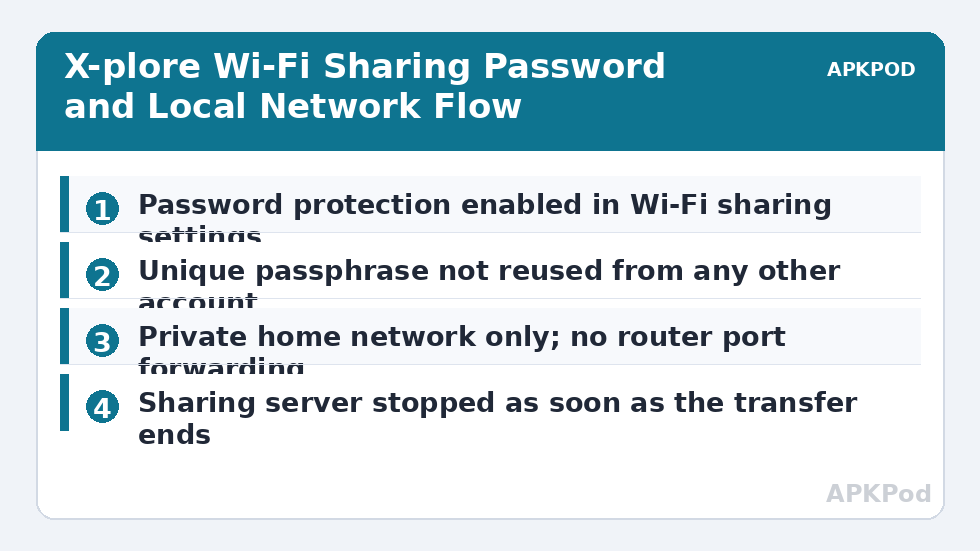
Open X-plore, find the Wi-Fi file sharing option in the menu, and open its settings before you start the server for the first time. Set a username if your version offers one and a password that is unique to this purpose. Do not reuse your email, banking, router, or phone unlock password. A short passphrase of several unrelated words, with numbers added, is easier to type into a browser once per session and far stronger than a pet’s name with a digit at the end.
- Set the password first. Enable password protection in the Wi-Fi sharing settings and confirm it is saved before starting the server.
- Start the server only when you are ready. X-plore will show an address, typically a private IP address and port, to type into your computer’s browser.
- Check the address belongs to your phone. It should be a private address such as 192.168.x.x on the same network as your computer, not something to share outside your home.
- Sign in and test narrowly. Open one ordinary folder, download one small file, and upload one small file back before you move anything important.
- Stop the server when the job ends. Do not leave it running while you do something else. A stopped server accepts no connections at all.
What the Password Does and Does Not Do
| Question | Honest answer |
|---|---|
| Stops a casual browser on the LAN opening your files? | Yes, if password protection is enabled and the password is not guessable or shared. |
| Encrypts files in transit? | No. Standard Wi-Fi sharing uses plain HTTP on the local network, not TLS. |
| Protects you on coffee shop or hotel Wi-Fi? | No. Do not run the server there at all. Other users share that network by design. |
| Makes port forwarding to the internet safe? | No. Never forward this server to the internet. It was designed as a local convenience feature. |
| Replaces a locked phone and Vault? | No. It is one access control on one feature, not device-wide protection. |
Read that table as a threat model, not as a reason to avoid the feature. The real question is always who else can reach the server while it runs. At home, the answer is the devices on your LAN. In a shared house with guests on the same network, the answer grows. On a public network, the answer is effectively strangers, which is why the rule there is absolute: do not start it. If you must move files away from home, use a cloud account you control or wait until you are on a network you trust, and see the wider guidance collected under Cloud & Security.
Bottleneck:
Tip:
All figures are estimates under good local conditions — strong signal, no competing traffic, both devices on the same network. Real speeds drop with distance, walls, channel congestion and slow storage on either device. Protocol options (SMB, FTP, SFTP) assume a 5 GHz-class Wi-Fi link.
Network Habits That Matter More Than Password Length
A strong password on the wrong network still leaves you exposed, because plain HTTP traffic can be observed by other devices in a position to capture it, and because a web interface invites repeated login guesses while it is up. Three habits do more for real safety than adding a fifth special character. First, run the server only on your own home network, ideally on a private SSID rather than a guest network you hand to visitors. Second, keep sessions short and purposeful: start, transfer, verify, stop. Third, never set up router port forwarding, a dynamic DNS name, or a tunnel to make the phone reachable from outside. Each of those converts a local convenience into an internet-facing server it was never hardened to be.
Router settings help at the margins. Keep your router firmware updated, use WPA2 or WPA3 with a strong Wi-Fi password, and turn off WPS if your router still offers it. Client isolation, sometimes sold as a safety feature on guest networks, will also break phone-to-PC transfers entirely, which is a useful diagnostic: if the browser cannot reach the address at all, check whether the phone and computer ended up on different SSIDs or an isolated guest network before you blame X-plore.
Choosing What the Server Can Reach
Think about scope as well as access. Where your version of X-plore lets you influence which storage or folder the sharing session exposes, favour the narrowest useful scope. A dedicated transfer folder that you copy files into first is a better exposure than your entire internal storage, your photo library, and your downloads combined. Pair that with the app-level protection described in configuring a master password so that someone holding your unlocked-looking phone still meets a barrier inside X-plore itself, and set the behaviour in configuring the auto-lock timeout so protection returns quickly when you put the phone down.
Also consider the computer side. Only type the server address into your own browser on your own machine. Do not sign in from a shared family PC that others use with saved sessions everywhere, a work machine managed by an employer, or a borrowed laptop. Browsers may offer to save the password; decline on any machine that is not exclusively yours. When the session ends, stopping the server invalidates the practical risk, and closing the browser tab is a tidy finishing step.
If You Need Real Encryption in Transit
Sometimes the file itself settles the argument. Tax documents, identity scans, legal papers, medical letters, and password exports should not cross even a home network as plain HTTP if you can avoid it, and they certainly should not cross a network you do not control. For those, encrypt the file before transfer, move it to a cloud account over the provider’s encrypted connection, or carry it on a cable. The review method in a cloud security and privacy audit checklist helps you decide, file type by file type, which route each kind of document deserves rather than treating every transfer the same.
None of this makes X-plore’s Wi-Fi sharing a bad feature. It makes it an honestly local one. A custom password, a trusted network, a narrow folder, a short session, and a server that is stopped the moment you finish: together those five conditions are the real security model. Drop any one of them, especially the trusted network, and you are no longer using the feature the way it was meant to be used.
Frequently Asked Questions
Is the X-plore Wi-Fi file sharing connection encrypted?
No. In its standard mode the web interface runs over plain HTTP on your local network, so the password controls who can sign in but the traffic itself is not protected by TLS. Use it only on a home network you trust, and use an encrypted route for sensitive files.
Can I use Wi-Fi file sharing on public or coffee shop Wi-Fi?
No, do not run the server on public, hotel, or shared networks. Other people are on those networks by design, and a password does not make an unencrypted local server safe there. Wait for a trusted network or use a cloud account you control instead.
What makes a good password for the sharing server?
Use a unique passphrase you do not reuse anywhere else, made of several unrelated words with numbers added. Avoid names, birthdays, and your Wi-Fi or phone passwords. You type it rarely, so favour length and uniqueness over something short and clever.
Should I forward a router port so I can reach the server from outside home?
Never. Port forwarding turns a local convenience feature into an internet-facing, unencrypted file server that scanners will find. If you need files away from home, copy them to a cloud service before you leave instead.
Why can my computer not reach the address X-plore shows?
Usually the phone and computer are on different networks, a guest SSID, or a router feature such as client isolation is separating them. Confirm both devices are on the same private home network, type the full address including the port, and make sure the server is still running in X-plore.