A passport scan, a photo of a bank letter, a screenshot you would rather a borrowed phone never showed — the practical way to protect them in X-plore is to use the xplore vault encrypt hide private photos feature as it was designed: move the file into the Vault, let X-plore encrypt it with a password only you know, and accept that the file will then open only through X-plore while the Vault is unlocked. Nothing about the Vault makes a file invisible to forensic tools or repairs a weak password. Used honestly, though, it does one job well: casual access stops working.
The Vault is not a second gallery and it is not cloud backup. It is an encrypted container inside the app’s own storage area. Filenames inside it are scrambled, so a person browsing the folder with another app sees meaningless names rather than your original titles, and the contents are encrypted so a copied file does not open as a normal photo or document elsewhere. This article explains setting the Vault up, what to put in it, what deliberately to keep out of it, and how daily unlocking should work so the protection does not become a nuisance you switch off.
Using Xplore Vault Encrypt Hide Private Photos Settings in X-plore Correctly
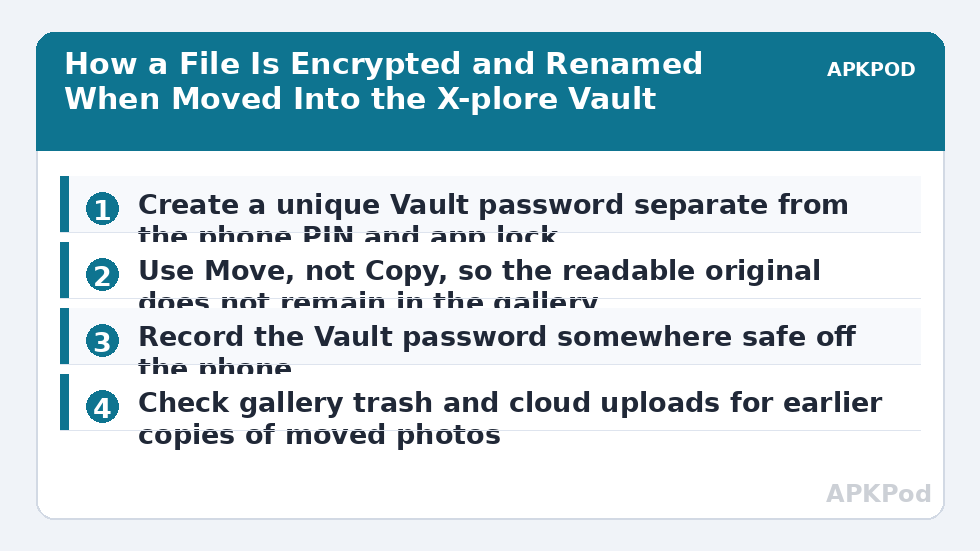
Find Vault in the X-plore menu or folder tree and open it for the first time. X-plore will ask you to create a password for the Vault. This password is separate from any app lock and separate from your phone’s screen lock, and that separation is deliberate. A person who knows your phone PIN to lend the device for a call still does not know your Vault password, and a person who somehow learns the Vault password still cannot unlock the phone with it. Choose a password you have not reused from email, banking, or social accounts. Length helps more than exotic symbols, so a short phrase you can type reliably is usually a better choice than a clever pattern you will mistype three times.
Write the password down somewhere that is not on the same phone — a sealed note at home, or a trusted password manager protected by its own strong login. That advice sounds old-fashioned because the failure case is old-fashioned too: people forget a rarely used password, then discover the photos they protected most carefully are the ones they can no longer open. There is a separate recovery discussion in the guide to recover a forgotten Vault password in X-plore, but the honest starting point is that strong encryption without the password is not supposed to be easy to undo.
What Happens When You Move a File Into the Vault
Select a photo or file in any folder, use the Move or Cut option, navigate into the unlocked Vault, and paste. X-plore encrypts the file as it places it inside, scrambles its stored name, and removes the original from its previous location as part of a move. That last point deserves checking on your first use: move one unimportant photo, then look back in the original gallery folder and confirm the original really is gone. If you used Copy instead of Move, you have an encrypted copy in the Vault and a perfectly readable original still sitting in the gallery, which defeats the entire exercise.
| Action | Result in Vault | Result in original folder | Best for |
|---|---|---|---|
| Move / Cut and paste | Encrypted file with scrambled name | Original removed | Private photos and documents you want protected |
| Copy and paste | Encrypted copy added | Original remains readable | Testing the Vault with a throwaway file |
| Share or open with another app while unlocked | File stays encrypted at rest | A decrypted copy may be created by the other app | Viewing only, with care about recent files and caches |
Thumbnails and recent-file lists are the quiet leak most people miss. Android’s gallery may keep a thumbnail, a media app may keep a recent entry, and a cloud photo service may already have uploaded the original before you moved it. After moving sensitive photos, check your gallery’s recently deleted or trash folder, check any auto-upload service you use, and decide whether that earlier copy should also be removed. The Vault protects what is inside the Vault. It does not rewind copies made before the file arrived there. For photos you intend to back up deliberately, do that backup on purpose, folder by folder, rather than letting an auto-upload happen by accident before you have decided what should leave the phone.
Bottleneck:
Tip:
All figures are estimates under good local conditions — strong signal, no competing traffic, both devices on the same network. Real speeds drop with distance, walls, channel congestion and slow storage on either device. Protocol options (SMB, FTP, SFTP) assume a 5 GHz-class Wi-Fi link.
What Belongs in the Vault and What Does Not
- Good candidates: identity document scans, financial letters, medical documents, private family photos, licence and insurance copies you may need while travelling.
- Keep out: the only copy of irreplaceable family history, unless you also keep an encrypted backup elsewhere, because a lost password or a damaged phone can make Vault contents unreachable.
- Keep out: files you open many times a day. Constant unlocking trains you to choose a shorter timeout or a weaker password, which quietly erodes the protection.
- Think twice: work documents your employer requires to stay in a managed system. Moving them into a personal Vault may breach a workplace policy even if your intention is protective.
Size matters in a practical way. The Vault suits dozens or a few hundred private items stored on the device itself. It is not a substitute for an encrypted archive of a lifetime of video. Large collections are better handled with a dedicated encrypted backup workflow, such as the approach described for how to encrypt files before uploading them from X-plore, where the encrypted file can live on external or cloud storage under your control. This whole topic sits within the site’s Cloud & Security coverage for a reason: where a file lives matters as much as whether it is encrypted.
Daily Use: Unlocking, Viewing and Locking Again
Open the Vault, enter its password, and browse normally while it is unlocked. Photos and documents open through X-plore’s own viewers or through an app you choose with the Open with command. When you share a Vault file outward — sending a scan to an insurer, for example — understand that the receiving app gets a readable copy, because sharing a still-encrypted blob would be useless to the recipient. After sharing, that copy lives by the other app’s rules, not the Vault’s.
Lock the Vault when you finish. Depending on your version, you can lock it from its menu, by closing the app, or automatically after a timeout you set. Pairing the Vault with a short auto-lock is the single setting that makes the system forgiving of human forgetfulness, and it is covered in depth in the guide to configure auto-lock timeout for the X-plore Vault. If you also protect the whole app, combine this with a master password as described later in this category, so a person must get past the app lock first and the Vault password second — two separate secrets, two separate chances for a casual snooper to give up.
Frequently Asked Questions
Are files in the X-plore Vault really encrypted or just hidden?
They are encrypted with the password you set for the Vault, and their stored filenames are scrambled. A copied Vault file does not open as a normal photo or document outside X-plore, which is more than simple hiding or renaming would achieve.
Can I open Vault files with my gallery app?
Not directly while they are in the Vault. You unlock the Vault in X-plore and open files through X-plore, or move a file back out to a normal folder if you decide it no longer needs protection.
What happens if I forget the Vault password?
That is the hard edge of real encryption: without the password, Vault contents are not meant to be recoverable by guessing. Keep the password recorded somewhere safe that is not only on the same phone.
Does moving a photo to the Vault remove it from cloud backups?
No. If a photo service already uploaded the original before you moved it, that uploaded copy remains until you remove it in that service. The Vault only controls the copy inside X-plore on the device.
Should the Vault hold the only copy of important documents?
No. Keep an additional encrypted backup somewhere else for anything irreplaceable, so a lost password, a broken phone, or a failed storage card does not turn protection into permanent loss.