The Nvidia Shield TV is the Android TV box that behaves most like a small computer: it has real USB 3.0 ports, writes to NTFS as well as exFAT, mounts network shares at system level, and has enough power that file management never feels like a compromise. Setting up X-plore on Nvidia Shield TV for NAS shares and USB drives is therefore less about working around limits and more about choosing the best of several good routes. This guide sets up both storage types in X-plore, explains when to use the Shield’s own network mounting instead of X-plore’s LAN connections, and finishes with the transfer habits that suit a box that often ends up as the household’s media hub.
Install X-plore from the Play Store first — it is published by Lonely Cat Games — and on first launch grant it access to storage when prompted. The Shield runs a comparatively recent Android TV build, so expect the standard permission flow: All files access for broad local browsing, and folder-by-folder grants if you venture into restricted areas. If the general install sequence is new to you, the steps in installing and navigating X-plore on Android TV cover the same ground for any set, and the rest of our library is collected on the APKPOD home page.
USB Drives on the Shield: The Easy Half
Plug a drive into either USB port and it mounts automatically, appearing in X-plore’s device list as its own root entry. The Shield’s advantages show immediately: USB 3.0 ports mean a USB 3.0 drive is actually fed at USB 3.0 rates, and NTFS drives are writable, not just readable, which removes the reformatting dance many other TVs require. For a drive that will live on the Shield and also visit a Windows PC, NTFS or exFAT both work; for one that will also visit a Mac, exFAT is the safer common ground. FAT32 remains the fallback for tiny sticks, with its hard 4 GB single-file ceiling.
Put a number on that port advantage, because it decides where big media should live. USB 2.0’s 480 Mbps theoretical rate delivers roughly 25 to 35 MB/s in real copies. USB 3.0’s 5 Gbps typically delivers several times that with a decent SSD or fast HDD — 80 MB/s and well beyond is common, the drive itself becoming the limit. Copying a 40 GB film file at 30 MB/s takes about 22 minutes (40,000 MB divided by 30). At 90 MB/s the same copy takes about seven and a half minutes. That is why, on a Shield, local USB storage is a perfectly good home for high-bitrate 4K, while on a lesser box the same advice needs caveats.
Removable or Adopted on the Shield?
The Shield supports adopting a drive as internal storage under Settings, then Device Preferences, then Storage, and with a fast SSD it works well for games. Keep media drives removable. Adopted storage is encrypted to that one Shield, cannot be read elsewhere, and disappears if unplugged — all covered in depth in expanding Android TV storage with USB. A sensible Shield layout is: internal or adopted SSD for apps and games, removable drive for media, NAS for the archive.
Route One: Add the NAS Inside X-plore
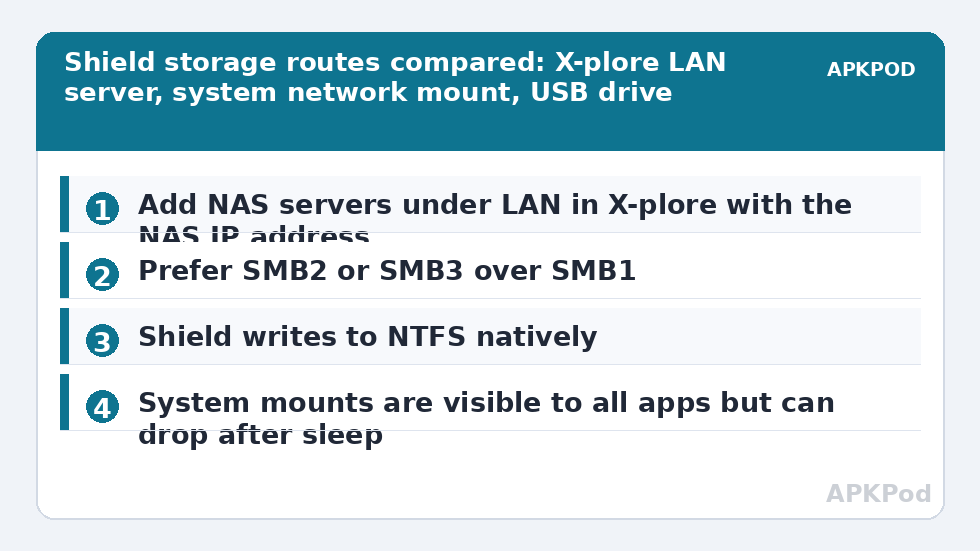
X-plore’s own network support is the quickest path. In the device list, open LAN, then choose to add a server. Enter the NAS address — its IP address is more reliable than its name — the share name if your NAS requires it, and the username and password for that share. X-plore supports SMB shares, which is what NAS boxes from Synology, QNAP and others offer by default, along with FTP and WebDAV options for servers that prefer them. Save the server, and it appears in the list like a local drive: browse in one pane, USB in the other, and copy between them with the normal long-press menu.
Two details make this painless. First, on the NAS, create a dedicated media user with read-only access to media shares if the Shield only plays from them; read-write is needed only for shares you copy recordings or backups onto. Second, prefer SMB2 or SMB3 on the NAS if it offers a minimum protocol setting; very old SMB1 is slower and widely considered insecure, and modern NAS firmware disables it by default for good reason.
Route Two: Mount the Share in Shield Settings
The Shield can also mount a network share at system level: Settings, then Device Preferences, then Storage, then Mount network storage, sign in, and choose the shares. A system-mounted share becomes visible to every app, not just X-plore, which suits households where a separate player app should see the same library. The trade-off is convenience versus control: system mounts occasionally drop after sleep or network changes and need remounting, while X-plore’s own saved servers reconnect on demand when you open them. Many owners use both — system mount for the main film share, X-plore servers for occasional destinations like a PC’s downloads folder.
| Route | Visible to | Reconnect behaviour | Best for |
|---|---|---|---|
| X-plore LAN server entry | X-plore only | Connects when opened | Copies, archives, occasional shares |
| Shield system network mount | All apps | Can drop after sleep; remount in Settings | Main library a player app must see |
| USB drive | All apps | Mounts at boot when left attached | High-bitrate local playback |
Bottleneck:
Tip:
All figures are estimates under good local conditions — strong signal, no competing traffic, both devices on the same network. Real speeds drop with distance, walls, channel congestion and slow storage on either device. Protocol options (SMB, FTP, SFTP) assume a 5 GHz-class Wi-Fi link.
Copying Between NAS and USB Without Tears
For bulk moves — say, refreshing the USB drive with a season from the NAS before a trip — put the NAS share in the left pane and the USB drive in the right, mark the files, and copy. Keep the Shield awake for the job; enable the stay-awake habit of starting big copies while the TV is in use, and avoid Wi-Fi for the Shield if you can. The Shield’s Ethernet port is gigabit, and wired, a typical NAS transfer will run several times faster than over even good Wi-Fi, which also frees the wireless network for everyone else. If transfers crawl unexpectedly, the diagnosis path in fixing stuttering 4K playback and slow USB reads separates network causes from drive causes methodically.
One Shield-specific pleasure deserves a mention: because the box handles NTFS writing properly, it makes an excellent transfer station. A drive formatted for a Windows household can be updated from the NAS at the TV itself, on the big screen, using X-plore’s two panes — no PC session required. Combine that with the phone-input trick from using your phone as a keyboard for X-plore on TV when a share needs a long password typed, and the Shield setup stops feeling like a television at all.
Keeping the Setup Stable
- Give the NAS a fixed IP address in the router’s settings, so saved X-plore servers never point at a moved target.
- Update the Shield and X-plore together during a quiet moment, not mid-copy, and reopen shares once afterwards to confirm credentials survived.
- Eject removable drives from Settings before unplugging, especially after copies, to flush pending writes.
- Label drives in X-plore with favourites — add the USB root and the NAS media share to favourites so both are one Back-press away.
Stability also means knowing the limits that remain. A system-mounted share is not local storage: apps cannot install onto it, and a sleeping NAS with a long wake time will make the first browse of the evening feel slow. Neither is a flaw in X-plore; both are the physics of networks, and the layout above — apps local, media split between fast USB and the NAS archive — is designed around them.
Frequently Asked Questions
Should I add my NAS in X-plore or mount it in Shield settings?
Use X-plore’s LAN server entries for copying and for shares only X-plore needs. Mount in Shield settings when other apps, such as a separate player, must see the same share. Many owners use both: a system mount for the main film library and X-plore entries for occasional destinations.
Can the Shield write to an NTFS USB drive from X-plore?
Yes. Unlike many Android TVs that mount NTFS read-only, the Shield TV writes to NTFS natively, so X-plore can copy, rename and delete on NTFS drives. For a drive shared with a Mac, exFAT remains the better common format.
Why is my NAS share missing after the Shield sleeps?
System-level network mounts can drop after sleep or network changes and may need remounting in Settings. X-plore’s saved LAN servers reconnect when you open them, which is one reason to keep important shares saved in X-plore as well.
What transfer speed should I expect copying from NAS to USB?
On wired gigabit Ethernet to a USB 3.0 drive, the drive is usually the limit — tens of megabytes per second and often much more with an SSD. A 40 GB file at 90 MB/s takes about seven and a half minutes; the same file at USB 2.0-like rates of 30 MB/s takes about 22 minutes.
Does X-plore support SMB on the Shield?
Yes. Add a server under LAN in X-plore and enter the NAS address, share and credentials. Prefer SMB2 or SMB3 on the NAS where it offers a choice; SMB1 is slower and insecure, and modern NAS firmware usually disables it.