The practical way to stream video pc to android xplore lan playback makes possible is to stop thinking in terms of copying files at all. Your films, recorded TV, and camera footage stay on the PC’s big drive; X-plore opens them over your home network and the video player reads them as a stream, pulling data only as fast as playback consumes it. Set up correctly, a phone on the sofa starts a two-hour film from the study PC in a couple of seconds, with no cable, no cloud upload, and no waiting for a 4 GB copy to finish. This guide covers the share setup, the player handoff, and the bitrate-versus-Wi-Fi maths that decides whether playback is smooth or a buffering mess.
What Actually Happens When X-plore Streams a Video
When you tap a video file on an SMB share in X-plore, a network-aware player opens it directly over the share and reads it progressively — true streaming, with fast seeking because the player can jump to any byte offset the protocol allows. A simpler player may have X-plore serve the file locally, which still avoids a full download but can make seeking slower. Either way, the deciding factor is not your internet connection; it is whether your local Wi-Fi can sustain throughput comfortably above the video’s bitrate for the entire film.
Step 1: Share the Video Folders on the PC
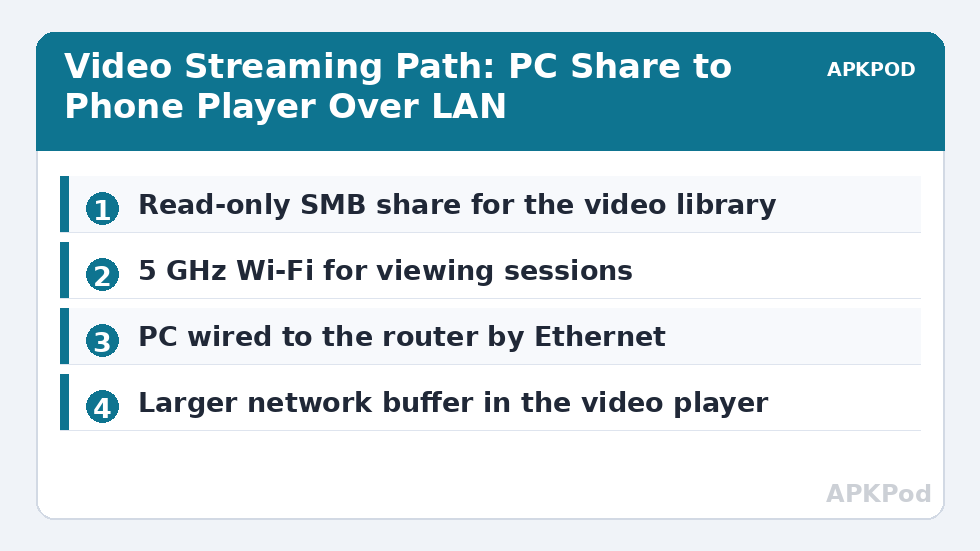
On the Windows PC, share the folders that hold your video library using ordinary Windows file sharing, with read permission for the account you will sign in with — read-only is genuinely enough for streaming and is the safer permission to grant. In X-plore, add the PC under the LAN section using its IP address, sign in, and browse to the shared folder. Pin or bookmark the folders you open every week so you are not re-navigating the share tree each time. If you have never made the base SMB connection work, do that first with our guide to connecting X-plore to Windows shared folders; streaming problems are much easier to diagnose once plain file browsing is reliable. Readers with a dedicated storage box instead of a PC should follow the same logic, because a NAS serves video over SMB in exactly the same way.
Step 2: Hand Playback to a Player That Understands Networks
X-plore’s built-in video player handles common formats and is fine for short clips, but a dedicated player gives you better codec support, subtitle handling, and — most importantly for streaming — a larger network buffer and smarter read-ahead. When you tap a video on a share, Android may ask which player to use; choose your preferred player and set it as default for that file type. In that player’s settings, look for a network caching or buffer option and raise it above the default if your Wi-Fi is uneven: a bigger buffer trades a slightly slower start for far fewer mid-film stalls. Keep subtitles beside the video file with the same filename, and most players will pick them up over the share automatically.
The Numbers That Matter: Bitrate Versus Wi-Fi Throughput
A video stream fails when its bitrate spikes above what your Wi-Fi link can deliver at that moment, in that room. Bitrates below are typical ranges for common sources, and Wi-Fi figures are typical real-world throughput ranges — not the headline link rates on the router box, which are theoretical, shared, and halved by Wi-Fi’s half-duplex nature.
| Video type | Typical bitrate range | Wi-Fi link that streams it comfortably |
|---|---|---|
| SD downloads and old DVD rips | 1–3 Mbps | Any modern Wi-Fi, even a weak 2.4 GHz link |
| 720p streaming-service quality files | 3–6 Mbps | 2.4 GHz in the same room, or any 5 GHz link |
| 1080p Blu-ray-quality remuxes | 15–35 Mbps, with higher peaks | 5 GHz with a decent signal; 2.4 GHz often stalls on peaks |
| 4K UHD remuxes | 50–100 Mbps, with very high peaks | Strong 5 GHz or Wi-Fi 6 link, same room as the router or access point |
| Phone camera recordings at 4K | 30–80 Mbps depending on settings | 5 GHz preferred; expect stalls on marginal links |
Notice the trap: average bitrate is not the number that breaks you, peak bitrate is. A 1080p film averaging 18 Mbps can spike past 40 Mbps in a busy action scene, and a link delivering a fluctuating 25 Mbps will sail through the dialogue scenes and buffer precisely at the explosion. Leave at least double the average bitrate as headroom and streaming stops being fragile.
How to Stream Video PC to Android Xplore LAN Playback Handles Smoothly
With the share and player in place, work through these tuning steps in order — each removes a specific, common cause of stutter:
- Put the phone on the 5 GHz band for viewing sessions. Its shorter range is the price of far higher throughput and far less interference from neighbours’ networks, Bluetooth, and microwave ovens, all of which crowd 2.4 GHz.
- Keep the PC wired to the router with Ethernet if you possibly can. A wired server leaves the entire wireless airtime budget for the phone, instead of the router relaying every packet twice over Wi-Fi — once from PC to router, once from router to phone.
- Stop competing traffic during the film. A cloud backup or a game download on the same network eats the headroom your stream was counting on, because Wi-Fi airtime is shared by every device on the channel.
- If a specific file still stutters, check its bitrate in the player’s information screen before blaming the network; some “1080p” files are encoded at remux quality with peaks far beyond the label.
- For genuinely marginal rooms, copy the file instead of streaming it — X-plore’s dual pane view makes the copy a two-tap job, and a local file never buffers.
Bottleneck:
Tip:
All figures are estimates under good local conditions — strong signal, no competing traffic, both devices on the same network. Real speeds drop with distance, walls, channel congestion and slow storage on either device. Protocol options (SMB, FTP, SFTP) assume a 5 GHz-class Wi-Fi link.
Streaming From the Phone’s Side: X-plore’s Wi-Fi Server Mode
The traffic can run the other way too. X-plore’s Wi-Fi server (Wi-Fi share) mode turns the phone into a small file server, so a PC can pull videos recorded on the phone without a cable — covered in depth in our guide to setting up Wi-Fi server mode in X-plore. The mental model is identical: one device serves, the other reads, and the Wi-Fi link is the only speed limit. The wider Network Setup category collects the remaining connection patterns, including DLNA.
When Streaming Still Stutters: A Short Diagnostic Ladder
Do not change five settings at once. Run these tests in order and stop at the rung that fixes it. First, stand in the same room as the router and play the problem file: if it is flawless there, your issue is signal strength in the viewing room, and the answers are a better access point position or a wired-backhaul extender. Second, play a small, low-bitrate file from the far room: if that works, the link is fine for ordinary video and the failing file’s bitrate is simply beyond it. Third, copy the problem file to the phone over the same connection and watch the transfer speed X-plore reports — a copy speed comfortably above the file’s bitrate, expressed in the same units, means the player or its buffer settings are the bottleneck rather than the network. Remember the unit trap: copy speeds are shown in megabytes per second, bitrates in megabits, and one megabyte per second equals eight megabits per second — so a typical 6 MB/s copy is roughly 48 Mbps, plenty for 1080p but marginal for 4K remux peaks. If raw copy speed itself is the ceiling, work through fixing slow Wi-Fi transfer speeds in X-plore before touching the player again.
Frequently Asked Questions
Does streaming video over LAN use my internet data?
No. Playback traffic travels only between your PC and your phone across your own router, so it works with the internet disconnected entirely and counts against no data plan. Your broadband speed is irrelevant to LAN streaming; only your local Wi-Fi quality matters.
Why does 1080p stream fine but 4K keeps buffering?
Because 4K files typically carry bitrates of 50–100 Mbps with peaks above that, while a real-world 5 GHz Wi-Fi link delivers a fluctuating throughput that dips whenever the signal weakens or other devices transmit. The stream survives only while throughput stays above the bitrate, so 4K needs a strong signal, a wired PC, and a quiet network all at once.
Can I seek or skip forward in a streamed video?
Yes, with a network-aware player reading the file over SMB, because the protocol lets the player request data from any position in the file. Seeking feels slightly slower than with a local file — the player must fetch a fresh chunk and rebuild its buffer — but it should take a second or two, not a long rebuffer.
Which is better for video, SMB or DLNA?
SMB gives the player the raw file, full subtitle and audio-track support, and reliable seeking, which is why this guide uses it. DLNA is simpler for some TVs and media players but can transcode or drop formats and handles subtitles inconsistently. For a phone with a good player, SMB through X-plore is usually the stronger choice.
Why does streaming stall at the same point in a film every time?
A stall at a repeatable timestamp points at the file, not the network: that scene’s bitrate peak exceeds what your link delivers, or that section of the file is damaged. Test the same moment with the file copied locally — if it plays cleanly from phone storage, it is a bitrate peak; if it stalls locally too, the file itself is faulty.