When you try to fix smb connection failed error xplore keeps throwing at you, the message itself is almost useless — it says a connection failed, but not whether the failure happened during dialect negotiation, authentication, or share enumeration. This guide works through them in the order they actually occur on the wire: first the phone has to reach the PC, then the two sides have to agree on an SMB dialect, then your credentials have to be accepted, and only then can X-plore list the shared folders. Follow the matching section for where your attempt dies.
Read the Symptom Before You Change Anything
The point at which the error appears tells you more than the error text. If X-plore fails before you even see the PC in its LAN server scan, the problem is reachability — Wi-Fi isolation, a firewall, or different subnets. If the PC appears but opening it fails, negotiation or login is breaking. If you can browse one folder but a second folder refuses you, sharing permissions on that specific folder are the issue, not the connection as a whole.
| Where it fails | Most likely cause | First fix to try |
|---|---|---|
| PC never appears in LAN scan | AP isolation, different subnet, firewall blocking discovery | Enter the PC’s IP address manually instead of scanning |
| PC appears, opening it fails instantly | SMB dialect mismatch — PC requires SMB2/3, or only offers SMB1 | Check the SMB settings covered in the dialect section below |
| Login prompt loops or says access denied | Wrong or stale cached credentials, Microsoft account PIN confusion | Delete the saved server entry and re-enter a local username and password |
| Folders list, one folder denies access | That folder’s sharing or NTFS permissions exclude your account | Re-share that folder explicitly for your user account |
| Works for minutes, then drops | PC sleep, DHCP address change | Reserve the PC’s IP address and disable adapter sleep |
Step 1: Prove the Phone Can Reach the PC at All
Skip the scan for a moment. On the Windows PC, open a command prompt, run ipconfig, and note the IPv4 address on your Wi-Fi or Ethernet adapter — something like 192.168.1.24. In X-plore, open the LAN section, add a server manually, and enter that address directly. A manual entry bypasses the discovery broadcasts that guest networks, mesh extenders, and router AP isolation routinely swallow. If the manual entry connects, your sharing setup was never broken — your router was hiding the devices from each other, a class of problem covered in our guide to fixing network discovery when X-plore cannot find your PC.
Step 2: Fix the Dialect Problem — SMB1 Is Off by Default Now
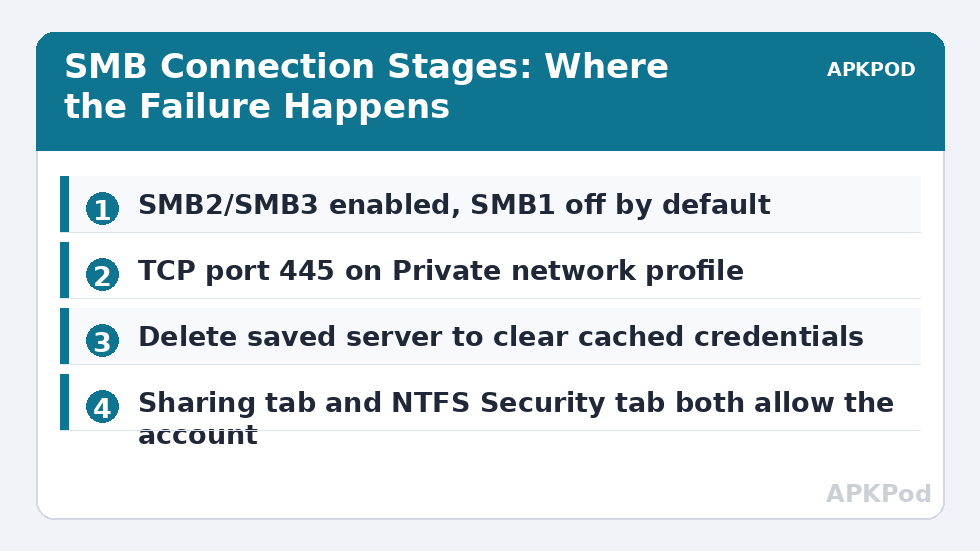
SMB has versions, called dialects, and client and server must share at least one. Modern Windows disables the ancient SMB1 dialect by default, because SMB1 has well-documented security flaws. Problems start at both ends: a very old NAS or router USB share may offer only SMB1, which a modern client refuses instantly, while a hardened server requiring SMB3 with signing or encryption rejects weaker negotiation attempts.
For a Windows PC target, the healthy setup is SMB2/SMB3 on the PC — the default — with X-plore negotiating the highest common dialect. Do not re-enable SMB1 unless you have confirmed the other device truly speaks nothing else. For the base Windows sharing walkthrough this troubleshooting assumes, see how to connect X-plore to Windows shared folders over SMB.
Step 3: Untangle Authentication — Where Most Access Denied Errors Live
If negotiation succeeds, the server asks who you are, and this is where the access denied variant of the error is born. SMB on Windows expects a username and password for an account that exists on the PC. Three traps catch people constantly. First, a Microsoft account sign-in is not the same as a local account: the username is the account’s email address in many configurations, and the password is the account password — not the four-digit PIN you type at the lock screen, because PIN and picture-password sign-ins never leave the local machine and cannot authenticate a network logon. Second, Windows disables network logons for accounts with blank passwords by policy, so an account with no password will always be denied over SMB. Third, X-plore caches credentials in the saved server entry, and after a Windows password change it keeps presenting the old one and getting refused.
- On the PC, give your account a real password if it lacks one.
- In X-plore, delete the saved LAN server entry for this PC entirely — do not just edit it — so the cached credential is destroyed.
- Re-add the server by IP address, entering the username exactly as it appears on the PC (for a Microsoft account, the full email address) and the current account password.
- If it still refuses, test with a second account on the PC to learn whether the problem is the account or the share.
Also check the NTLM angle on a hardened or workplace PC: recent Windows versions restrict older NTLM authentication, and a client offering only an old NTLM response can be rejected even with the right password. Keeping Windows and X-plore updated is the practical fix, since current versions negotiate modern NTLMv2.
Step 4: Check the Windows Services, Firewall, and Share Permissions
SMB sharing depends on the Server service running and on File and Printer Sharing being allowed through Windows Defender Firewall for your network profile. A network Windows has classified as Public applies far stricter rules than a Private one, and a PC whose classification changed after a router swap will silently stop answering SMB requests on port 445. Confirm the profile is Private on your home network. Then right-click the shared folder, open Properties, and check both the Sharing tab, which controls who may connect over the network, and the Security tab, which controls NTFS permissions. Both must allow your account — passing one and failing the other still ends in access denied, and this two-layer check is the most overlooked step in SMB troubleshooting.
Bottleneck:
Tip:
All figures are estimates under good local conditions — strong signal, no competing traffic, both devices on the same network. Real speeds drop with distance, walls, channel congestion and slow storage on either device. Protocol options (SMB, FTP, SFTP) assume a 5 GHz-class Wi-Fi link.
How to Fix SMB Connection Failed Error Xplore Throws on Older Devices
When the target is an older NAS, a router’s USB drive share, or a media box, invert your thinking: those devices often speak only SMB1 or an early SMB2. Work through this checklist, and browse the Network Setup category for companion guides:
- Look in the device’s settings for an SMB version or “min protocol” option and set the highest offered.
- Create a dedicated user account on the device for phone access instead of guest logon, which modern clients increasingly refuse.
- If the device offers only SMB1, keep that share strictly inside your home network with nothing sensitive on it — SMB1’s weaknesses are why it was retired.
- Test with a small file first; a share that lists folders but fails on large files has a stability problem, not a permissions problem.
Verify the Fix Properly Before You Declare Victory
A connection that opens once and dies at the first large copy was never fixed. Verify in stages: browse into the deepest subfolder you use, open a photo from the share, then copy a file of a few hundred megabytes in X-plore’s dual pane view from share to phone and back again. Reboot the phone and reconnect, proving the saved entry and credentials survive a cold start, and test once more after the PC wakes from sleep. If it only fails after sleep, reserve a fixed IP for the PC in your router’s DHCP settings and disable power saving on its network adapter. For a different transfer route entirely, setting up the FTP server in X-plore reverses the direction, with the PC connecting to the phone instead.
Frequently Asked Questions
Why does X-plore say access denied when my password is correct?
Usually because the password being sent is not the one you think: X-plore caches credentials in the saved server entry, Windows will not accept a PIN for network logons, and accounts with blank passwords are blocked by policy. Delete the saved server, then re-add it with the account’s real current password — for a Microsoft account, the username is typically the full email address.
Should I enable SMB1 on Windows to make X-plore connect?
Only as a last resort for a legacy device that speaks nothing else, such as a very old NAS. SMB1 is disabled by default in modern Windows because of serious known vulnerabilities. If you enable it, keep that device strictly on your home network and never expose it to the internet.
Why does the connection work by IP address but the LAN scan finds nothing?
Discovery relies on broadcast and multicast traffic that routers often block between bands, extenders, or isolated segments, while a direct IP connection uses ordinary unicast traffic that passes freely. Adding the server manually by IP address is a complete workaround, not a compromise.
What port does SMB use, and should it be open in my firewall?
Modern SMB uses TCP port 445, reachable only inside your home network via the File and Printer Sharing firewall rules on a Private profile. Never forward port 445 to the internet — exposed SMB services are attacked constantly, and remote access should go through a VPN instead.
Why does my SMB connection drop after the PC goes to sleep?
Sleep powers down the network adapter, and on wake the PC may receive a different DHCP address, so the phone’s saved entry points at an address where nothing answers. Reserve a fixed IP for the PC in your router and disable power management on its network adapter to stop the cycle.