You have 14 GB of photos on your phone, a laptop with no free USB-C cable in sight, and a Wi-Fi router sitting three metres away doing almost nothing. That gap is exactly where you would setup ftp server xplore file manager access instead of hunting for cables. X-plore can turn your Android phone into a small FTP server that any computer on the same local network can open in a browser or file manager, drag files across, and close again in minutes.
FTP is an old protocol, and that age brings one important trade-off you need to understand before you tap Start. Plain FTP sends usernames, passwords, and file data without encryption. On a trusted home network that risk is manageable for a short transfer session. On a coffee shop network, a shared office network, or the open internet, it is not. This guide sets the server up for local use only, with a password, a sensible folder limit, and a clear stopping point when you are done.
How to Setup FTP Server Xplore File Manager Style, Step by Step
Open X-plore. It works in dual pane mode by default, so you can keep phone storage visible on one side while you configure sharing on the other. Find the Wi-Fi sharing and FTP options under the menu for the folder you want to share.
Long-press the folder you want to make available, choose the sharing option, and enable the FTP server. X-plore will display an address like ftp://192.168.1.42:2121. That address only works inside your local network. Type it exactly as shown into Windows File Explorer or a desktop FTP client such as FileZilla, and you will be prompted for the credentials you set.
Before you start the server, set a username and a strong password inside X-plore. Never leave anonymous access enabled beyond a quick test with an empty folder. Sharing only Download, DCIM, or a dedicated Transfer folder, rather than your entire storage, reduces what anyone who steals the password could reach.
Settings Worth Checking Before You Press Start
- Port: X-plore often uses a non-standard high port such as 2121 instead of the classic FTP control port 21. That is normal on Android because low ports can be restricted. Note the exact port shown on screen and include it in the address.
- Passive mode: FTP uses a control connection plus separate data connections. Passive mode, where the client asks the server to open the data channel, works better through home routers and firewalls. If your desktop client offers the choice, select passive.
- Root folder: Limit the server to one folder unless you genuinely need full-device access for a backup task.
- Password: Use a unique password you do not reuse for email or banking. You will type it on your PC once per session.
- Stay awake: If your phone locks aggressively or Android puts X-plore to sleep, large transfers can stall. Keep the phone plugged in and the app in the foreground for very large jobs.
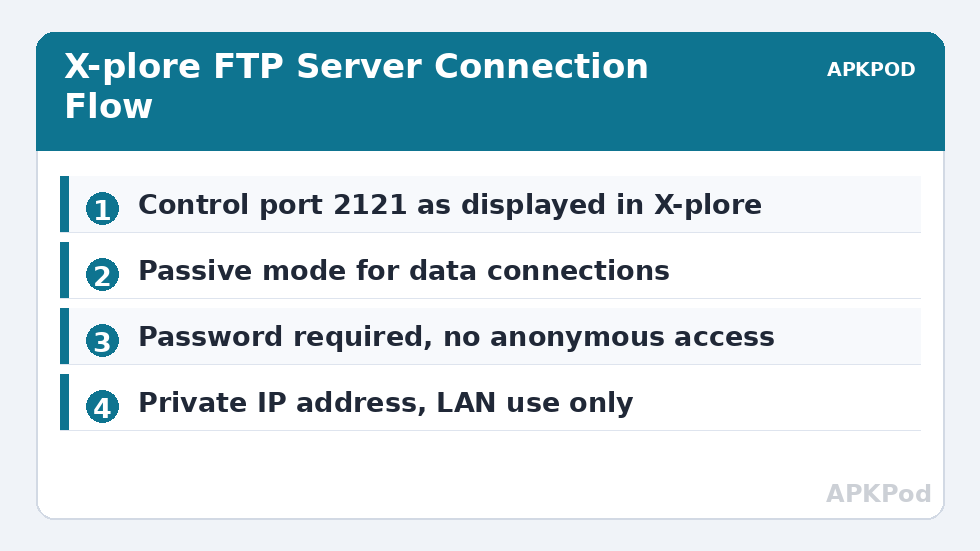
The address X-plore shows is the whole key. Its first part is your phone’s private IP address, assigned by DHCP. If the phone reconnects with a different address tomorrow, yesterday’s bookmark will fail. For repeated use, reserve that IP address in your router for your phone’s MAC address.
FTP Ports, Passive Mode, and What Your Router Actually Does
Standard FTP listens for control commands on port 21. File listings and file data travel on separate connections. In active mode the server tries to connect back to the client, which modern firewalls usually block. In passive mode the client opens both connections to the server, using a range of high-numbered data ports the server announces during the session. That is why passive mode is the practical default for home networks, and why a connection that logs in successfully but fails to list folders is almost always a passive-mode or firewall problem, not a password problem.
| Item | Typical value in X-plore | What it means |
|---|---|---|
| Control port | 2121 (or as displayed) | Where login and commands happen. Classic FTP uses port 21 on desktop servers. |
| Data connections | Passive, high ports chosen per session | Where actual file bytes move. Let the client handle this automatically. |
| Encryption | None with plain FTP | Credentials and files travel in clear text on the local network. |
| Address type | Private IP, for example 192.168.x.x or 10.x.x.x | Reachable only inside your LAN unless you deliberately, and inadvisably, forward ports. |
| Typical local speed range | Roughly 8 to 40 MB/s on modern Wi-Fi, lower on older routers | Typical ranges only. Distance, Wi-Fi band, and phone storage speed all change the result. |
Do not set up port forwarding on your router to make this FTP server reachable from the internet. Plain FTP was never designed for that exposure, and scanners probe FTP ports constantly. If you need access away from home, use the encrypted approach described in our guide to transfer files over SFTP and SSH, or copy the files to a proper cloud or NAS destination while you are still at home. The convenience of one forwarded port is not worth an exposed, unencrypted file server.
Bottleneck:
Tip:
All figures are estimates under good local conditions — strong signal, no competing traffic, both devices on the same network. Real speeds drop with distance, walls, channel congestion and slow storage on either device. Protocol options (SMB, FTP, SFTP) assume a 5 GHz-class Wi-Fi link.
Connecting From Windows, Mac, and Linux Without Extra Software
On Windows, open File Explorer, click in the address bar, type the full ftp address including the port, and press Enter. Windows will prompt for your X-plore username and password, then show the shared folder much like a local drive. You can drag files in both directions. If Windows tries to open the address in a browser instead, right-click in File Explorer and use Add a network location, which handles FTP addresses more reliably.
On a Mac, a free FTP client is usually better than Finder for uploads. On Linux, most file managers accept an ftp:// address directly. In every case, test with one small file first: download it, upload a renamed copy, and delete the copy. That proves read, write, and delete permissions before a multi-gigabyte transfer.
If the connection fails, work through the boring causes in order. Is the phone on the same Wi-Fi network, not mobile data or a guest network that isolates devices? Did the IP address change? Is the server still running in X-plore, or did Android close it? Is a PC firewall blocking your FTP client? Almost every failed first attempt is one of those four issues, not a fault in X-plore itself. Our category overview in Network Setup collects the related connection guides in one place for exactly this kind of troubleshooting.
Making Large Transfers Reliable
Break very large jobs into batches of a few gigabytes. If a single 40 GB copy fails at 90 percent, you lose the whole run. Batches let you verify each chunk and spot a failing file early. Keep the phone near the router and prefer the 5 GHz band when both devices support it.
When the job is done, stop the server in X-plore. Do not leave it running overnight just because you might need it tomorrow. An FTP server that is not running cannot be probed, guessed at, or misused, and restarting it takes seconds. That habit, plus a password and a limited root folder, is the whole security model for plain FTP used sensibly at home. For anything sensitive, follow the hardening steps in setting up a password-protected FTP server and consider whether SFTP would suit the files better.
When FTP Is the Wrong Tool
FTP is fast and simple because it has almost no overhead and no encryption work to do. That also means it is the wrong tool for contracts, identity documents, financial records, or anything you would not happily send as a postcard across your own network. If other people share your home network and you do not fully trust every device on it, treat FTP as suitable only for media files, installers, and non-sensitive documents.
X-plore also gives you other paths. Its LAN and SMB support can reach a Windows PC in the opposite direction, and its Wi-Fi server mode is often simpler for phone-to-phone sharing. FTP earns its place because it works with almost any computer, needs no account and no cloud upload, and gets a stuck transfer moving when cables have failed. Pair it with the checks in fixing network timeout drops if long sessions keep disconnecting.
Frequently Asked Questions
Is FTP in X-plore safe to use at home?
Plain FTP is unencrypted, so it is only reasonable on a trusted home network, with a password set, a limited shared folder, and the server stopped when you finish. Never forward it to the internet or use it on public Wi-Fi.
Why does X-plore use port 2121 instead of port 21?
Android apps commonly use a high port such as 2121 because low ports can be restricted and may conflict with other services. The function is the same. Just include the exact port X-plore displays in the address you type on your computer.
Why can I log in but not see any folders?
That pattern usually points to a passive mode or firewall issue with the data connection, not your password. Set your desktop FTP client to passive mode, allow it through the PC firewall, and test again with a small file.
How fast should FTP transfers be over Wi-Fi?
Typical ranges on a modern home network are roughly 8 to 40 MB/s, depending on Wi-Fi band, signal strength, router capability, and phone storage speed. Older 2.4 GHz connections will be noticeably slower.
Can I leave the X-plore FTP server running all the time?
You can, but you should not. Stop the server after each session. A stopped server has no open port to attack, uses no battery, and takes only seconds to start again when you need it.