Inside X-plore’s tree sits a root most file managers do not offer: an App Manager that lists everything installed on your phone and can save each app’s APK to a folder of your choice. Using the xplore app manager backup installed apks feature is how you keep a personal archive of the exact app versions that work on your device — the banking app before a risky update, the discontinued utility no store carries anymore, the game build your old tablet runs happily.
Be clear about what this archive is: backups of apps installed on your own device, for your own devices. That is the legitimate, useful purpose, and it is the only one this guide concerns itself with.
Xplore App Manager Backup Installed APKs: How the Archive Works
Open the App Manager root in either pane and X-plore lists installed applications with their icons, package names and sizes. The list can be filtered between user apps and system apps; for backup purposes the user list is where you live, since system components are tied to your firmware and rarely useful as standalone files. Select an app and the menu offers the backup or “copy APK” style option: X-plore writes the app’s installed package into the folder open in the other pane.
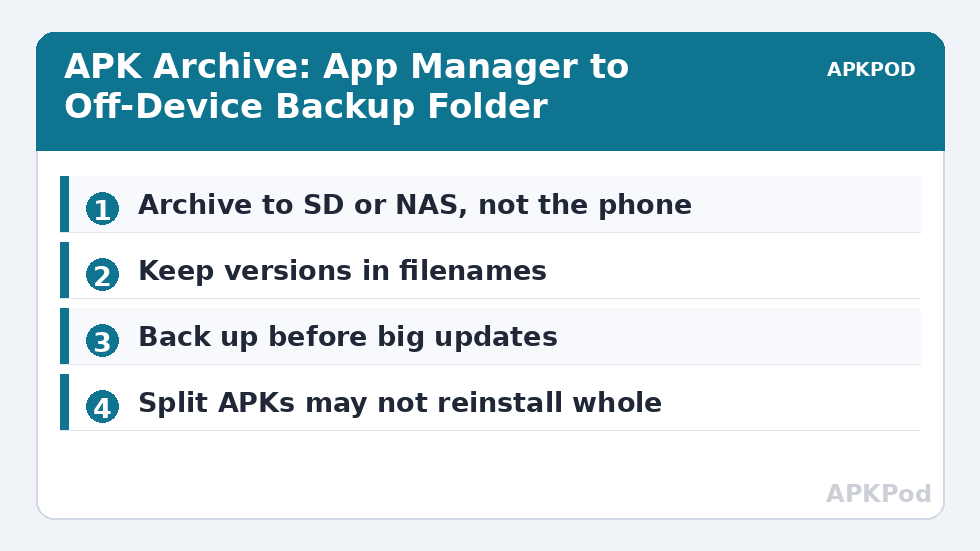
That destination-pane detail is what makes bulk archiving pleasant. Put the App Manager in the left pane and a Backups/Apps folder — on an SD card or NAS — in the right, then work down the list copying packages across. In one sitting you can archive a whole phone. Filenames generally carry the app name and version, which matters enormously later: an archive of appname-4.2.1.apk files is searchable and trustworthy, while a drawer of package-named files is archaeology.
Understand the split-APK reality before you rely on any backup. Many modern apps install as a base APK plus split packages for language, screen density and architecture. For such apps, a single extracted base file may not reinstall completely on another device. X-plore’s backup captures the installed package it can access; treat each backup as device-insurance for simple apps and verify important ones by test-installing on a spare device or after a reset, while the original is still safely installed. Verification beats assumption, always.
Building an Archive Worth Trusting
| Archive habit | Why it matters |
|---|---|
| Back up before major app updates | A bad update can be rolled back only if the previous APK exists |
| Keep the version in the filename | You can identify builds at a glance months later |
| Store the archive off the phone | A backup on the same device dies with the device |
| Re-archive after updates settle | Keeps the archive current without hoarding every build |
| Inspect unknown packages first | The manifest view confirms identity before you trust a file |
Before archiving anything you did not install yourself, inspect it. The APK contents and manifest guide shows how to confirm package identity and permissions, and it applies just as well in reverse: after backing up, open one or two archives from the folder and confirm the files are complete and readable, not zero-byte casualties of an interrupted copy.
Where the App Manager’s data view is available, you can also see how much data an app holds alongside its package size — the difference between the app and its accumulated life. That number pair tells you what a backup does not contain: the APK archives the program, not your data inside it. For apps whose data matters, pair package backups with the app’s own export feature, and verify exports with the SQLite viewer where the export is a database.
Reading the App Manager Like an Auditor
Beyond backup, the App Manager list is an audit instrument. Sort or scan it with three questions in mind. Which apps have I not opened in a season — candidates for uninstall whose APKs the archive makes painless to remove, since reinstall is a file away? Which apps are unexpectedly enormous, and is the size the program or its data — the pair of numbers the manager shows separates those, sending you to the data problem with the right tool. And which apps duplicate each other’s jobs — three scanners, two galleries, four note apps — the quiet redundancy that makes a phone feel cluttered even with storage to spare?
The package names deserve their own reading habit. Display names are marketing; package names are identity. Two apps can share a display name — clones and impostors do exactly this — but the package name in the App Manager never lies about which is installed. When a user reports “the app changed after an update”, the package name is how you confirm they are looking at the same software at all, and it takes five seconds in this list.
Archive Day: A Repeatable Routine
Turn archiving into a ritual and it survives. Monthly, or after any batch of updates you have lived with for a week and trust: open the App Manager, copy the updated apps’ new versions into the archive folder, and prune archive versions older than the last two. A small text file in the archive — updated by the same visit — noting dates and any apps known not to reinstall cleanly keeps the archive’s knowledge in the archive, not in your memory. Fifteen minutes, a few times a year, and the entire installed life of your phone is recoverable on your terms.
One related decision: what to do with apps you are about to uninstall “just to try”. The archive makes experimentation cheap and reversible — back up the app, uninstall it, live without it for a week, and let the verdict come from absence rather than impulse. If reaching for it becomes a daily frustration, reinstall from your archive; if the week passes unnoticed, the uninstall was the truth and the archive can eventually follow it into deletion. Storage stays honest, choices stay reversible, and the App Manager’s list shrinks to the apps your life actually uses — which is, in the end, the metric the whole exercise serves.
Bottleneck:
Tip:
All figures are estimates under good local conditions — strong signal, no competing traffic, both devices on the same network. Real speeds drop with distance, walls, channel congestion and slow storage on either device. Protocol options (SMB, FTP, SFTP) assume a 5 GHz-class Wi-Fi link.
Limits and Honest Edges
DRM is a boundary. Some paid apps and most streaming apps bind themselves to the account and device that installed them; an extracted APK of such an app will install but refuse to run properly elsewhere, or at all. That is the licensing system working as intended, and your archive simply will not include working copies of those titles. Note which apps behave this way in a small text file inside the archive folder — future you will be grateful.
Storage is the other edge. A full-phone archive can run to many gigabytes, which is why the archive folder belongs on the largest, least-precious storage you own. Check its growth occasionally with the tools from the Dual-Pane Tips library, prune ancient versions, and the archive stays an asset instead of becoming the problem it was meant to solve.
Frequently Asked Questions
What does X-plore’s App Manager do?
It lists the apps installed on your device, shows their package names and sizes, and can save an installed app’s APK file to a folder you choose, such as an SD card backup directory.
Does backing up an APK also back up my app data?
No. The backup captures the application package, not the data, accounts or settings inside it. Use each app’s own export or backup feature for its data.
Why won’t one of my backed-up apps reinstall properly?
Modern apps often install as split APKs, and some paid or DRM-bound apps tie themselves to the original device and account. A single extracted file may therefore be incomplete or refuse to run elsewhere.
Where should I store my APK archive?
On storage that survives the phone: an SD card at minimum, ideally a NAS or PC folder. A backup stored only on the same device is lost with it.
Is backing up my own installed apps acceptable?
Keeping personal backups of apps installed on your own devices is a normal maintenance practice. The archive is for your devices; redistributing other people’s software is a different matter entirely.