An APK is not a black box. It is a ZIP archive with a specific structure, and X-plore can open it like one, letting you read the AndroidManifest, peek at the resources and check what an app package actually contains before you install it or after you back it up. Knowing how to view apk file contents manifest xplore exposes turns you from someone who taps Install and hopes into someone who verifies.
Two ground rules before we start. Everything here concerns packages you already own or have installed on your own device — inspecting your own apps is legitimate maintenance. And inspection is read-only curiosity: this guide is about understanding packages, not modifying or redistributing them.
View APK File Contents Manifest Xplore Method, Step by Step
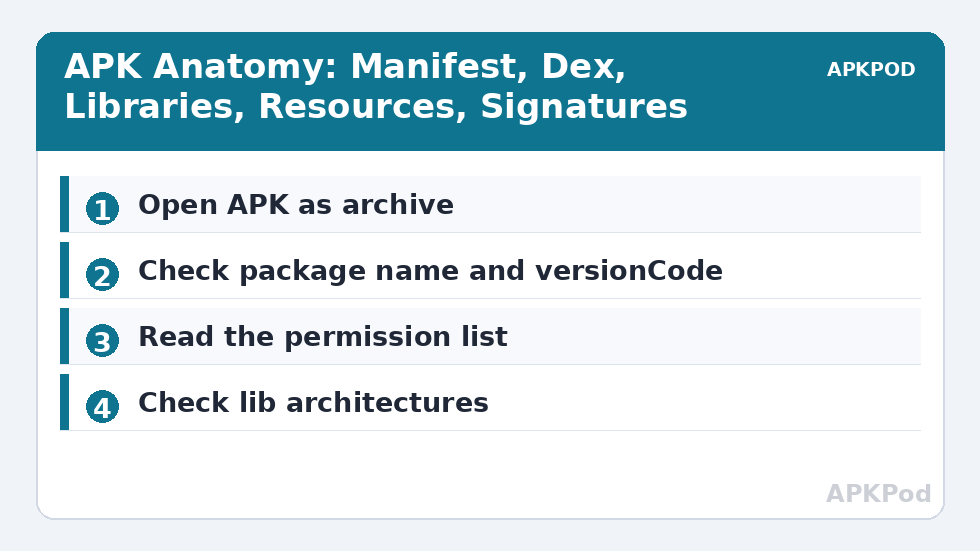
Tap an APK in X-plore and you get choices: install it, or open it as an archive. Choose the archive view and the package unfolds into its real structure: AndroidManifest.xml at the root, one or more classes.dex files holding the code, a res folder of resources, assets, lib with native libraries per processor architecture, and META-INF with the signing certificates.
The manifest is the document everyone should learn to skim. On disk it is binary XML, unreadable in a normal editor, but X-plore’s viewer decodes it into readable text showing the package name, version code and version name, the minimum and target Android versions, and the permission list. That permission list is the single most honest page in any app: a flashlight requesting your contacts and precise location has told you something its store description never will.
Reading a manifest well means looking for four things. First, the package name, which confirms the app’s identity beyond its display label — clones often imitate names but cannot share the original’s package ID and signature. Second, versionCode, the number that must increase with every update; an “update” with a lower versionCode than your installed copy will not install over it. Third, minSdkVersion, which tells you the oldest Android the app supports. Fourth, the uses-permission entries, read with ordinary scepticism.
What the Rest of the Package Tells You
| APK entry | What it is | Why you would look |
|---|---|---|
| AndroidManifest.xml | App identity, versions, permissions | Verify package, version and permission demands |
| classes.dex | Compiled app code | Size sanity check; multiple dex files mean a large app |
| lib/arm64-v8a etc. | Native libraries per CPU type | Check whether your device’s architecture is included |
| res / assets | Images, layouts, bundled data | See what media or models the app ships |
| META-INF | Signature and certificate files | Confirm the same signer across updates |
The lib folder deserves special attention on Android TV and older hardware. If a package ships libraries only for arm64-v8a, it will not run on a 32-bit device no matter how successfully it installs — or it will fail to install at all. Checking architectures before copying an APK to a TV box has saved many people a frustrating evening, and the same inspection habit pairs naturally with extracting your own installed apps through the App Manager backup feature.
When text inside the package is not decoded automatically — some resources are — the fallback is the hex viewer, which at least confirms file types by their signatures. And remember that split APKs exist: many modern apps install as a base APK plus configuration splits, so a single small APK that seems to be “missing” its resources may simply be the base of a set.
Comparing Two Versions of the Same App
The manifest view becomes genuinely diagnostic when you place two versions side by side — the installed app’s data from the App Manager in one pane, a downloaded APK’s manifest in the other. Three comparisons settle most update questions. VersionCode must rise; if the file you are about to install reports a lower code than the installed app, Android will refuse the upgrade and the file is older than what you run. The permission list should change only in ways the release notes can explain; a quiet leap from five permissions to nineteen is a story you should hear from the developer, not discover from a manifest. And the package name must be character-for-character identical, because Android treats a different package name as a different app entirely, whatever the icon claims.
Signature comparison completes the picture. Android permits an update only when the new file is signed with the same certificate as the installed one. If a supposed update fails with a signature conflict, the operating system is not being difficult — it is reporting that the file did not come from the same source as your installed app, which is precisely when you should stop and obtain the app from its official channel instead.
Splits, Bundles and the Modern APK Landscape
Expect inspection to meet the split era. Many apps you examine will be a base APK accompanied by split packages — config splits carrying one language, one screen density or one processor architecture each. The base manifest declares the splits it requires, and the small size of a lone base file is explained by its missing siblings. Judging a split app by its base APK alone is like judging a book by its cover board: correct material, wrong conclusion. When you archive or move such apps, keep the family together, and when you evaluate an unknown single file, check the manifest for split declarations before declaring it suspiciously small or incomplete.
Finally, keep perspective on what inspection cannot tell you. A manifest shows what an app declares; it cannot show what the code actually does at runtime, and a clean permission list is reassurance, not proof. Inspection raises your standard of evidence — it does not replace reputable sources, and the safest APK remains the one you never had to wonder about.
There is a gentler everyday use for all of this: settling arguments about your own phone. When an app updates and something feels different, the manifest comparison tells you whether the version actually changed or the redesign is server-side theatre. When storage shrinks mysteriously, the archive view of a freshly updated app shows whether it quietly grew a second dex file or a crate of new native libraries. And when a junior family member insists an app “asked for nothing”, the permission list is a calm, factual referee. Inspection is not suspicion as a lifestyle; it is the habit of letting the package speak for itself before opinions form.
Bottleneck:
Tip:
All figures are estimates under good local conditions — strong signal, no competing traffic, both devices on the same network. Real speeds drop with distance, walls, channel congestion and slow storage on either device. Protocol options (SMB, FTP, SFTP) assume a 5 GHz-class Wi-Fi link.
Inspection Habits That Keep You Safe
Verify before installing anything that did not come from an app store: package name matches expectations, the signer in META-INF is consistent with the developer’s other releases, and the permissions fit the app’s purpose. A banking clone gives itself away in the manifest long before it asks for your password.
Keep the boundary clear, though. Reading your own packages is maintenance; altering and re-sharing them is neither safe nor legitimate, and a modified APK will not install over the original anyway because the signature will not match. X-plore’s archive view is a window, not a workshop — exactly the right relationship to have with software you did not write. More inspection techniques live in the Dual-Pane Tips category.
Frequently Asked Questions
Can X-plore really open an APK without installing it?
Yes. An APK is a ZIP archive, and X-plore can open it as one, showing the manifest, dex files, resources, native libraries and signature folder without installing anything.
Why does the AndroidManifest look like gibberish in some apps?
Inside an APK the manifest is stored as binary XML. X-plore’s viewer decodes it into readable text; plain editors that cannot decode binary XML show gibberish instead.
What should I check in a manifest before installing an APK?
Check the package name, version code, minimum Android version and the permission list. Permissions that do not fit the app’s purpose are the clearest warning sign.
What does it mean if an APK has no library for my device?
If the lib folder lacks your device’s architecture, such as armeabi-v7a for a 32-bit device, the app cannot run there even if the file copies across successfully.
Is it legal to inspect APKs of apps I use?
Inspecting packages you own or have installed on your own device is normal maintenance. Modifying and redistributing someone else’s app is a different matter and is not what inspection is for.