The reason people learn to transfer files between cloud drives xplore style — pane to pane, phone in hand — is usually a quota warning, a job change, or a folder that landed in the wrong account years ago. X-plore makes the move look deceptively like a local copy: source cloud on the left, destination cloud on the right, select, copy, wait. Underneath, though, every file travels down to your phone and back up again. There is no server-to-server shortcut hiding behind the progress bar, and understanding that single fact explains almost every speed, data, and failure question about cloud-to-cloud transfers.
Because the phone is the middleman, a cloud-to-cloud transfer is really two transfers wearing one coat. Download speed from the source, upload speed to the destination, your data allowance, and Android’s willingness to keep a long background job alive all shape the result. This article sets out a safe workflow — copy first, verify, delete later — plus batch sizing, naming collisions, and what to do when a transfer stops halfway through a folder of five hundred photos.
How to Transfer Files Between Cloud Drives Xplore Workflow Explained for X-plore
Before copying anything, connect both services and test each one alone. Open the source drive, download one small file to local storage, then open the destination drive and upload one throwaway file. If either side fails its solo test, a combined transfer will fail in a more confusing place. The connection steps themselves are covered in the guide to link Google Drive, Mega and OneDrive to X-plore, and this article assumes both entries already appear in your folder tree and are clearly renamed, so Source and Destination can never be confused at a glance.
X-plore’s dual-pane layout is built for exactly this job. Put the source cloud folder in one pane and the destination cloud folder in the other. Select the files in the source pane, choose Copy, switch focus to the destination pane, and paste. Move — cut and paste — also exists, and it is the option to avoid for anything you care about. A move deletes each source file as its copy completes, so a network drop, a flat battery, or an app closure mid-batch can leave you reconstructing which files arrived, which did not, and which are now only half-verified on the destination. Copy leaves the source untouched until you personally decide the transfer succeeded.
Copy First, Verify, Delete Last: the Safe Sequence
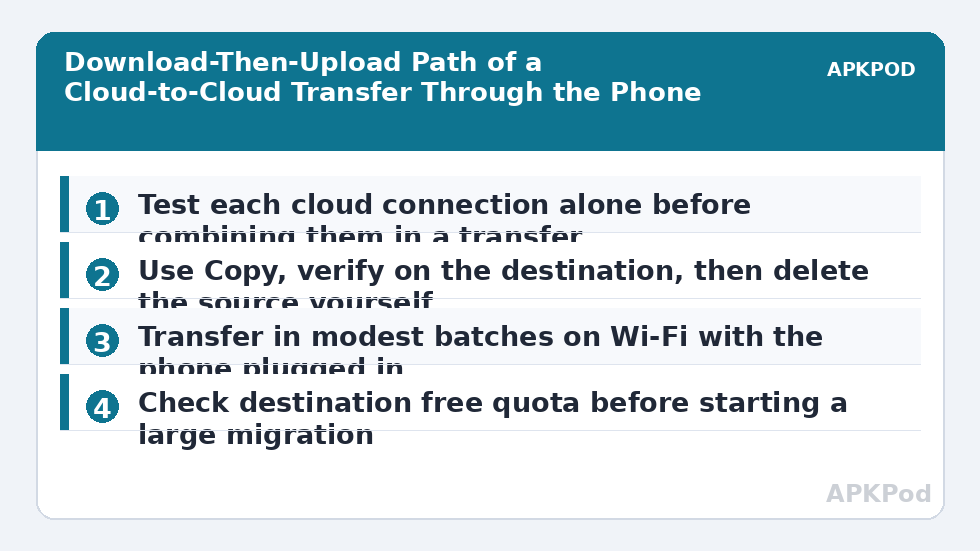
- Copy a small test batch first: three or four files, including the largest file type in the set, to expose naming or size problems early.
- Check the test batch on the destination by opening at least one file from the destination cloud itself, not from a local cache.
- Copy the main batch in groups sized for your connection — modest groups on mobile data, larger groups on stable Wi-Fi.
- Compare counts: number of files and, where shown, total size on source and destination should match before you delete anything.
- Delete from the source only after verification, and empty the source provider’s trash later if you need the quota back promptly, since deleted files often sit in trash and still count for a while.
Bottleneck:
Tip:
All figures are estimates under good local conditions — strong signal, no competing traffic, both devices on the same network. Real speeds drop with distance, walls, channel congestion and slow storage on either device. Protocol options (SMB, FTP, SFTP) assume a 5 GHz-class Wi-Fi link.
Realistic Expectations for Speed and Data
| Situation | Typical effect | Practical response |
|---|---|---|
| Small documents on home Wi-Fi | Usually completes in seconds to a few minutes per modest batch | Work in medium batches and verify as you go |
| Hundreds of photos on mobile data | Can take a long time and use roughly the full size of the set twice — once down, once up | Wait for Wi-Fi, or move a small priority batch only |
| Large video files | Often the slowest case; a single file can dominate the whole job | Transfer videos individually so one failure loses one file, not a batch |
| Destination nearly full | Uploads fail late, sometimes after earlier files succeeded | Check free quota on the destination before starting, not after failing |
Those are typical ranges of behaviour, not guarantees for your network. A useful rule is to start any large migration in the evening, on Wi-Fi, with the phone plugged in, and to check it periodically rather than assuming a silent background job will survive the night untouched. Android battery optimisation can pause long-running apps, so if your phone offers an option to allow X-plore unrestricted background use during a migration, use it for the migration and turn it back afterwards. If downloads from a cloud stall repeatedly, the separate troubleshooting in the guide to fix cloud file download failures in X-plore helps separate a source problem from a destination problem.
Collisions, Names and Folder Structure Traps
Providers disagree about filenames more often than people expect. One service may allow characters another rejects, names that differ only by capitalisation may collide on a case-insensitive destination, and very long folder paths created happily on a computer may exceed what a mobile transfer handles gracefully. When X-plore reports a conflict, pause and think rather than tapping Skip or Overwrite on reflex. Overwrite is correct when you are deliberately replacing an older copy; it is a quiet disaster when two different files happen to share a name like IMG_0001.jpg from two different cameras.
Preserve folder structure by copying the parent folder itself when the destination should mirror the source, rather than selecting loose files and recreating folders by hand. Conversely, if you are merging two accounts into one organised destination, create the new folder skeleton first — year folders, project folders, whatever scheme you use in this site’s Cloud & Security reading and your own system — then copy into it in labelled batches. Merging and reorganising in the same step is how files end up duplicated in one place and missing in another.
When a Transfer Stops Halfway
Do not restart from zero in a panic and do not delete anything. Open the destination folder, sort it if the view allows, and identify which files from the batch are present. Open two or three of the most recent arrivals to confirm they are complete rather than truncated placeholders. Then select only the missing files on the source side and copy that smaller remainder. If the same file fails repeatedly at the same point, download that single file to local storage first, check it opens locally, then upload it from local storage to the destination. Splitting the journey into two explicit legs often succeeds where the combined copy kept tripping, and it tells you which leg holds the fault. For repeated sign-in interruptions during transfers, pair this with the token repair steps used to fix Google Drive sign-in errors in X-plore.
One final habit separates a calm migration from a messy one: keep a simple written note of what you have already moved. A short list in a notebook or a local text file — folder name, date copied, destination account, verified or not — prevents the duplicate copies and missed folders that appear when a large job stretches over several evenings. The note takes a minute per batch and saves a full recount later. When the last batch is verified, keep the note until you have also cleared the source trash and confirmed your new quota, then delete it.
Frequently Asked Questions
Do files pass through my phone during a cloud-to-cloud transfer in X-plore?
Yes. X-plore downloads each file from the source service to the phone and uploads it to the destination. There is no direct server-to-server transfer, so your connection speed and data allowance affect both legs of the journey.
Should I use Move instead of Copy to save time?
For anything important, no. Copy first, verify the files on the destination, and only then delete the source copies yourself. A move that is interrupted can delete source files before you have confirmed their replacements are complete.
Why did my transfer use so much mobile data?
Because each file is downloaded once and uploaded once, a set of files consumes roughly twice its own size in total traffic. Large migrations are best done on Wi-Fi with the phone plugged in.
What do I do if the destination runs out of space mid-transfer?
Stop, free space or upgrade the destination quota, verify which files already arrived safely, and then copy only the missing remainder. Do not delete source files to make room until their copies are verified on the destination.
How can I tell whether a transferred file is complete?
Compare file counts and sizes between source and destination, and open a sample of the transferred files from the destination cloud itself. Opening a file is the strongest quick check that it arrived whole and readable.