Turning on fingerprint face unlock authentication xplore protection is a thirty-second job that changes how often you actually keep the app locked. A master password you must type every time is strong but annoying, and annoying security gets switched off. A fingerprint or face check you barely notice means the lock stays enabled, the Vault stays closed between uses, and handing your phone to someone to show a photo no longer means handing them your file manager as well.
Be clear about what biometrics do here, because the misunderstanding is widespread. Your fingerprint or face unlocks X-plore locally, through Android’s biometric system. It tells the app that Android has verified you, so the app can open and can unlock its protected areas without you typing the password. It does not make the underlying encryption stronger, it does not change how your Vault files are encrypted, and it does not protect cloud accounts in any new way. The password and the encryption underneath remain exactly as strong, or as weak, as they were before you enabled a fingerprint.
Setting Up Fingerprint Face Unlock Authentication Xplore Relies On
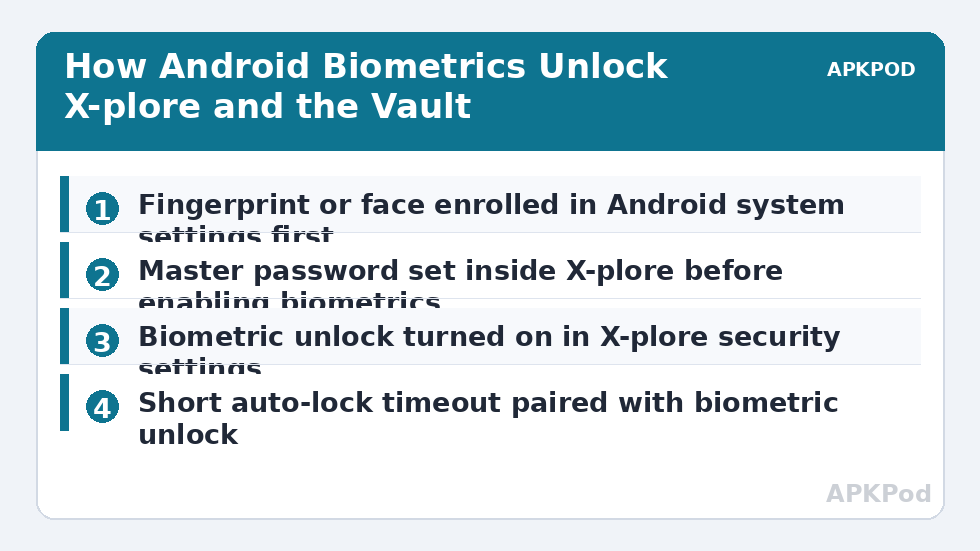
X-plore does not enrol fingerprints or faces itself. It uses the biometric credentials already registered in Android’s system settings, through the platform’s biometric APIs. That has two practical consequences. First, if you have not enrolled a fingerprint or set up face unlock in Android Settings, there is nothing for X-plore to call, and the option inside the app will be unavailable or will fail. Second, removing a fingerprint in Android Settings removes it for X-plore too, immediately, with no separate step inside the app.
- Enrol in Android first. In system Settings, under security and privacy, register at least one fingerprint and, if your phone supports it, your face. Test that both unlock the phone reliably.
- Set an app password. Biometrics in X-plore sit on top of password protection, not instead of it. If you have not done this yet, follow configuring a master password for X-plore first.
- Enable biometric unlock in X-plore. Open X-plore’s configuration, find the password or security section, and turn on the fingerprint or biometric unlock option offered in your version.
- Test a full lock cycle. Close X-plore completely, reopen it, and confirm you are prompted. Unlock with a fingerprint, then repeat and deliberately try the password route so you know the fallback works.
- Set the relock behaviour. Pair biometrics with a short timeout using the auto-lock timeout settings so the app does not sit unlocked for an hour after one touch.
Fingerprint, Face, and Password Compared Honestly
| Method | Strengths | Limits you should know |
|---|---|---|
| Fingerprint | Fast, hard to observe, uses a dedicated sensor on most phones. | Wet, dirty, or injured fingers fail. Anyone whose fingerprint is enrolled on the phone can use it. |
| Face unlock | Hands-free and quick on phones with proper face hardware. | Varies widely. Phones using only the front camera offer weaker face checks than phones with dedicated depth or infrared hardware. |
| Master password | Works regardless of sensors, and it is the fallback everything depends on. | Can be watched as you type it, forgotten, or made weak for convenience. |
| Biometrics plus password fallback | Convenience day to day, with a non-biometric route when sensors fail. | Overall security is only as good as that fallback password and who else is enrolled on the device. |
That last row hides the most common real-world gap. If a partner, child, or colleague has a fingerprint enrolled on your phone for convenience, they can also pass the biometric check that opens X-plore and its Vault. Android biometrics authenticate an enrolled user of the device, not a named individual per app. Review who is enrolled in system Settings with that in mind, and read the wider picture in the Cloud & Security category before you assume a lock means only you.
Bottleneck:
Tip:
All figures are estimates under good local conditions — strong signal, no competing traffic, both devices on the same network. Real speeds drop with distance, walls, channel congestion and slow storage on either device. Protocol options (SMB, FTP, SFTP) assume a 5 GHz-class Wi-Fi link.
What Biometrics Protect Inside X-plore, and What They Do Not
Used with X-plore’s password protection, biometric unlock guards entry to the app and to protected areas such as the Vault, where you keep files you do not want casual browsing to find. The Vault workflow itself is covered in using the X-plore Vault to encrypt and hide private photos. Biometrics make reaching that Vault a touch instead of a typing exercise, which is precisely why people keep the Vault locked instead of leaving files in ordinary folders for convenience.
The limits matter just as much. Biometrics do not encrypt a file you copy out of the Vault to an ordinary folder; once exported, it is a normal file again. They do not sign you out of cloud accounts connected inside X-plore, though the app lock does stop someone opening the app to reach them. They do not survive as a concept if someone knows your password, because the password remains a full alternative route in. And after events such as a reboot, several failed attempts, or a long period without use, Android commonly requires the device credential first before biometrics are offered again. That behaviour is normal platform policy, not an X-plore fault.
When Face Unlock Deserves Extra Caution
Not all face unlock is equal, and Android itself distinguishes between stronger and weaker biometric implementations. A phone that unlocks by simply matching a camera image is more convenient and less resistant to being fooled than hardware-backed face systems, and Android may restrict weaker biometrics from the most sensitive confirmations. If your phone offers only camera-based face unlock, prefer fingerprint for X-plore, keep the password strong, and shorten the auto-lock timeout. If you rely on biometrics daily, also plan for the ordinary failures: a cut finger, gloves in winter, a face covering, or a sensor fault after a drop. The password is your plan, so it has to be one you actually remember.
Which raises the uncomfortable companion topic: forgetting it. If the password is lost, biometrics may keep letting you in for a while, but that is borrowed time, because a reboot or a biometric policy reset can demand the password with no warning. Read up on recovering from a forgotten Vault password before you need it, understand which outcomes involve losing access to Vault contents, and store the password in a reputable password manager rather than in a note inside the very app it protects.
A Practical Biometric Routine That Holds Up
Keep it simple and consistent. Enrol two fingerprints, usually both thumbs or a thumb and an index finger, so one injury does not lock you out of the convenient route. Re-enrol after a screen protector change if recognition becomes unreliable, since poor recognition trains people to disable locks. Turn biometric unlock on in X-plore, set a short auto-lock timeout, and once a month deliberately open X-plore with the password instead, just to prove you still know it. Finally, whenever someone else’s fingerprint is removed from the phone, or a new one is added, treat that as a security change and review your app locks the same day.
Biometrics are best understood as a better keyhole, not a better safe. They make the strong protection you already have painless enough to leave switched on, and a lock that stays on protects you far more than a theoretically stronger routine you abandoned in February because typing annoyed you. Set the password properly, let your fingerprint do the daily work, and keep the fallback tested.
Frequently Asked Questions
Does fingerprint unlock make my X-plore Vault encryption stronger?
No. Biometrics only unlock the app and its protected areas locally, through Android’s biometric system, after Android verifies you. The Vault’s encryption and your master password are unchanged. Biometrics improve convenience, which helps you keep the lock enabled, but they do not alter the underlying cryptography.
Why is the biometric option missing or greyed out in X-plore?
Usually because no fingerprint or face credential is enrolled in Android’s system settings, or your device or Android version does not offer a biometric the app can use. Enrol a fingerprint in system Settings first, set an X-plore password, then return to the app’s security options.
Can someone else whose fingerprint is on my phone open X-plore?
Yes. Android biometrics accept any fingerprint or face enrolled on the device, not a per-app identity. If another person is enrolled on your phone, they can pass the check that opens X-plore and its Vault. Review enrolled biometrics in system Settings if that is not acceptable.
Why does X-plore sometimes ask for the password instead of my fingerprint?
Android requires the device or app credential after a reboot, after repeated failed biometric attempts, and after longer periods without use. This is normal platform policy. It is also why your password must stay memorable and tested, not just set once and forgotten.
Is face unlock as safe as fingerprint unlock for X-plore?
It depends on the phone. Hardware-backed face systems are far stronger than camera-only face matching, which Android treats as a weaker biometric. If your phone only offers camera-based face unlock, prefer fingerprint for X-plore and keep a short auto-lock timeout.