The reliable way to backup phone photos cloud storage xplore style is to treat it as a deliberate copy job you run, check, and repeat on a schedule you set yourself. That framing matters, because X-plore is a file manager, not a photo service. It will copy exactly the folders you select to exactly the cloud destination you choose, in full original quality, and show you both sides of the transfer in its two panes. What it will not do is quietly watch your camera folder forever and upload every new picture in the background the way a dedicated photo service does.
Say that limitation out loud before you start, because most lost-photo stories begin with a false assumption. A set-and-forget service such as Google Photos, when backup is enabled there, monitors the camera library and uploads new items automatically. X-plore’s model is primarily manual or semi-manual: you open the app, select new photos or the whole camera folder, copy them to a cloud folder, and verify the result. Some people prefer exactly that control, a private destination, and no automatic upload of screenshots, downloads, and messaging images. Just do not mistake a copy you ran in March for a backup system that has been protecting April and May.
Preparing a Backup Phone Photos Cloud Storage Xplore Routine That Repeats Cleanly
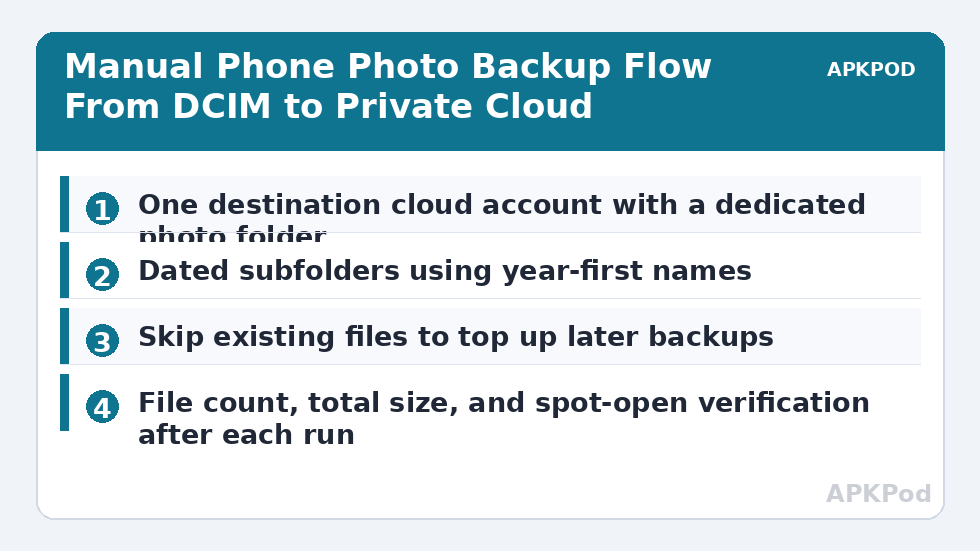
Preparation takes five minutes and decides whether the second and third runs of this routine are easy or miserable. First, choose one destination and commit to it: a single cloud account, connected inside X-plore by its OAuth sign-in, with a folder named clearly for phone photos. Second, check the free space on that account against the size of your camera folder, which X-plore will show you in folder properties. Third, decide your folder pattern now, either one folder per month or one folder per backup run with the date in its name, and never change it mid-year.
- Source folders: Usually DCIM/Camera for photos and videos you shot, plus Pictures/Screenshots only if you genuinely want screenshots kept. Messaging app folders are separate and full of duplicates; include them deliberately or not at all.
- Destination folder: One parent folder, such as Phone-Photos, with dated subfolders inside it. Nothing else should be stored in that parent folder.
- Naming: Use year-first dates, for example 2026-10-photos, so folders sort chronologically on every service and device.
- Connection: Home Wi-Fi, phone plugged in, and enough free cloud space checked before you select a single file.
- Exclusions in your head: Burst folders, edited exports, and downloaded copies can double a backup’s size. Know which subfolders your camera app creates.
The Copy Run, Pane by Pane
Open the source folder in one pane and the dated destination folder in the other. If your routine is monthly, select the new month’s files; if you are unsure what is new, select the whole camera folder and let the copy prompt work for you, choosing to skip files that already exist at the destination where X-plore offers that choice. Skipping existing files turns a full-folder copy into a practical top-up: only new items cross the network, and the run finishes in minutes instead of an hour. Watch the progress information rather than switching away and letting Android put the app to sleep mid-run; for a large first backup, exclude X-plore from battery optimisation until it completes.
That first backup is the long one. A camera folder of 30 GB will take real time over home Wi-Fi to any cloud service, because every byte uploads through your broadband connection’s upstream, which is usually far slower than its download speed. Split it by month if it stalls or if you cannot give it an uninterrupted evening. Smaller verified batches beat one heroic overnight run that fails at 80 percent, and they fit the same pattern you will use monthly afterwards. If a run does break part-way, the recovery thinking in fixing cloud download failures and interrupted transfers applies in reverse to interrupted uploads: resume by folder, skip what already arrived, and verify before assuming.
Bottleneck:
Tip:
All figures are estimates under good local conditions — strong signal, no competing traffic, both devices on the same network. Real speeds drop with distance, walls, channel congestion and slow storage on either device. Protocol options (SMB, FTP, SFTP) assume a 5 GHz-class Wi-Fi link.
Verification: The Step That Makes It a Backup
| Check | How to do it | What a pass looks like |
|---|---|---|
| File count | Compare the source folder’s item count in X-plore with the destination folder’s count, in the app and on the provider’s website. | Counts match, or any difference is explained by files you deliberately excluded. |
| Total size | Compare folder sizes on both sides. | Sizes agree closely. A large gap means partial files or a skipped subfolder. |
| Spot open | Open three or four photos from the cloud copy, including one video. | Images display at full quality and the video plays beyond the first seconds. |
| Originals kept | Leave phone originals in place until the checks above pass. | You delete nothing on a phone with a failing or unverified copy as its only version. |
| Second location | Periodically copy the cloud folder set elsewhere, or keep the phone copy as one of two versions. | No single account, phone, or accident can remove every copy. |
Only after those checks should you consider deleting anything from the phone, and even then, ask whether you need to. The usual reason is space, and the safer sequence is to free space with the tools and habits in managing storage limits and cloud sync behaviour after the backup is verified, not during the same session while you are tired and clicking quickly. Also remember that deleting from the phone does not test your backup; restoring does. Once or twice a year, copy a month’s folder back down to a computer or a spare folder and open it. A backup you have never restored is a hope, not a system.
Choosing the Destination: Private Cloud, Sensibly
Private here should mean an account you control, with a strong unique password, multi-factor authentication enabled on the provider’s own site, and sign-in inside X-plore done through that provider’s OAuth flow. It does not automatically mean encrypted against the provider itself. Mainstream cloud storage encrypts traffic and stored data under the provider’s keys, which protects you against outsiders far better than against account compromise. For most family photos that is a reasonable model. For genuinely sensitive images, encrypt before upload or use the Vault approach described elsewhere in our Cloud & Security guides, and weigh whether those images belong in a general photo backup at all.
If your photos already live partly in one service and you are consolidating, you can stage the move through X-plore’s panes, but read transferring files between cloud drives first, because cloud-to-cloud copies pass through your phone and your upstream bandwidth twice over. If you are setting up the destination account inside X-plore for the first time, the linking guides for the major providers cover the sign-in pattern that the other services follow as well.
A Cadence You Will Actually Keep
Manual backup survives on rhythm, not enthusiasm. Tie it to something that already happens: the first evening of the month, payday, or the night before you travel, when a backup matters most. Put a repeating reminder in your calendar with the destination folder pattern written in the note, so future you does not improvise a new structure. Run the copy, do the count and size checks, open a few files, and write the date of the last verified backup in that same note. Ten honest minutes a month protects years of photos. Skipping the rhythm, then discovering the gap after a phone is lost, is the failure this whole routine exists to prevent.
Frequently Asked Questions
Does X-plore back up my photos automatically like Google Photos?
No. X-plore is primarily a manual or semi-manual copy tool, not a set-and-forget photo sync service. You open the app, select the photos or camera folder, copy them to your cloud destination, and verify the result. Set a repeating reminder so the routine actually happens.
Will my photos lose quality when copied through X-plore?
No. X-plore copies the actual files, so originals arrive at the destination unchanged, including videos and full-resolution images. That is one advantage over services that offer compressed backup tiers. It also means large videos consume cloud space at their full size.
How can I avoid re-uploading photos that are already backed up?
Select the whole camera folder for the copy, and when X-plore reports that files already exist at the destination, choose to skip existing files. Only new items are transferred. Verify with file counts afterwards, because skip behaviour should always be confirmed, not assumed.
What should I check before deleting photos from my phone?
Confirm the destination folder’s file count and total size match the source, open several backed-up photos and one video from the cloud copy, and view the folder on the provider’s website as a second check. Only delete phone originals after all of that passes.
Is a single cloud backup enough for irreplaceable photos?
It is far better than only having them on the phone, but one copy in one account is still a single point of failure. Keep a second copy somewhere independent, such as a computer or external drive, and test restoring a folder occasionally so you know the backup works.