Handing your phone to a colleague so they can show you a photo, then watching their thumb drift towards your file manager, is the exact moment a master password earns its place. The task is to configure master password protection xplore wide — not just for one folder, but for opening the app at all — so that connected cloud drives, saved network locations, and private local folders sit behind a prompt before any of them can even be browsed. A file manager is a skeleton key to a phone. Locking it should be as normal as locking the phone itself.
The master password in X-plore gates entry to the app. It is distinct from your Android screen lock, distinct from the separate Vault password, and distinct from passwords saved for individual network servers. That layering is a strength, not redundancy: each lock protects a different door, and a person who defeats or is given one of them still faces the others. This article covers choosing the password, switching protection on, deciding how often X-plore should ask again, and handling the awkward realities — forgotten passwords, shared family devices, and lending the phone without handing over your files.
Configure Master Password Protection Xplore Step by Step in X-plore
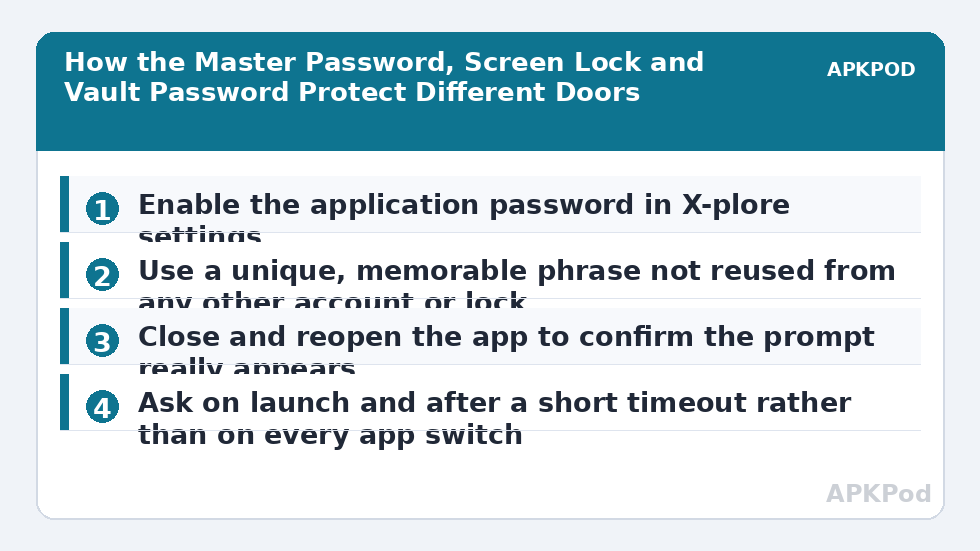
- Open X-plore’s settings or configuration screen and find the password or application protection section; its exact label varies slightly by version and translation.
- Choose the option to set or enable the application password, and type a new master password that you do not use anywhere else.
- Enter it a second time exactly as prompted. Slow down here: a typo in the confirmation is the most common way people lock themselves out on day one.
- Save, then close X-plore completely and reopen it. You should be asked for the password before the folder tree appears. If you are not asked, protection is not actually on yet.
- Test the failure path once as well: enter a wrong password deliberately and confirm the app stays closed, so you know the prompt is a real gate and not decoration.
Choose the password with the typing conditions in mind. You will enter it one-handed, in a hurry, possibly on a smaller keyboard layout, so a memorable phrase of several ordinary words usually survives daily life better than a short string of symbols you keep fumbling. Avoid your phone PIN, your Vault password, your date of birth, and any password reused from an online account. The master password’s job is to be the one secret that exists only for this app, so that a leak from any other service never becomes a key to your files.
How the Master Password Fits With Your Other Locks
| Lock | What it protects | When it asks | Notes |
|---|---|---|---|
| Android screen lock | The whole phone | When the device wakes | May be shared in effect if others know your PIN for calls or photos |
| X-plore master password | Opening the X-plore app and everything reachable inside it | On app launch, and again after your chosen timeout | The subject of this article; does not replace the Vault password |
| Vault password | Encrypted files inside the Vault only | When the Vault is opened or unlocked | Files are encrypted, not merely gated; see the Vault guide in this category |
| Saved server passwords | Individual LAN, FTP or cloud connections | Stored per connection | Convenient, but anyone past the app lock can use the saved connections |
That last row is why the master password matters most for people who use X-plore’s network features. Saved connections to a home computer, a NAS box, or cloud accounts are stored for convenience, which means the app lock is the only thing standing between a borrowed phone and your entire home network’s shared folders. Readers using those features should pair this article with the guide to secure local wireless transfers with a password in X-plore and with the separate protection described for the X-plore Vault and private photos, so each layer is set deliberately rather than assumed.
Bottleneck:
Tip:
All figures are estimates under good local conditions — strong signal, no competing traffic, both devices on the same network. Real speeds drop with distance, walls, channel congestion and slow storage on either device. Protocol options (SMB, FTP, SFTP) assume a 5 GHz-class Wi-Fi link.
Asking Frequency: Convenience Without Leaving the Door Open
Most versions let the app remember that you unlocked it for a while, or until it is closed, rather than demanding the password on every single switch back from another app. Pick a behaviour you will actually live with. Asking on every return sounds strictest, but in practice it trains people to disable the lock entirely within a week, and a disabled lock protects nothing. A sensible middle ground for most people is: ask when the app is freshly launched, and ask again after a short period away from it. If your version offers an auto-lock style timeout for the app itself, the same timeout reasoning used for the Vault applies here too — short enough that a forgotten phone locks itself, long enough that normal file work is not a password-typing marathon.
- Shared family tablet: ask on every launch; several people use the device and sessions blur together.
- Personal phone only you carry: ask on launch and after a brief timeout; the screen lock already covers casual pickup.
- Phone often lent to children: ask on every launch and keep the Vault separate, so games stay possible while files stay closed.
- Work phone with sensitive shares: ask on launch, use a unique password, and review saved server connections monthly.
Where X-plore or your device offers biometric unlocking for the app, treat it as a convenience layer over the password, not a replacement for having one. Fingerprint or face unlock is fast and stops casual access well, but the password remains the fallback after restarts, failed scans, or system prompts — and it is the secret you can change instantly if you ever suspect someone watched you type. The dedicated article on fingerprint and face unlock authentication in X-plore looks at that balance in detail, within this site’s broader Cloud & Security section.
If You Forget the Master Password
Be clear-eyed about this before it happens: an app lock that anyone could bypass with a web search would not be worth having, so recovery options are intentionally limited and vary by version. Check the app’s own help and settings first for a reset route. In some cases, clearing the app’s data or reinstalling removes the lock — along with your saved connections, cloud tokens, settings, and, critically, access considerations for encrypted material — so treat that as a last resort and think carefully before using it if you also use the Vault. The Vault’s encrypted files are governed by the Vault password, not the master password, and destructive resets can strand them. The practical defence is mundane: keep the master password recorded in a password manager or a sealed note at home, and test it after setting it, while the stakes are still zero.
Frequently Asked Questions
Is the X-plore master password the same as the Vault password?
No. The master password gates opening the X-plore app itself, while the Vault password encrypts and unlocks the files inside the Vault. You can and generally should use two different passwords for the two jobs.
Does the master password encrypt my files?
No. It controls access to the app, but files in normal folders are not encrypted by it. For actual encryption of private files, use the Vault, which encrypts its contents with its own password.
Why should I set an app password if my phone already has a screen lock?
Because phones get lent while unlocked. A screen lock does nothing once you hand the device to someone for a call or a photo, whereas the X-plore master password still guards your files, cloud accounts and saved network connections.
What happens if I forget the master password?
Check the app’s own help for a reset option first. Drastic routes such as clearing app data can remove settings and saved connections and may affect Vault access, so keep the password recorded safely elsewhere from the start.
Should I use fingerprint unlock instead of a master password?
Use it alongside the password, not instead of it. Biometrics are a fast everyday layer, but the password is the fallback after restarts or failed scans and the one secret you can change immediately if needed.