Before you configure port forwarding ftp access xplore offers starts to sound like a neat trick — reach your phone’s files from anywhere — understand plainly what you would be opening. Plain FTP sends your username, your password, and every file in clear, readable text. Anyone positioned on the network path can read them, and an FTP server facing the open internet is found by automated scanners within hours, then probed around the clock by bots trying common and stolen passwords. This is not a theoretical warning: internet-facing FTP and SMB services are among the most persistently attacked services online. So this guide does something honest — it talks you out of the risky version first, shows the safer designs that achieve the same goal, and only then explains router port-forwarding mechanics as harm reduction for readers who still insist.
The Safer Designs That Give You the Same Result
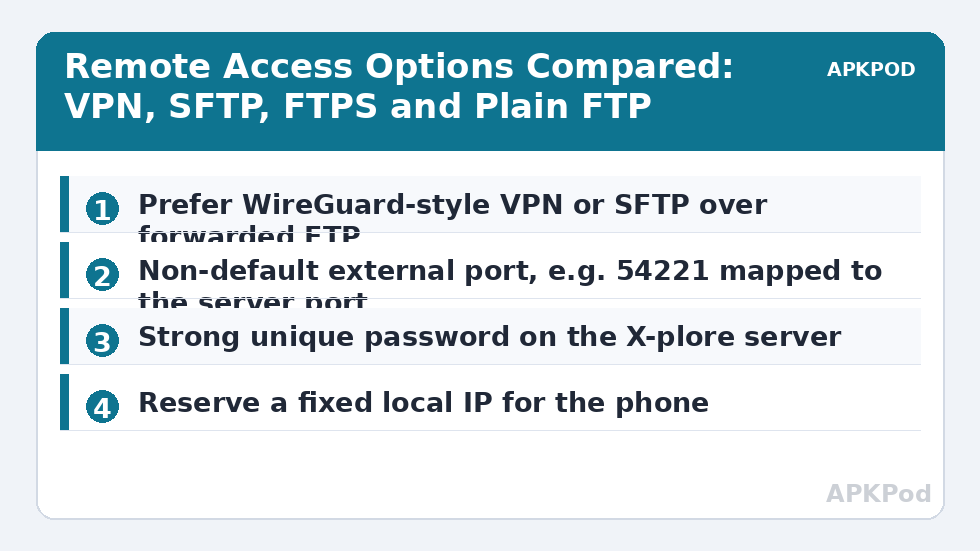
Ask what you actually need: your files, reachable from outside home. Three designs deliver that without publishing an FTP login page to the entire internet. A VPN into your home network — WireGuard is the modern, lightweight standard, and mesh-style tools in the Tailscale mould make it nearly configuration-free — puts your phone cryptographically inside your LAN when you connect. Once the VPN is up, X-plore reaches your home servers by their ordinary local addresses, exactly as if you were on the sofa, and no port is forwarded to a file service at all. The second option is SFTP, which is file transfer over SSH: encrypted end to end, one port, and key-based login that bots cannot guess; our guide to transferring files with SFTP and SSH in X-plore walks through it, and it is the design to choose if a single forwarded port must exist. The third option is to reverse the direction: keep the phone’s server off, and sync what you need to a service you already trust before you travel. Any of these is a better answer than raw FTP on the public internet.
| Remote access design | Encrypted? | Exposed to internet scanners | Verdict |
|---|---|---|---|
| VPN into home network (WireGuard / mesh VPN), then normal LAN access | Yes, everything | Only the VPN endpoint, which ignores unauthenticated traffic | Recommended — best security and identical to being home |
| SFTP (SSH file transfer) with key login | Yes, everything | One SSH port; key-only login defeats password guessing | Good — acceptable single-port exposure |
| FTPS (FTP over TLS) | Yes, if configured and verified | FTP ports; protected login, but complex port ranges | Acceptable with care |
| Plain FTP forwarded to the internet | No — credentials and files are plaintext | Fully; found and probed automatically | Not recommended — harm-reduction rules below if you insist |
| SMB (port 445) forwarded to the internet | Not safely | Fully; a prime ransomware-era target | Never do this |
If You Still Insist: The Harm-Reduction Rules
These rules do not make public FTP safe; they make it less unsafe, for a shorter time, with less to steal. Treat all of them as mandatory, not a menu.
- Use FTPS or SFTP rather than plain FTP whenever the server supports it, so credentials are not broadcast in readable text.
- Choose a non-default external port — for example, map external port 54221 to the server’s internal FTP port — which cuts drive-by noise, while understanding it stops no determined attacker.
- Set a very strong, unique password on the X-plore server account, used for nothing else, so a leak or a guess compromises only this one service.
- Share the narrowest folder you can, read-only if uploads are not essential, so a break-in reaches the least data possible.
- Enable the forwarding only for the hours you need it, then disable it. An off server cannot be attacked, and “I will turn it off later” reliably becomes never.
- Never forward SMB port 445, Windows file sharing, or a NAS admin interface alongside it — one risky opening is not an excuse for three.
Set the phone-side server up properly first using the password-protected FTP server setup in X-plore, and review the general FTP server setup in X-plore if the local version of the service is not running yet — external access layered on a shaky local setup doubles the troubleshooting. More background reading sits in the Network Setup category.
How Routers Actually Forward a Port
A router doing NAT gives every home device a private address and shares one public address between them. Inbound packets arrive at the public address with no idea which device they are for, so the router drops them — until a port-forwarding rule tells it where they go. Three practical consequences follow. The phone must keep a stable internal address, so reserve its IP in the router’s DHCP settings or the rule will silently point at the wrong device next week. FTP also needs more than one port in its classic active and passive modes, which is why FTP forwarding so often half-works; SFTP needs exactly one port, another reason it is the better traveller. And if your internet provider uses carrier-grade NAT — common on mobile broadband and some fibre plans — your router has no real public address at all, inbound forwarding simply cannot work, and a VPN design with an outbound connection becomes not just safer but the only option.
Configure Port Forwarding FTP Access Xplore Uses, Step by Step
- Start X-plore’s file server on the phone while at home, note the port it listens on, and test it from another device on your own Wi-Fi. Do not proceed until local access works flawlessly.
- In the router’s DHCP settings, reserve a fixed local IP address for the phone so its address cannot drift.
- Open the router’s port-forwarding (sometimes called virtual server) section and create one rule: external port — a non-default number such as 54221; internal IP — the phone’s reserved address; internal port — the number X-plore is listening on; protocol — TCP.
- If you are using FTPS or passive FTP rather than SFTP, forward the passive port range the server is configured to use as well, and set that same range in the server — mismatched ranges are the classic cause of logins that succeed and folder listings that hang.
- From a genuinely external network — mobile data with Wi-Fi off, never your own Wi-Fi — connect to your public IP address at the external port and confirm you reach the login, then log in and list a folder.
- Write the disable date in your calendar now, and remove the rule when the trip or task ends.
Bottleneck:
Tip:
All figures are estimates under good local conditions — strong signal, no competing traffic, both devices on the same network. Real speeds drop with distance, walls, channel congestion and slow storage on either device. Protocol options (SMB, FTP, SFTP) assume a 5 GHz-class Wi-Fi link.
Testing and the Failures You Will Probably Meet
Test from outside or your testing proves nothing: many routers refuse to loop an external address back to an internal service, so a test from home Wi-Fi can fail while the rule is fine — and the reverse confidence trick, where a home test passes because you actually connected locally, is worse. If the external connection times out entirely, the usual causes are, in order, carrier-grade NAT, a firewall on the phone’s server being bound to a different interface, the reserved IP not matching the phone’s current address, or the ISP blocking the chosen port — try a different high external port before suspecting anything exotic. If login succeeds but no folder listing appears, suspect the passive port range problem described above. Confirm a test file transfers both ways, then apply the most important step in this guide: decide whether the VPN design would have done this job, and migrate to it before the forwarding rule becomes a permanent, forgotten fixture of your network.
Frequently Asked Questions
Is it safe to forward FTP to the internet if I use a strong password?
A strong password helps against guessing, but plain FTP still transmits that password and all your files as readable plaintext, and the service remains exposed to constant automated probing and any future vulnerability in the server. Strong passwords are one harm-reduction layer, not safety. A VPN or SFTP is the genuinely safer design.
Why can I not reach the forwarded port from outside at all?
The most common cause is carrier-grade NAT: your provider gives your router a private address, so no true public address exists for inbound connections, and no router setting can fix that. Other causes are a mismatched reserved IP, an ISP-blocked port, or testing from inside your own Wi-Fi, which many routers cannot loop back.
What is the difference between FTPS and SFTP?
FTPS is classic FTP wrapped in TLS encryption; SFTP is a different protocol entirely, running over SSH. SFTP is simpler through firewalls because it needs one port, and it supports key-based login that cannot be password-guessed. For a single forwarded port to a home device, SFTP is usually the cleaner and safer choice.
Why does login work but the folder listing hang?
FTP opens separate data connections, and in passive mode the server nominates ports from a configured range. If that range is not forwarded on the router, or the range in the router rule does not match the server setting, the control connection logs you in and the data connection — the one carrying listings and files — never arrives.
Can I forward SMB or Windows file sharing instead of FTP?
No — do not do this. Exposing SMB port 445 to the internet is one of the most dangerous openings on a home network and has been the entry point for major worm and ransomware outbreaks. If you need your shared folders away from home, connect through a VPN and use SMB exactly as you do on your own sofa.