A transfer that dies at 80 percent is rarely random, and to fix network timeout drops xplore lan users keep hitting, you have to treat the timeout message as a symptom with an address on the network, not as an app fault. X-plore reports a timeout when it stops receiving answers from the other device for longer than it is willing to wait. Something between the two devices stopped answering: the server slept, its address changed, the Wi-Fi link degraded, or the router quietly reorganised the network mid-transfer. Each cause has a different fix, and applying all of them blindly wastes an evening.
This diagnostic guide lives in the Network Setup category with the other connection repairs. It pairs naturally with the SMB connection failed error guide, which covers failures at the moment of connecting, while this one covers connections that start well and then fall apart.
Fix Network Timeout Drops Xplore LAN Connections by Cause
Start by classifying the failure, because the pattern points at the layer responsible.
| Pattern you observe | Most likely layer | First check |
|---|---|---|
| Drops after a consistent idle period or exact transfer time | Power saving or sleep on the server, router, or phone | Sleep timers and battery optimisation settings |
| Works for days, then fails until the connection is recreated | Addressing — the server IP changed | DHCP lease and reservation settings on the router |
| Drops mainly with large files or at certain times of day | Wi-Fi quality or network congestion | Signal strength, band, and competing traffic |
| Several devices drop at the same moment | Router event — reboot, lease renewal, channel change | Router uptime and logs |
| Only one share drops, others on the same server work | Server-side service or that share’s storage | Server service status and disk health |
Cause one: the server’s IP address changed under your saved connection
Home routers hand out addresses by DHCP lease, commonly lasting 24 hours. When a PC or NAS renews and receives a different address — after a router reboot, a long shutdown, or because another device took its old address — every saved connection pointing at the old address becomes a map to the wrong house. X-plore then waits for a server that is no longer there, and reports a timeout rather than a clean refusal, which is exactly why this fault feels mysterious.
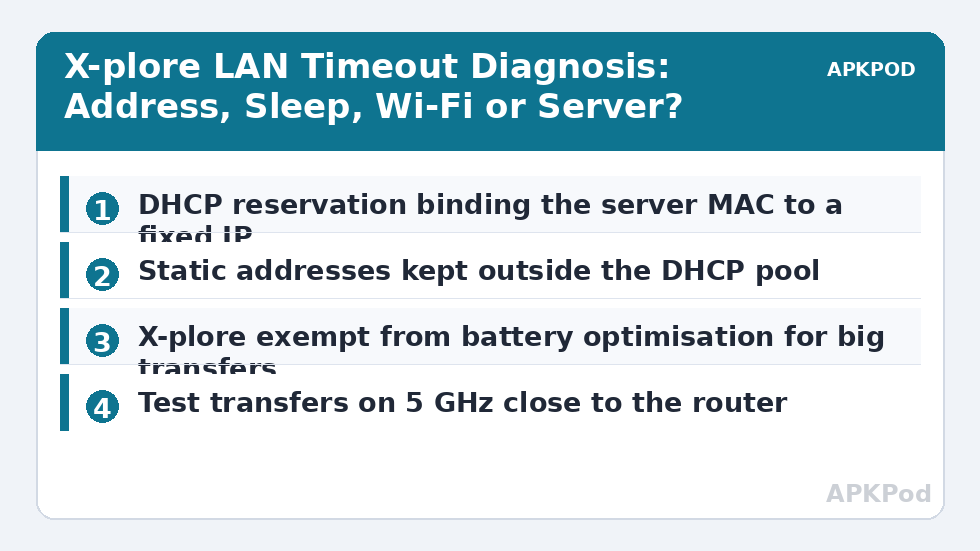
The permanent fix is a DHCP reservation on the router: bind the server’s MAC address to a fixed IP inside the router’s DHCP settings, so the lease always renews to the same address. Alternatively, set a static address on the server itself, outside the router’s DHCP pool to avoid an IP conflict, where two devices end up holding the same address and intermittently answering in each other’s place — a conflict that produces some of the strangest half-working behaviour on any LAN. After reserving the address, edit the saved X-plore connection once to use it, and the whole class of failure disappears.
Bottleneck:
Tip:
All figures are estimates under good local conditions — strong signal, no competing traffic, both devices on the same network. Real speeds drop with distance, walls, channel congestion and slow storage on either device. Protocol options (SMB, FTP, SFTP) assume a 5 GHz-class Wi-Fi link.
Cause two: something goes to sleep mid-transfer
Phones, PCs, and NAS units all save power aggressively, and a long transfer looks exactly like inactivity to several of them. On the phone, Android battery optimisation can throttle or suspend X-plore when the screen turns off, stalling a transfer that was healthy a minute earlier; exempt X-plore from battery optimisation for the duration of large jobs, and keep the phone charging during them. On a PC, sleep timers and hard-disk spin-down pause the sharing service; on a NAS, disk hibernation can add long pauses that a client reads as a timeout, even though the server recovers seconds later. Routers contribute too: some apply power-saving to Ethernet ports or drop idle wireless clients.
Test this cause directly: repeat the failing transfer with the server kept awake and the phone screen on and charging. If the drop vanishes, you have found your layer, and the fix is a settings change on whichever device was sleeping — not a reinstall of anything.
Cause three: the Wi-Fi link degrades under load
Signal quality that is adequate for browsing can still collapse under a sustained transfer, especially on 2.4 GHz in a crowded apartment building. The phone heats up, the rate adaptation steps down, retransmissions climb, and eventually the connection stalls long enough to time out. Typical healthy throughput on a strong 5 GHz link sits roughly in the 15 to 45 MB/s range, and a link that has fallen to a fraction of that is telling you the radio path, not the protocol, is the problem. Move closer to the router for a test transfer, switch the phone to 5 GHz, and check whether neighbours’ networks crowd your channel. The fuller treatment in fixing slow Wi-Fi transfer speed covers channel selection and router placement, and it applies here because slow and dropping are often the same fault at different severities.
When the Server Itself Is the Problem
Sometimes the other device genuinely stops responding. A Windows PC applying updates and rebooting overnight, a NAS running a heavy scrub or backup job that saturates its CPU and disks, or a router-based share whose weak processor is busy routing for the whole household can all leave X-plore waiting past its patience. The clue is correlation: if drops align with a backup schedule, a media indexing job, or the household’s peak streaming hour, schedule your large transfers for quieter times rather than fighting the app.
Also separate discovery failure from transfer failure. If the server does not appear in a scan at all, that is a discovery problem — work through network discovery not finding your PC instead. If the server appears, connects, browses, and only dies during sustained copying, you are in timeout territory, and the causes above are the realistic list.
A disciplined test sequence
- Reserve the server’s IP address on the router, then update the saved connection in X-plore.
- Disable battery optimisation for X-plore during the test, keep the phone charging, and set the server not to sleep.
- Copy one large single file — a video of a gigabyte or more — on 5 GHz near the router, and note whether it completes and at roughly what speed.
- If it completes, reintroduce your normal conditions one at a time: distance, band, screen off. The step that brings the drop back is the cause.
- If it still drops under ideal conditions, test a different server or share on the same network to isolate whether the fault follows the server or the phone.
This sequence takes twenty minutes and produces a definite answer, which is more than random setting-toggling ever has. Timeouts feel intermittent precisely because several small conditions — a lease expiring, a disk sleeping, a weak signal at the far end of the house — overlap, so removing them one at a time is the only honest way to find the one that matters on your network.
Frequently Asked Questions
Why do X-plore transfers time out even though the Wi-Fi signal looks strong?
A strong signal icon does not rule out a server that sleeps mid-transfer, a changed IP address, or congestion during the transfer. Signal meters show the current link quality, not whether the other device stayed awake and at the same address for the whole job. Work through sleep settings and DHCP reservation first, then test a large file close to the router on 5 GHz.
How does a DHCP lease cause timeout errors?
When a router assigns a PC or NAS a different IP address at lease renewal, the saved connection in X-plore still points at the old address. X-plore waits for a server that is no longer there and eventually reports a timeout. Reserving a fixed address for the server in the router’s DHCP settings prevents the address from changing.
Can battery saving on the phone really break LAN transfers?
Yes. Android battery optimisation can throttle or suspend apps running in the background, and a long transfer with the screen off looks like background activity. The transfer stalls even though the network is healthy. Exempting X-plore from battery optimisation and keeping the phone charging during large transfers removes this cause.
What is an IP conflict and how would I know one is happening?
An IP conflict means two devices hold the same address, so replies meant for one are sometimes answered by the other. The symptoms are bizarre: a share that works, then shows the wrong device, then times out. It often follows someone setting a static address inside the router’s DHCP pool. Move static addresses outside the pool, or use DHCP reservations instead.
Should I increase timeout values instead of fixing the cause?
A longer timeout only helps at the margins, such as a NAS that pauses while its disks spin up. It does nothing for a changed address, a sleeping PC, or a collapsing Wi-Fi link, and it makes genuine failures take longer to surface. Fix the underlying cause; the default patience of the client is reasonable for a healthy LAN.