Opening a network drive should take one tap, not a fresh expedition through server lists, address fields, and password prompts. The way to map network drives shortcut buttons xplore users rely on is already built into the app’s dual-pane design: save each server connection once, pin the locations you actually use as shortcuts or favourites, and arrange the two panes so your most common copy operations — phone to PC, NAS to phone, router drive to SD card — begin from a fixed home position. Mapping, in this context, means giving a network location a permanent, labelled place in the interface, the same job drive letters do on a desktop.
Everything in this guide builds on connections from the wider Network Setup category. A shortcut cannot rescue a connection that was never saved properly, so if a server is not yet working as a basic LAN entry, finish that setup first — connecting to Windows shared folders over SMB covers the most common case.
Map Network Drives Shortcut Buttons Xplore Dual Pane Layout
Work in three layers: the saved server, the shortcut to a specific folder on it, and the pane arrangement. Most people stop at layer one and then wonder why daily use still feels slow.
Layer one: save the server connection properly
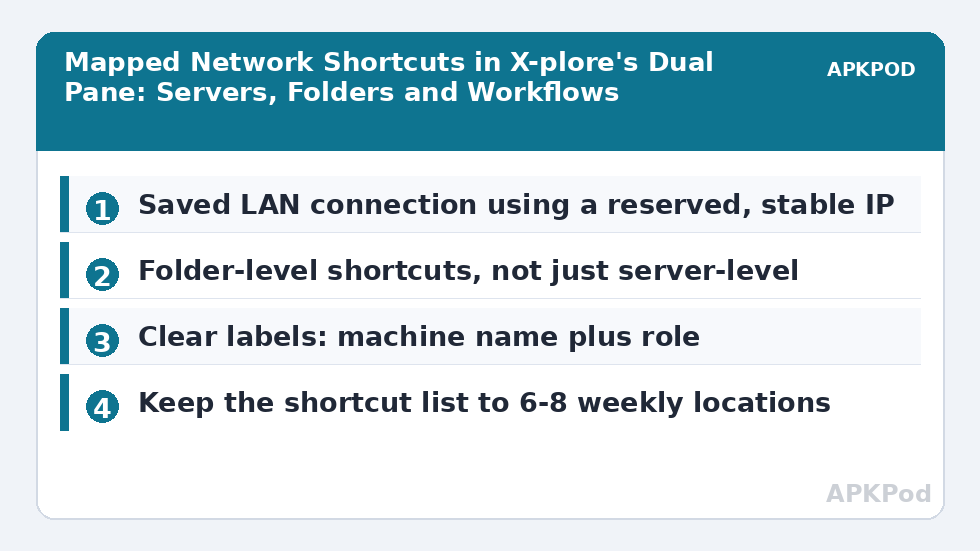
Add each machine once under LAN in X-plore, entering its address, share, username, and password, and store the credentials with the connection. Use the server’s reserved or otherwise stable IP address rather than a leased one that can change; a shortcut pointing at an address the router reassigned is the single most common reason mapped locations mysteriously die a week later. Label each connection with a name that describes the machine and its role — Studio PC, NAS Media, Router Drive — because these labels are what you will read in the shortcut list every day.
Layer two: create shortcuts to the folders you actually open
- Open the saved server connection and navigate into the exact folder you use most, such as the shared Downloads folder rather than the share root.
- Use X-plore’s add-to-favourites or shortcut option for that location, and confirm it appears in the favourites or shortcut area of the pane.
- Repeat for the two or three deepest locations you visit constantly: the NAS media library root, the PC transfer folder, the router drive’s shared folder.
- Rename shortcuts where the app allows it, keeping names short enough to read in the narrow pane.
The distinction between a server shortcut and a folder shortcut matters. A server shortcut saves one step; a folder shortcut saves the whole navigation — expanding the share, waiting for the directory listing, and descending through subfolders on what may be a slow router-based share. On a fast NAS the difference is seconds. On a weak connection it is the difference between a tool you use and one you avoid.
Bottleneck:
Tip:
All figures are estimates under good local conditions — strong signal, no competing traffic, both devices on the same network. Real speeds drop with distance, walls, channel congestion and slow storage on either device. Protocol options (SMB, FTP, SFTP) assume a 5 GHz-class Wi-Fi link.
Layer three: arrange the dual panes around your real workflows
X-plore’s signature layout shows two independent locations side by side (or switchable on smaller screens), and shortcuts make that layout compound in value. Park your standing destinations as the pane defaults: local storage or SD card on the left, your most-used network folder one tap away on the right. The workflows below cover most households, and each becomes select, copy, confirm once the shortcuts exist.
| Workflow | Left pane shortcut | Right pane shortcut |
|---|---|---|
| Collect files from the PC | Phone Transfer folder (local) | PC shared Downloads folder |
| Archive photos to the NAS | DCIM / Camera folder | NAS Photos share — see NAS storage in X-plore |
| Publish to the router drive | Local documents folder | Router USB share |
| Two-server housekeeping | NAS media library | PC media folder |
| Regular folder sync | Local work folder | Matching PC folder, paired with the routine in syncing folders between PC and phone |
Shortcut Hygiene: Keeping Mapped Locations Alive
Mapped locations fail for mundane reasons, and a little hygiene prevents nearly all of them. The address problem leads the list: reserve each server’s IP address in the router’s DHCP settings so saved connections and shortcuts keep pointing at the right machine after reboots and lease renewals. The credential problem follows: when you change a sharing password on a PC or NAS, update the stored credentials in the X-plore connection the same day, because a shortcut faithfully replays whatever credentials it was saved with, including stale ones.
Structure the shortcut list deliberately rather than letting it grow by accident:
- Keep the list short — the six to eight locations you open weekly. A shortcut list of thirty entries is just another folder tree.
- Order or name entries so daily locations come first; a simple numbering or prefix habit works where ordering controls are limited.
- Prune dead entries when a machine is replaced or a share renamed. A broken shortcut left in place trains you to distrust all of them.
- After replacing a router or server, rebuild shortcuts from the saved connection outward, testing each one as you go, instead of debugging old entries one by one.
Shortcuts, favourites, and bookmarks are not quite the same thing
Different X-plore versions and devices surface this feature under slightly different names — favourites, shortcuts, or saved locations pinned near the top of the pane. The mechanics differ in detail, but the principle the network architect cares about is identical: the entry stores the full path — server address, share, folder, and saved credentials — and resolves it in one action when tapped. If your build offers both a favourites list and per-pane shortcut buttons, use favourites for the cross-device library of locations and the pane buttons for the current workflow’s pair. What matters is consistency: pick one system, map everything there, and stop navigating from the raw server list for daily work.
When a Shortcut Stops Working
Diagnose from the stored path outward. Open the underlying saved server connection directly: if it also fails, the problem is the connection — changed address, changed password, server asleep or off — and the shortcut is innocent. If the saved connection opens but the folder shortcut fails, the folder itself moved: the share was renamed, the folder was reorganised on the server, or a drive letter change on a PC altered the shared path. Recreate that one shortcut from the working connection. If everything fails at once after a router change, suspect addressing across the board: the new router may use a different subnet, such as 192.168.0.x instead of 192.168.1.x, invalidating every stored address simultaneously. Rebuild the connections with reserved addresses on the new router, then recreate the shortcuts, and the setup will be more durable than the one it replaced.
Frequently Asked Questions
What does mapping a network drive mean in X-plore?
It means giving a network location a permanent, labelled entry in the interface: you save the server connection with its credentials, then create a shortcut or favourite to the specific folder you use. After that, opening that folder takes one tap instead of navigating through the server list, share, and subfolders every time.
Why did my shortcut stop working after a few days?
The most likely cause is the server’s IP address changing when its DHCP lease renewed, so the shortcut now points at an old address. Reserve a fixed address for the server in your router’s DHCP settings, update the saved connection in X-plore to use it, and recreate the shortcut from that connection.
Should I make shortcuts to the server or to individual folders?
To individual folders, for the locations you open constantly. A server shortcut still leaves you expanding the share and descending through subfolders on every visit, which is slow on weak connections such as router USB shares. Keep one server-level entry as a fallback and folder-level shortcuts for daily locations.
How many shortcuts should I keep?
Keep the list to roughly the six to eight locations you open every week. Beyond that, the shortcut list becomes another tree you have to search, which defeats its purpose. Remove entries for replaced machines and renamed shares promptly so the list stays trustworthy.
Do shortcuts store my network passwords?
A shortcut resolves through the saved server connection, which is where the username and password are stored when you choose to save them. That is what makes one-tap access possible. Protect the phone itself with a lock screen, and update the stored credentials in the connection whenever you change a sharing password on the server.