Home streaming fails in a particular way: the TV, the NAS, and the phone are all on the same Wi-Fi, yet nothing appears anywhere. To connect xplore to dlna upnp media server sources reliably, you first need to stop treating DLNA as a drive you mount and start treating it as a directory service you browse. X-plore does not copy a DLNA library into its panes or index it like local storage. It asks the network, in real time, which media servers are announcing themselves, then walks the folder tree each server chooses to publish.
This guide belongs to the Network Setup series because discovery, not cables, is where DLNA succeeds or fails. For direct file-level browsing of the same machines, compare the approach here with streaming video from a PC over the LAN, where the phone pulls files through a share instead of a media library.
Connect Xplore to DLNA UPnP Media Server Sources Step by Step
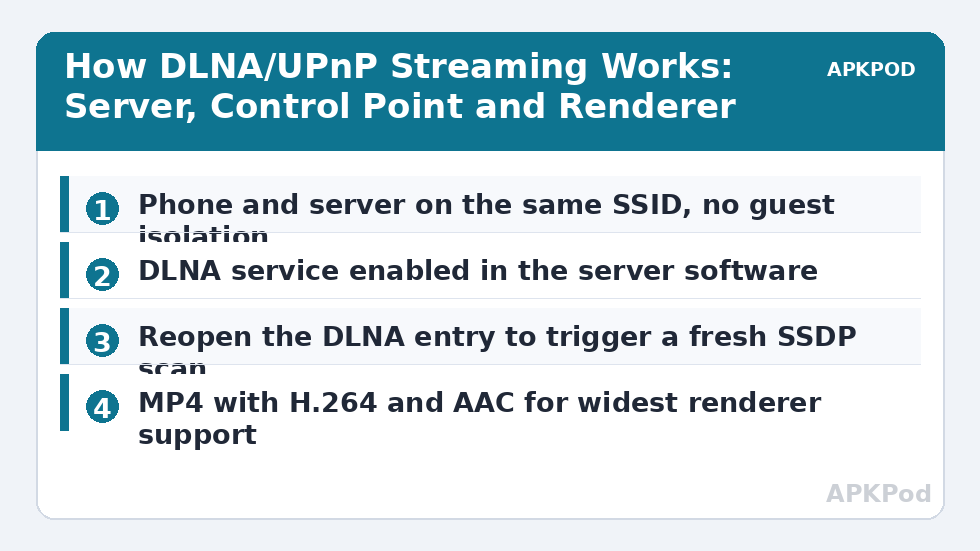
- Put the phone and the media server on the same network and the same SSID. A server wired to the router is fine; a phone on a guest network with client isolation is not.
- Confirm the media server software is actually running and its DLNA service is switched on. On Windows, media streaming must be enabled; on a NAS, the media server package must be started; in Plex, Jellyfin, Serviio, Twonky, or Kodi, the DLNA/UPnP option lives in that program’s own settings, separate from its main streaming features.
- Open X-plore and look for the DLNA/UPnP entry in the device or network section of the pane. Opening it triggers a fresh discovery scan.
- Wait several seconds. Discovery is not instant, and servers announce themselves on their own schedule as well as answering searches.
- Select the server when it appears, then browse by the library views it offers — typically folders such as Music, Pictures, and Video, often subdivided by album, artist, folder, or date.
- Tap a file to hand it to a player, or use the dual-pane layout to copy a file from the server listing to local storage when the server allows downloading.
If the server list stays empty, do not reinstall anything yet. Restart the discovery by closing and reopening the DLNA entry, toggle the phone Wi-Fi off and on, and confirm the router does not have an option like AP isolation, wireless isolation, or block LAN access enabled on that SSID. Multicast traffic is the lifeblood of discovery, and some routers filter it between bands, so testing with the phone on the same band as a wireless server is a legitimate diagnostic step.
Bottleneck:
Tip:
All figures are estimates under good local conditions — strong signal, no competing traffic, both devices on the same network. Real speeds drop with distance, walls, channel congestion and slow storage on either device. Protocol options (SMB, FTP, SFTP) assume a 5 GHz-class Wi-Fi link.
The Three UPnP Roles, and Why They Explain Every Symptom
UPnP AV, the framework DLNA is built on, divides the job between three roles. Understanding them turns mysterious behaviour into obvious behaviour.
| Role | What it does | Typical examples |
|---|---|---|
| Media server | Stores the files, maintains the library, and serves content on request | NAS media package, Windows media streaming, Plex or Serviio on a PC |
| Control point | Discovers servers and renderers, browses the library, and tells one to play to the other | X-plore browsing a server, a dedicated DLNA controller app |
| Media renderer | Receives and plays the stream it is handed | Smart TV, streaming stick, network speaker, the phone’s own video player |
Discovery itself runs on SSDP, the Simple Service Discovery Protocol, which uses multicast announcements on the local network. The server periodically announces its presence and answers search requests; the control point listens and builds the list you see. Nothing in this exchange involves accounts, passwords, or the internet. That is why DLNA works with the broadband cable unplugged, and also why it silently fails when a router, VPN, or guest network blocks multicast or separates clients — the announcements simply never arrive.
When X-plore acts as the control point and browser, the phone is only directing traffic. When you open a file and play it on the phone, the phone is also the renderer. When you send playback to a TV, the TV renders, and the stream flows from server to TV — which is why playback can continue smoothly even if the controlling phone’s screen sleeps, as long as the control connection is maintained.
Codec Limits and the Transcoding Misconception
The most common disappointment with DLNA is a file that appears in the library but refuses to play, stutters, or plays video without sound. The usual cause is format support at the renderer, not a broken network. DLNA guarantees discovery and delivery; it does not guarantee that any given TV or player can decode any given file. A server built into a NAS or router typically sends the file exactly as stored. If the TV cannot decode the video codec, the audio codec, or the container — common friction points include certain MKV combinations, DTS audio tracks, and newer codecs on older televisions — playback fails even though browsing worked perfectly.
Transcoding, where the server converts the file into a format the renderer accepts, is a feature of particular server software, not of DLNA itself. Full media platforms such as Plex can transcode for their own apps, but their DLNA service may still serve files as-is, and lightweight NAS or Windows library sharing generally does not convert video for DLNA clients at all. So the practical fixes are unglamorous: play the file on the phone instead, where player apps support far more formats; copy the file locally through a share — accessing NAS storage in X-plore gives you the file directly — or store a compatible version, typically MP4 with H.264 video and AAC audio, which the widest range of renderers accepts.
What DLNA browsing cannot do
- It cannot show files the server has not indexed. A file copied to the NAS a minute ago may need a library rescan before it appears, even though it is visible immediately through an SMB share.
- It cannot edit the library. Renaming, deleting, and reorganising belong to the server or to direct share access such as connecting to Windows shared folders over SMB.
- It cannot cross networks. There is no DLNA over the internet without additional tooling, because discovery depends on local multicast.
- It cannot promise subtitles. External subtitle support varies by server and renderer pairing and is one of DLNA’s least consistent areas.
Keeping a Server Visible and Responsive
A server that appears and disappears usually has a power or network explanation. PCs that sleep stop announcing; NAS units with aggressive disk and service power saving can be slow to answer the first search after idle; and a server whose IP address changes does not matter to SSDP discovery itself, but does matter to any saved shortcut that points at the address. Wake the machine and repeat the scan before concluding anything is broken. On the router side, firmware options that optimise multicast, sometimes labelled IGMP snooping, occasionally interfere with discovery on mixed wired and wireless setups; if a wired server is invisible only to wireless clients, that setting and band separation are the first places a network architect looks.
Streaming quality, once connected, is ordinary network physics. A typical home setup streams stored video at whatever rate the file demands, and even high-bitrate local files sit comfortably within what a healthy 5 GHz Wi-Fi link delivers, commonly in the 15 to 45 MB/s range in real-world throughput terms. Stutter on a file the renderer can decode points back to signal strength, a congested 2.4 GHz band, or a server on a failing disk — not to DLNA itself.
Frequently Asked Questions
Why does my DLNA server not appear in X-plore?
The usual causes are the phone and server being on different SSIDs or a guest network, client isolation enabled on the router, the DLNA service not actually running on the server, or multicast traffic being filtered between network bands. Put both devices on the same main network, confirm the server software has DLNA enabled, then reopen the DLNA entry in X-plore to trigger a fresh SSDP discovery scan.
Can X-plore play DLNA files on my TV instead of the phone?
Yes, when the TV acts as a media renderer on the same network. X-plore works as the control point: it browses the server library and directs the chosen file to the renderer. The stream then flows from the server to the TV, and the TV’s own format support decides whether playback succeeds.
Why does a video show in the library but fail to play?
DLNA guarantees discovery and delivery, not decoding. The renderer probably cannot handle the file’s video codec, audio codec, or container, and most lightweight DLNA servers send files exactly as stored without transcoding. Playing the file on the phone, using a more capable player, or storing an MP4 version with H.264 video and AAC audio usually resolves it.
Why is a file I just added to the server missing from X-plore?
DLNA shows the server’s indexed library, not the raw folder. A newly copied file appears only after the server rescans or indexes its library, which can be automatic on a delay or triggered manually in the server settings. The same file is usually visible straight away through direct share access.
Does DLNA need an internet connection?
No. DLNA and UPnP discovery operate entirely on the local network using SSDP multicast announcements. Streaming between a server, X-plore, and a TV in the same home works with the internet disconnected, as long as the local router and Wi-Fi are running.