A hard drive plugged into a router’s USB port is the cheapest NAS most homes will ever own — no extra box, no extra power brick, storage available to every device on the network. The way to access router usb drive xplore file manager workflows use is not a special router mode in X-plore at all. The router republishes that drive over standard protocols, usually SMB or FTP, and X-plore connects to the router exactly as it would connect to a computer or a NAS. Once you understand that, the setup stops being router-specific folklore and becomes two ordinary jobs: configure the sharing on the router, then add one LAN connection on the phone.
Because the router is acting as a tiny file server, this setup sits naturally inside the Network Setup category alongside proper NAS connections. The router’s address, not the drive’s, is what every client in the house will use.
Access Router USB Drive Xplore File Manager Connection Steps
Step one: prepare the drive and the router
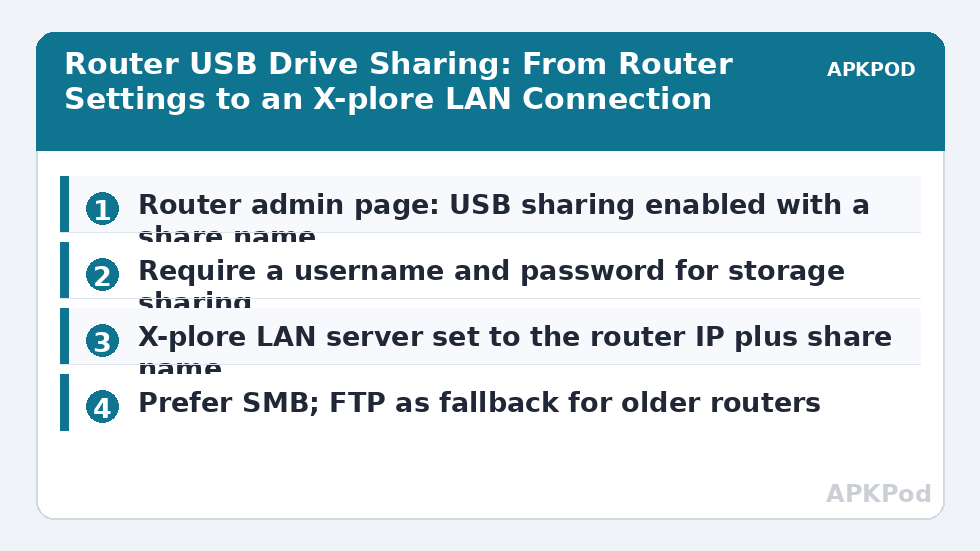
Plug the drive into the router’s USB port and open the router administration page, normally at 192.168.0.1 or 192.168.1.1, from a browser on any connected device. Find the USB storage, storage sharing, or media server section — the naming varies by brand across TP-Link, ASUS, Netgear, Fritz!Box, and ISP-supplied units. Confirm the router recognises the drive and shows its capacity and a share name. Most routers share the drive under a name based on its volume label or a default such as sda1, USB_Storage, or the drive’s partition name.
Decide on access control here. Many routers offer anonymous sharing for the LAN and an option to require a username and password, sometimes the router admin credentials, sometimes a separate sharing account. Require the account if the option exists: everyone on your Wi-Fi, including guests you gave the Wi-Fi password to, can otherwise browse the entire drive. Also note which file system the drive uses. Routers are typically happiest with exFAT or ext4, many handle NTFS read and write, and some older models read NTFS but write slowly or not at all.
Step two: add the router as a LAN server in X-plore
- Open X-plore and add a new LAN server connection.
- Enter the router’s IP address — for most homes, the same address as the administration page and the network gateway.
- Append the share name if X-plore asks for a path, so the target resembles 192.168.1.1/USB_Storage.
- Enter the sharing username and password if you enabled access control on the router, or connect as guest if sharing is anonymous.
- Save the connection, give it a clear label such as Router Drive, and open it to confirm folders load.
If the router offers FTP sharing instead of, or alongside, SMB, the same idea applies through an FTP connection pointed at the router’s address, using the port the router specifies. SMB is the better default for home browsing because it behaves like a normal folder in both panes, as described for computers in connecting X-plore to Windows shared folders.
Bottleneck:
Tip:
All figures are estimates under good local conditions — strong signal, no competing traffic, both devices on the same network. Real speeds drop with distance, walls, channel congestion and slow storage on either device. Protocol options (SMB, FTP, SFTP) assume a 5 GHz-class Wi-Fi link.
Why the Router CPU Decides Your Transfer Speed
Here is the fact that explains almost every disappointed post about router storage: the router is a networking appliance with a modest processor, and file sharing is hard work for it. Encrypting, checksumming, and serving SMB traffic, plus driving a USB controller, all land on a CPU chosen to route packets cheaply. The result is that the same drive that flies when attached to a computer crawls when attached to many routers.
| Router class | Typical USB sharing throughput | Suitable use |
|---|---|---|
| Older or ISP-supplied router, USB 2.0 | Roughly 3 to 10 MB/s | Documents, music, occasional photos |
| Mid-range consumer router, USB 3.0 | Roughly 10 to 30 MB/s | General file sharing, video streaming to one or two clients |
| High-end router with a fast multi-core CPU | Roughly 30 to 60 MB/s in favourable conditions | Heavier libraries, still below a real NAS |
| Dedicated NAS or a PC share | Commonly 60 MB/s and above on a strong network | Large backups, many simultaneous users |
These are typical ranges, not promises, and Wi-Fi can sit below all of them: a phone on a weak 2.4 GHz signal will never see the router’s wired best. Two details matter when comparing your experience with the table. USB 3.0 ports and cables can also generate radio interference in the 2.4 GHz band on some hardware, which is one reason a drive may test faster with the phone on 5 GHz. And a single very large file will always show the honest speed, while thousands of small files will look far worse, because per-file protocol overhead dominates.
Manage expectations accordingly. A router drive is excellent as a household drop box, a music and document store, and a streaming source for one television. It is the wrong tool for editing video directly, running large backups on a schedule, or serving a busy family all at once — the jobs NAS storage access in X-plore exists for.
Keeping the Connection Stable Week After Week
The most common long-term failure is addressing, not the drive. If the router reboots and hands itself nothing changes — the router’s own address is fixed — but saved connections break when the share name changes after the drive is reformatted or swapped, or when a firmware update resets sharing settings. After any router firmware update, revisit the USB section and confirm sharing is still enabled and the share name is unchanged before blaming the phone.
Give the setup a small amount of deliberate structure:
- Label the saved X-plore connection with the router model and share name, so future-you knows what it points at.
- Keep one small test file on the drive. If the connection opens but the test file is missing, you are looking at a different partition or share than you think.
- Eject or stop the drive through the router admin page before unplugging it, especially with NTFS or exFAT volumes, to reduce file system corruption.
- Back up anything irreplaceable elsewhere. A single USB drive on a router is shared storage, not a backup system.
When the drive does not appear at all
Work from the router outward. If the admin page does not list the drive, try the other USB port, a different cable, and a drive with its own power supply, since bus-powered 3.5-inch enclosures can exceed what a router port delivers. If the router lists the drive but X-plore cannot connect, sharing is disabled, the share name is wrong, or the credentials do not match the sharing account. If X-plore connects over FTP but not SMB, the router may implement an older SMB version; check for an SMB version setting in the router and in X-plore’s server options. When transfers are the problem instead, the diagnostic path in fixing slow Wi-Fi transfer speeds separates a Wi-Fi bottleneck from a router CPU bottleneck cleanly.
Frequently Asked Questions
What IP address do I use to reach a router USB drive in X-plore?
Use the router’s own LAN IP address, which is usually the same address as its administration page and your network gateway, commonly 192.168.0.1 or 192.168.1.1. Add the share name after the address if X-plore asks for a path, and use the sharing username and password you set in the router’s USB storage section.
Why are transfers to a router USB drive so much slower than to my PC?
The bottleneck is usually the router’s modest CPU combined with its USB controller. Serving SMB or FTP traffic is processor-intensive work for hardware designed mainly to route packets, so many routers deliver roughly 3 to 30 MB/s depending on class, well below the same drive attached to a computer or a dedicated NAS.
Which is better for router drive access in X-plore, SMB or FTP?
SMB is the better default for everyday browsing because it behaves like a normal folder in both panes, supports copying in both directions smoothly, and integrates with saved LAN connections. FTP is a useful fallback when a router’s SMB implementation is old or limited, and it can be slightly lighter on weak router hardware.
Can everyone on my Wi-Fi see the router USB drive?
Yes, if sharing is set to anonymous, anyone connected to your network can browse the whole drive. Enable the router’s option to require a username and password for storage sharing, use a strong sharing password, and keep the drive off any guest network you offer to visitors.
Why did my saved connection break after a router update?
Firmware updates can reset USB sharing settings, disable the sharing service, or change the default share name. Open the router administration page, confirm storage sharing is enabled and note the current share name, then update the saved connection in X-plore to match.